Creating an Infotainment Feed
Here is a basic overview on creating and setting up an infotainment feed or app. Please keep in mind, some infotainment apps may have slightly different variables to control the feed configuration. The typical setup is demonstrated below.
From your main account page you should see a Feeds section which will list all of your Infotainment Apps and associated feeds.
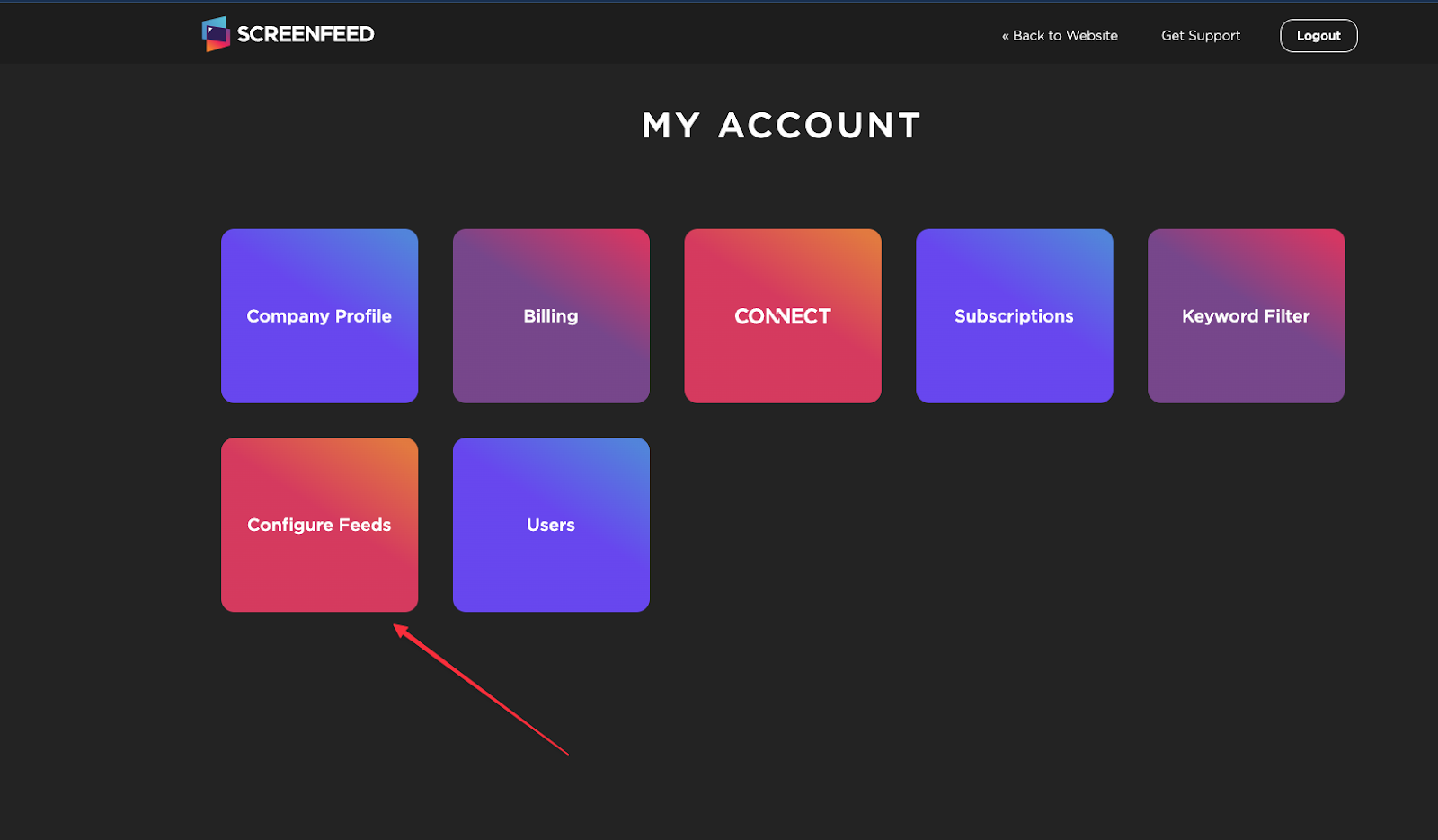
Once clicked, you will then be brought to the feed section which will list all of your Apps. From here you can find the desired app, then click Create a New Feed.
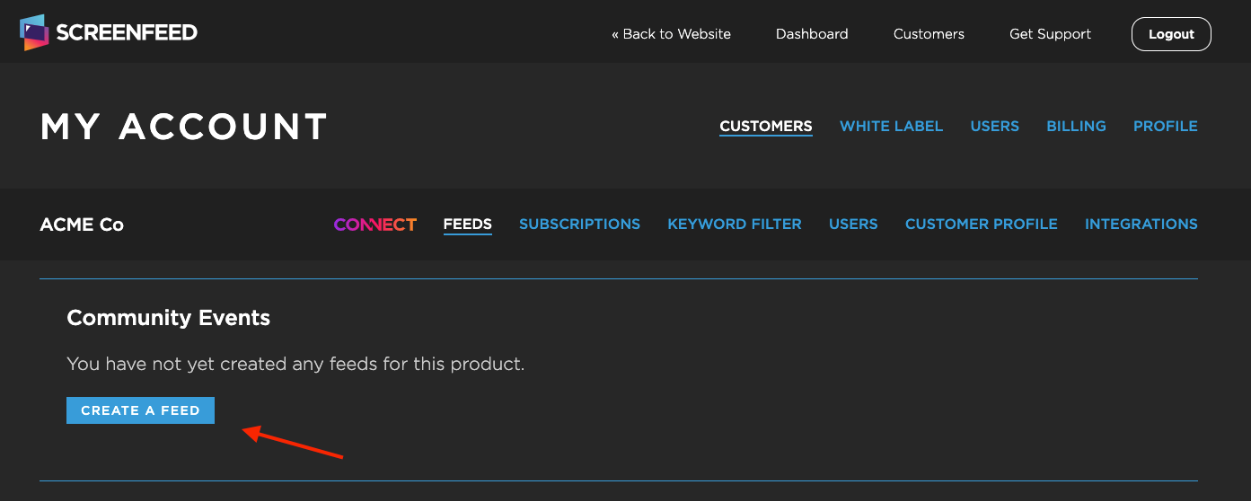
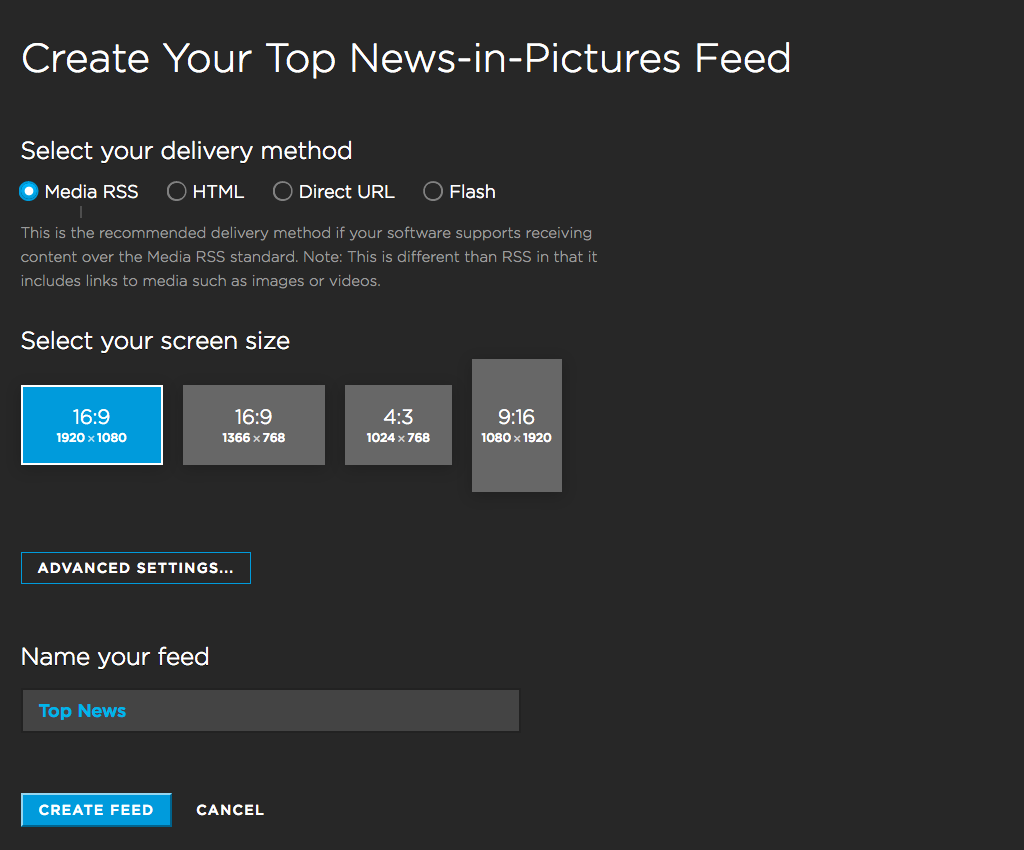
We are now on our way to configuring the feed.
Under Select the delivery method, choose HTML.
Next Select your screen size. 16:9 or 9:16 sizes work best with Skykit.
Some feeds may have additional settings that may be configured.
Lastly, Name your feed and then click Create Feed.
Once complete you will then see a confirmation that the new feed has been created. Click Copy URL to use it with Skykit Web View content types.
.png)
You can still access the feed URL from the feed list by clicking on the Copy URL button. This will copy the feed URL to your computer's clipboard.

Additional Feed Settings
Certain feeds have additional settings that allow you to adjust stylistic elements such as colors, fonts, and display layout.
Some feeds also allow the use of location related settings to show content local to your region or city.
Feel free to test and adjust these various settings to your liking and needs.
Keyword Filter
Smart Filter is available for News Apps at no additional cost. This feature allows you to have complete control to filter out competitors for customer facing networks or any words that are related to your industry or the like which may not be favorable in your signage environment.
From your account dashboard, select the Keyword Filter.
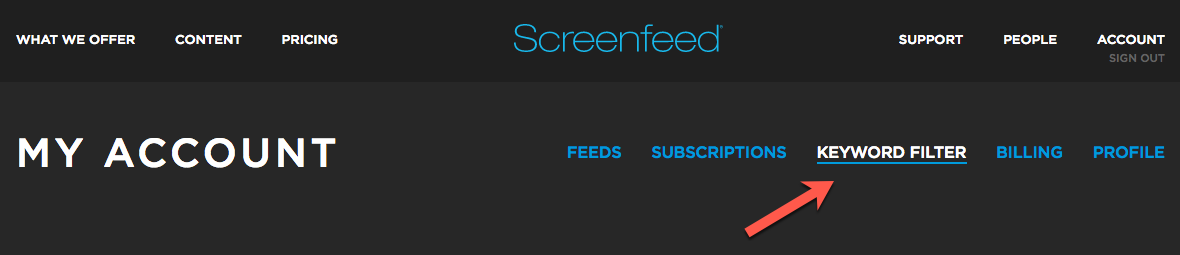
Any news content in your account that contains the phrases you add will be removed automatically from all of your feeds.
Tip: The full exact phrase must be matched. Thus entering 'bloody murder' would not filter out a news story with only the word 'murder'. If you entered the word 'murder', the story would be filtered.
Please note that changes (either additions or removals) may take up to a full hour to take effect.
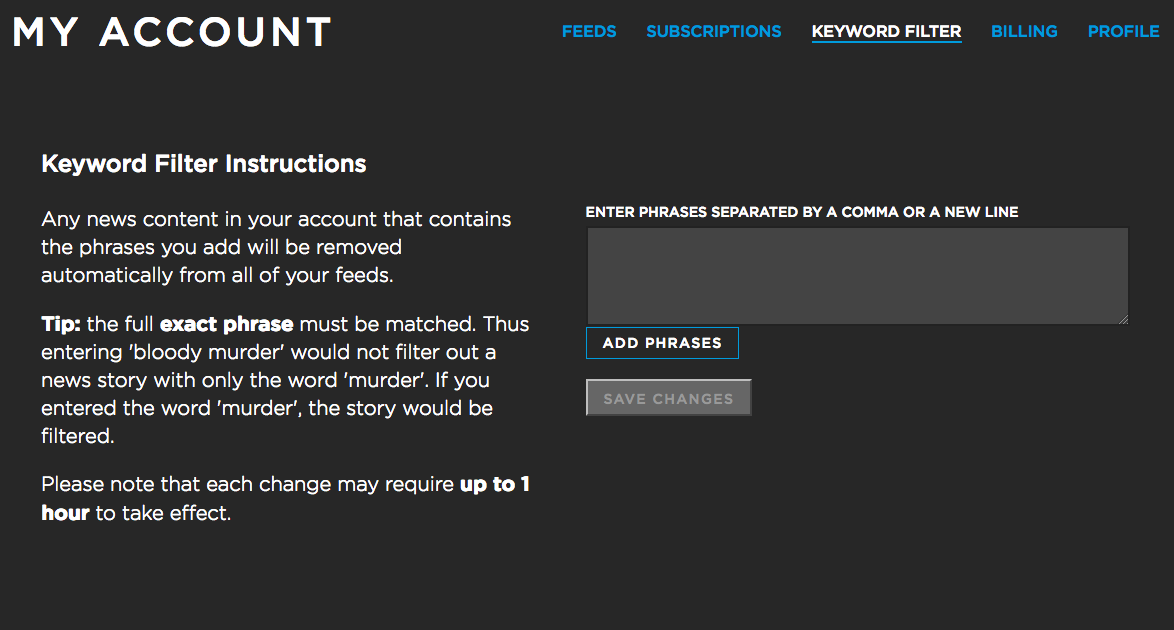
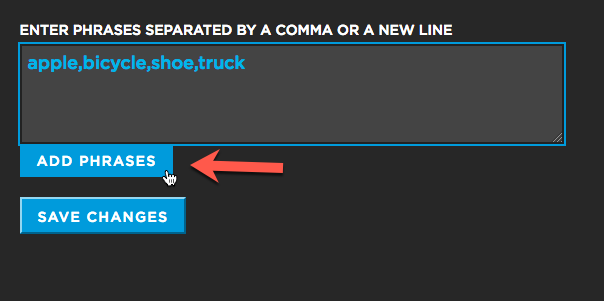
Simply add the desired key words either separated by a comma or on a new line. Then click Add Phrases followed by Save Changes.
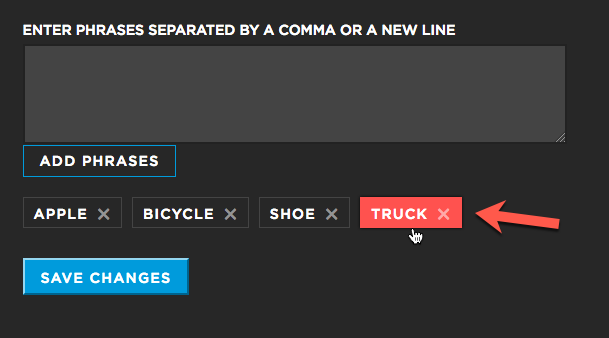
If you find that your filter is too restrictive, or you only need certain words/phrases filtered for a set duration/period you can also remove those words from the filter in order to allow them back into the feed. To do this, simply place your cursor over the word/phrase in question and click on it. Then click on Save Changes.
Next Steps
A social feed URL will be provided. Use this URL when creating a Screenfeed Direct App to display the feed on your displays.