To start using your Social Media Feeds with Skykit, you'll first need to connect your accounts and create your feeds in Screenfeed.
Create a Feed
1. Navigate in a browser to Screenfeed.com then choose Log In in the top right corner. Choose Configure Feeds from the account dashboard.

2. Next scroll to find the Social Media feed you would like to configure.

3. Click the Create a Feed button to create a new feed.
.png)
Set HTML Feed Delivery Method
Select HTML as your delivery method. (Skykit only supports the HTML delivery method at this time).
Then choose the Shape and Orientation of your display. 16:9 and 9:16 orientations work best with Skykit.

Connect Your Social Media Accounts
X (Twitter)
There are no additional authorization steps needed for X . (You do not need to authorize with an X account)
Add an X account you would like to follow then click Add.
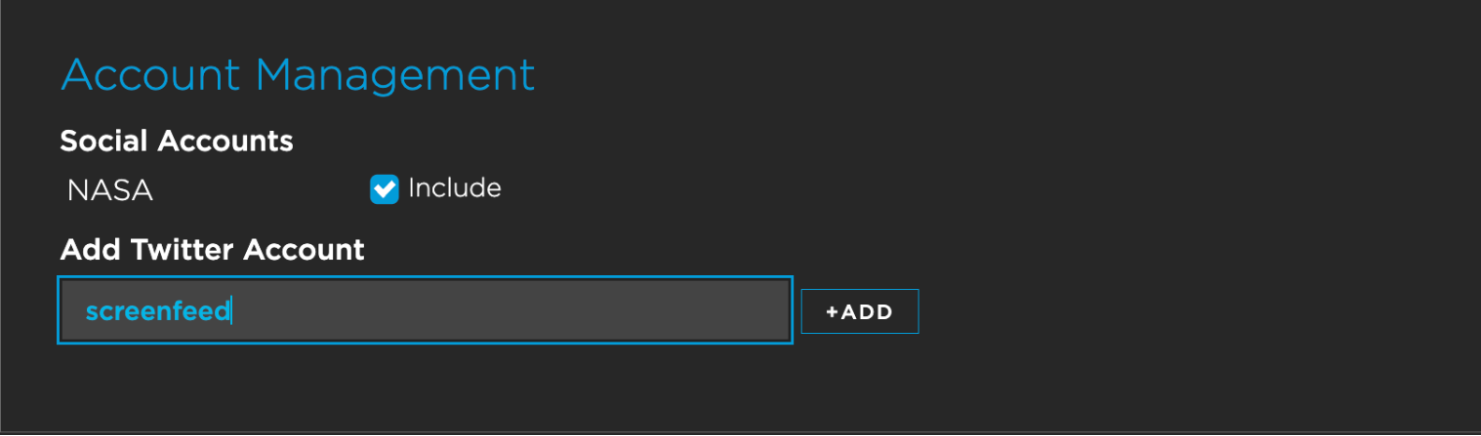
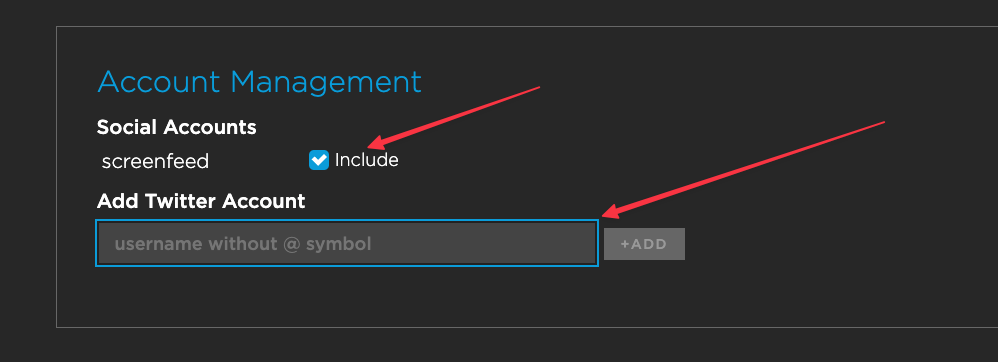
You can add up to 3 X accounts to follow for your feed and choose whether or not to include a specific handle by clicking the Checkbox next to the account name.
To connect your Facebook Business Page for feed configuration click Add Facebook Account under the Account Management Section to authorize.
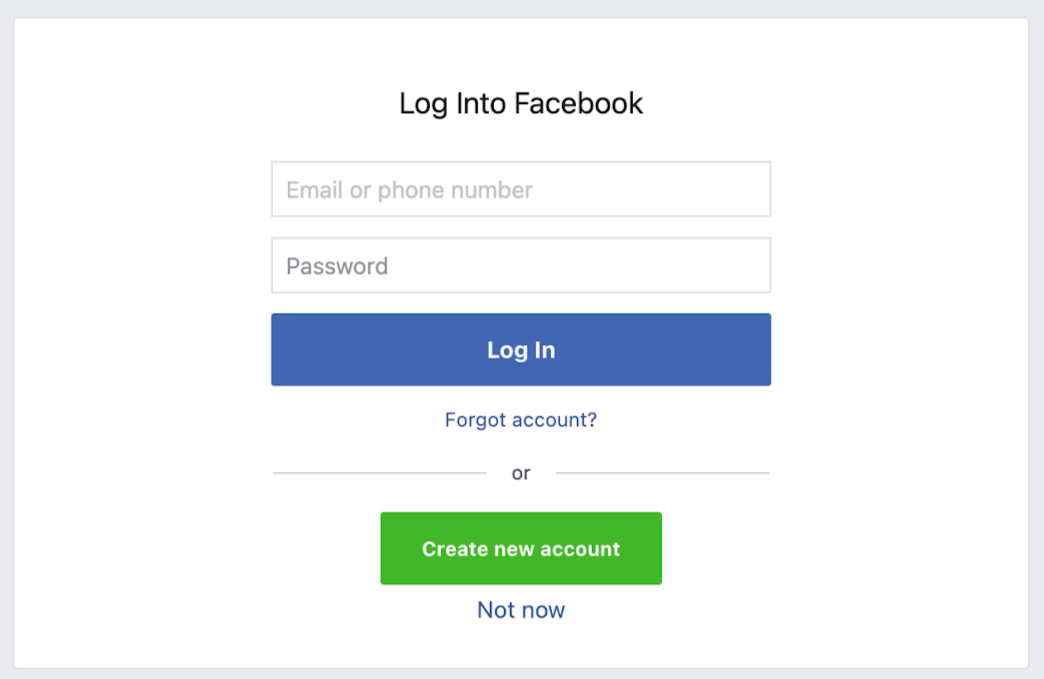
A window will appear for you to log in with your Facebook credentials.
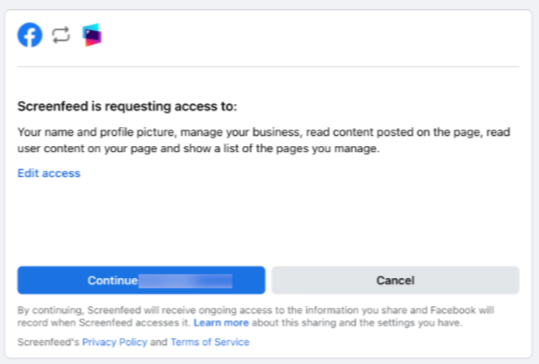
Click Continue to Authorize Screenfeed to connect to the Facebook account.
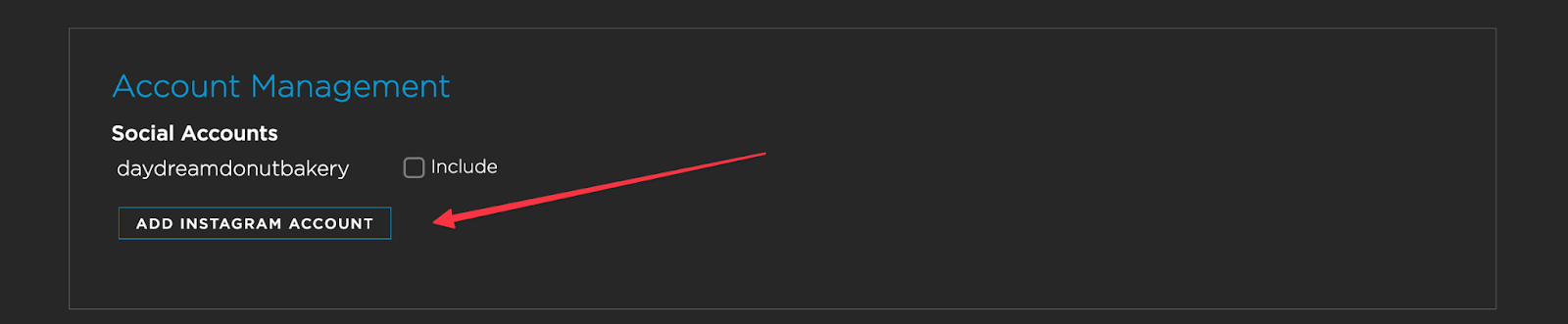
To connect your Instagram for feed configuration click Add Instagram Account under the Account Management Section to authorize.
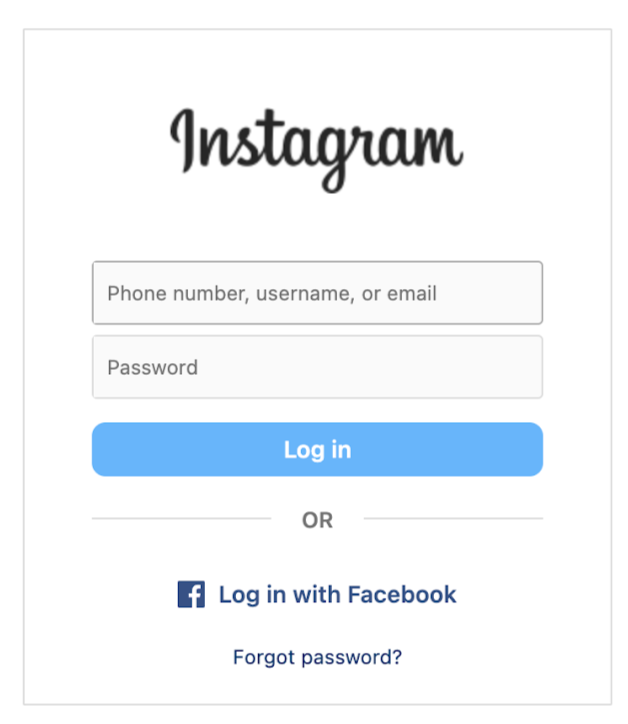
A window will appear for you to log in with your Instagram credentials.
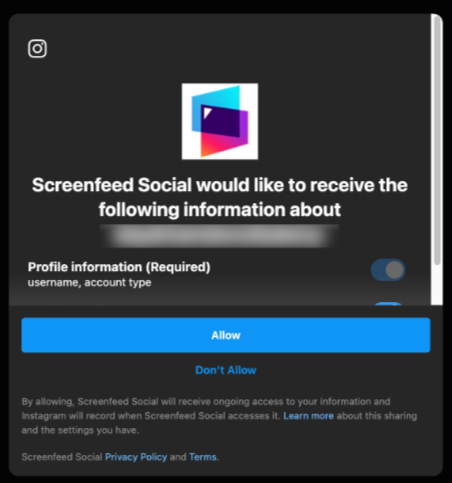
Click Allow to Authorize Screenfeed to connect to the Instagram account.
You can add multiple Instagram accounts you administer into your feed. Check the include checkbox to choose whether or not to include an account.
Teams
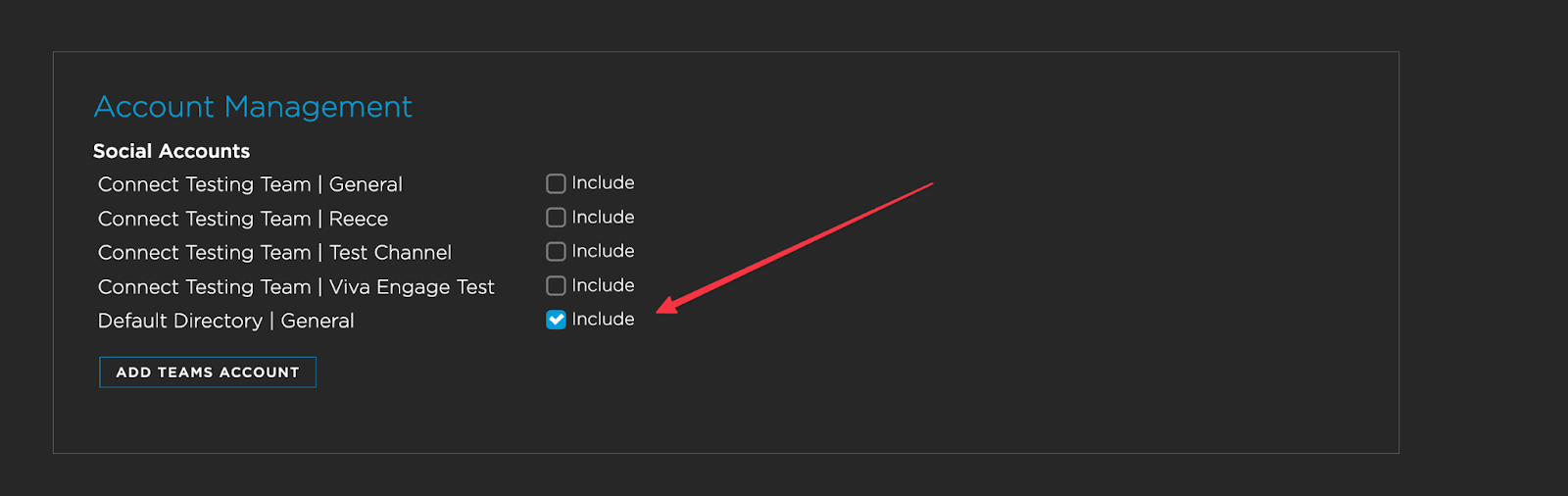
To connect your Teams channel for feed configuration click add Teams Account under the Account Management Section to authorize.

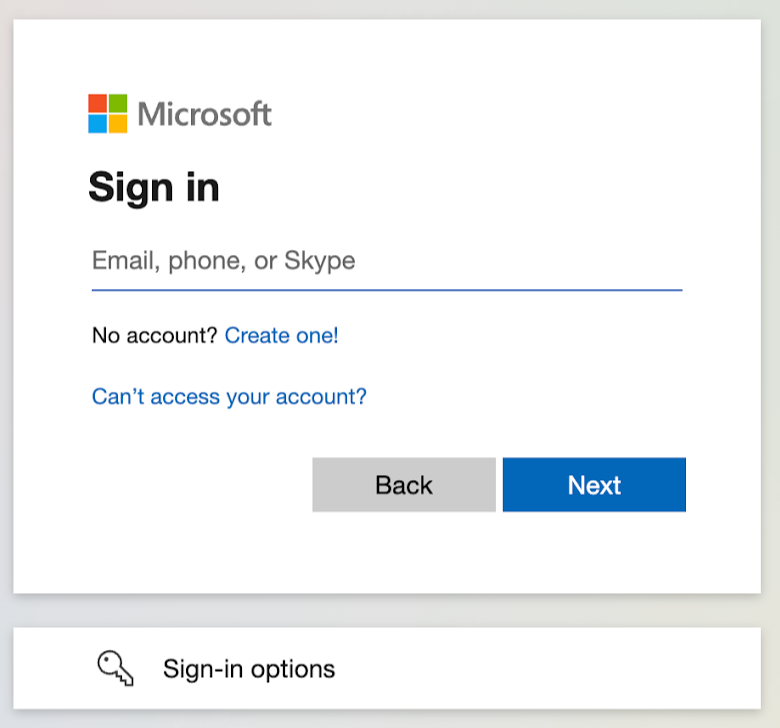
A window will appear for you to Log In with your Teams credentials.
Next Add a Teams channel you would like to follow then click Add.
You can add Multiple Teams channels to show in your feed and choose whether or not to include a specific channel by clicking the checkbox next to the channel name.
Feed Customization
Next, customize the feed style, including fonts, backgrounds, animation settings, call to action and how many posts you want to display at once.
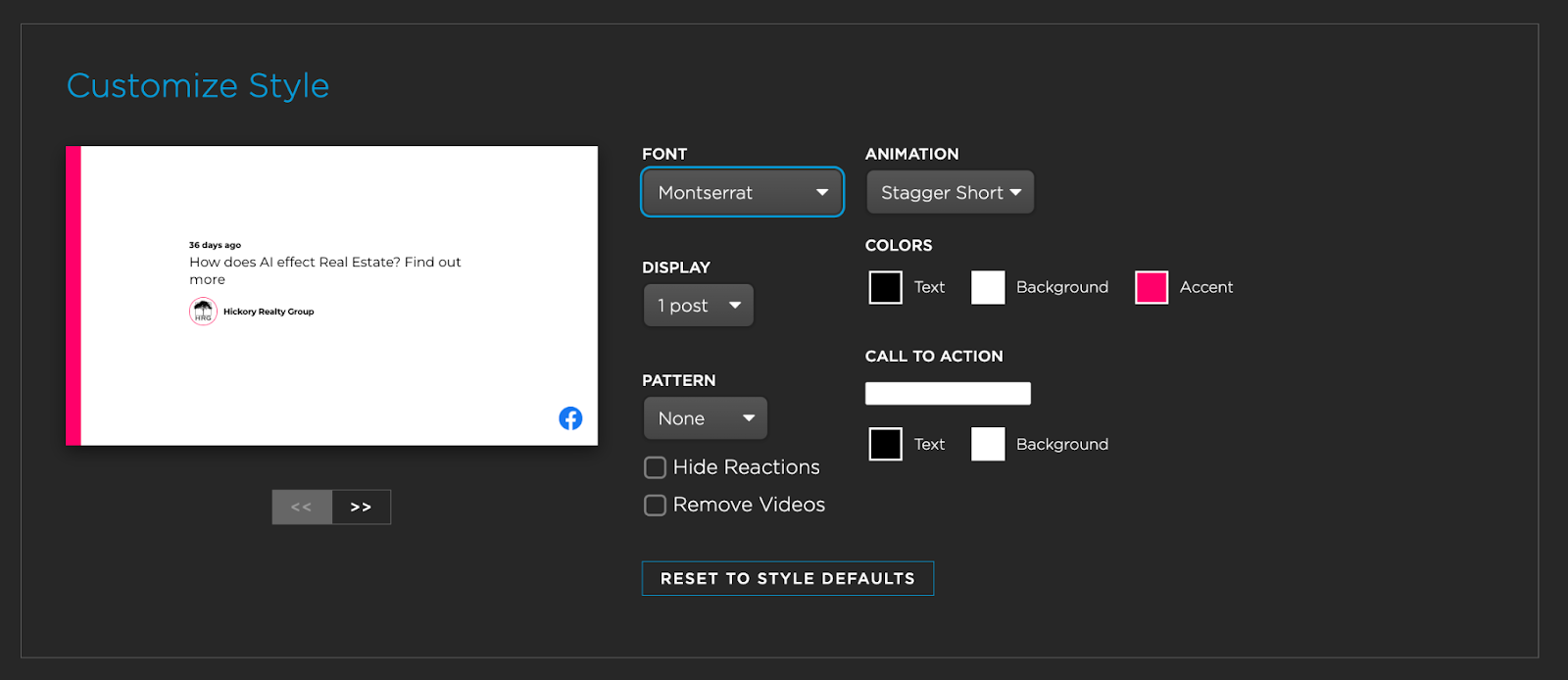
The number of posts you display and allowing or removing videos could impact playback on your device. Take a look at our recommendations for social playback for more information.
Set Feed Content Settings
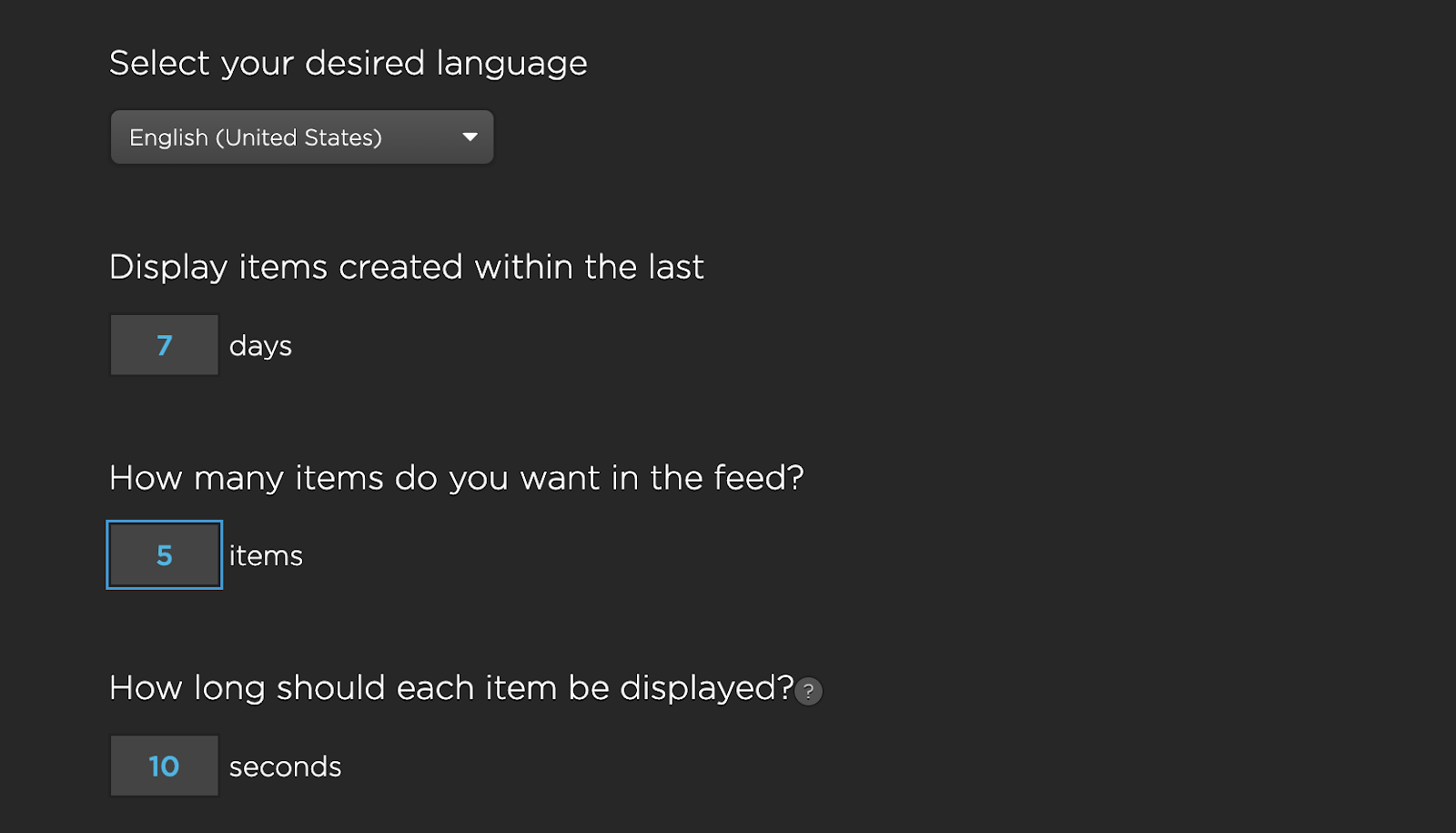
Set the desired language, age (this can be left blank) and quantity of posts you want to show and the duration of each item.
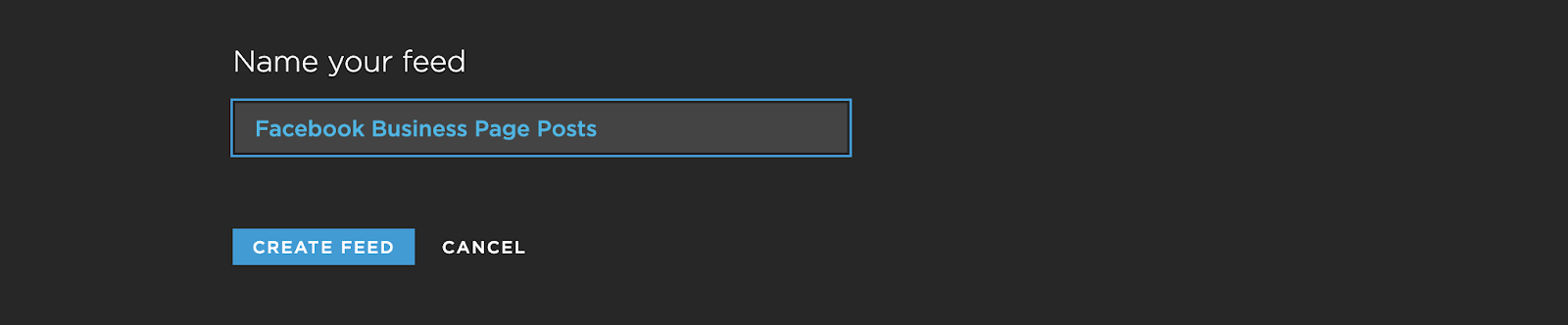
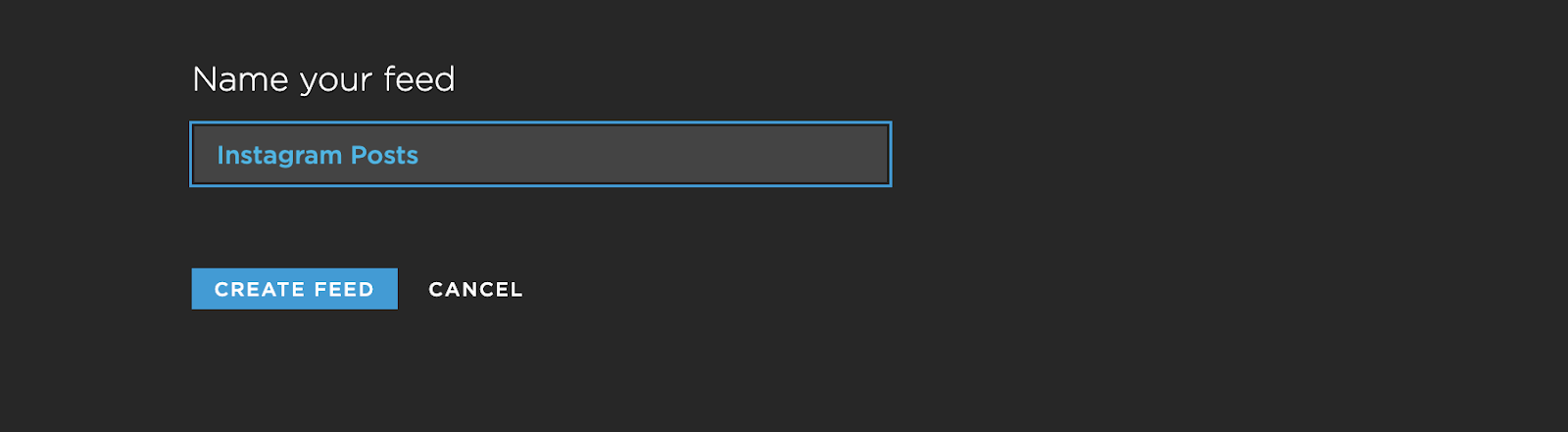
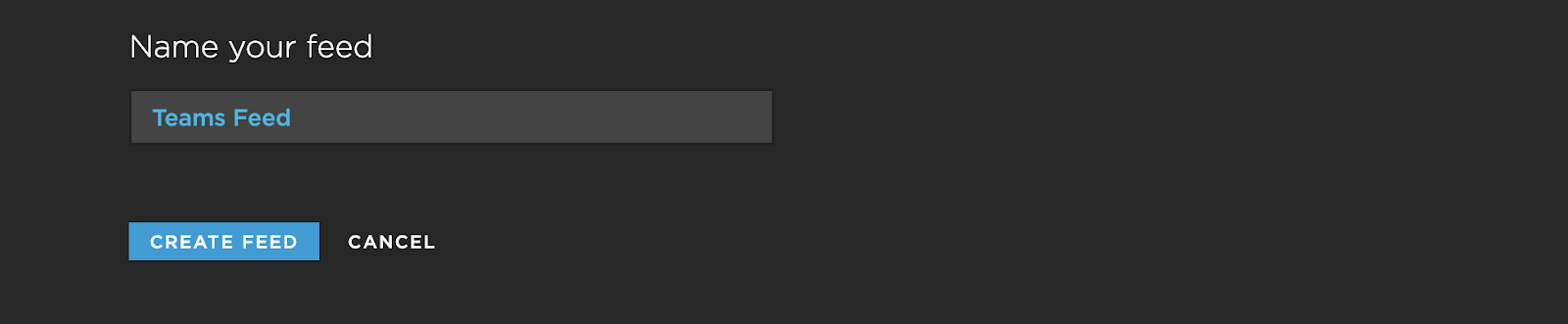
Now, Name your feed and then click Update Feed
Next Steps
A social feed URL will be provided. Use this URL when creating a Screenfeed Direct App to display the feed on your displays.