A step-by-step guide to creating dynamic, multi-zone displays with flexible scheduling.
All new customers will automatically be given Collections & Layouts (New Edition) from May 2026 onwards. Existing accounts: we’re rolling out a combined Collections view. Your Classic Collections keep working. This is available to Manager and Administrator roles.
What You'll Create
Collections & Layouts (New Edition) lets you build visual, multi-zone displays with powerful scheduling controls. You can combine static content with dynamic Playlists, control exactly when different layouts appear on your screens, and use portrait or landscape orientations. This latest version adds lead zone designation for precise content control and play rules on Collection entries for advanced scheduling.
Who Uses Collections & Layouts?
Ideal for:
Content Curators - Managing complex, multi-zone displays
Corporate Communications Managers - Distributing branded content across locations
IT Administrators - Overseeing enterprise digital signage deployments
Common Industries:
Corporate communications and internal displays
Retail environments and store displays
Healthcare facilities and patient information
Manufacturing plants and safety communications
Before You Begin
What you'll need:
Access to Collections & Layouts (enabled in your account) - This is available to Manager and Administrator roles.
Content items or Playlists ready to use
Understanding of where and when you want content to display
Knowledge of your display orientation (landscape or portrait)
Helpful to know:
How Playlists work (if you plan to use them)
Basic play rules concepts (optional, for scheduling)
Your display labels (if targeting specific screens)
Step 1: Create a New Collection
Navigate to Collections in the main menu
.png)
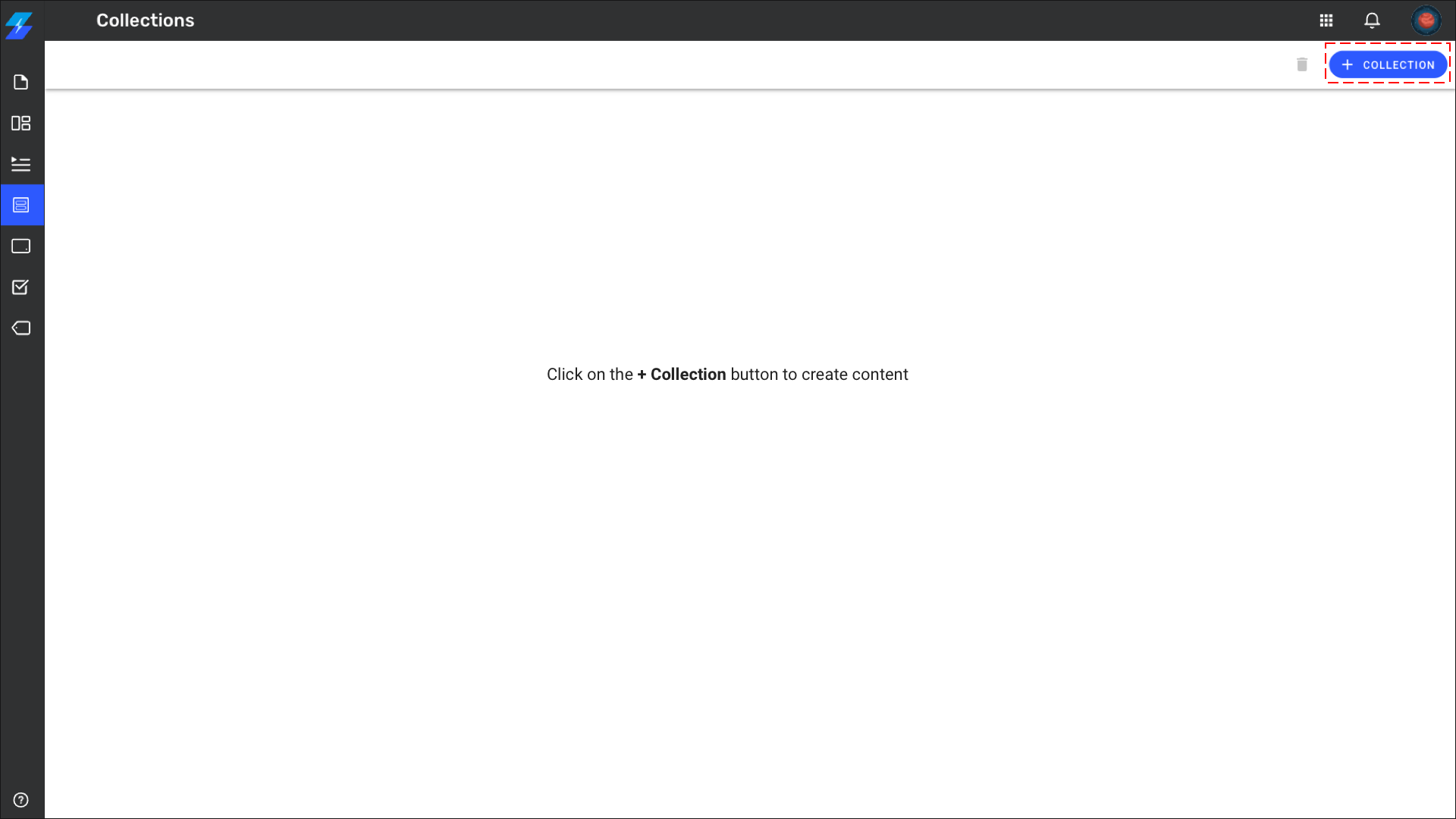
Click + Collection button
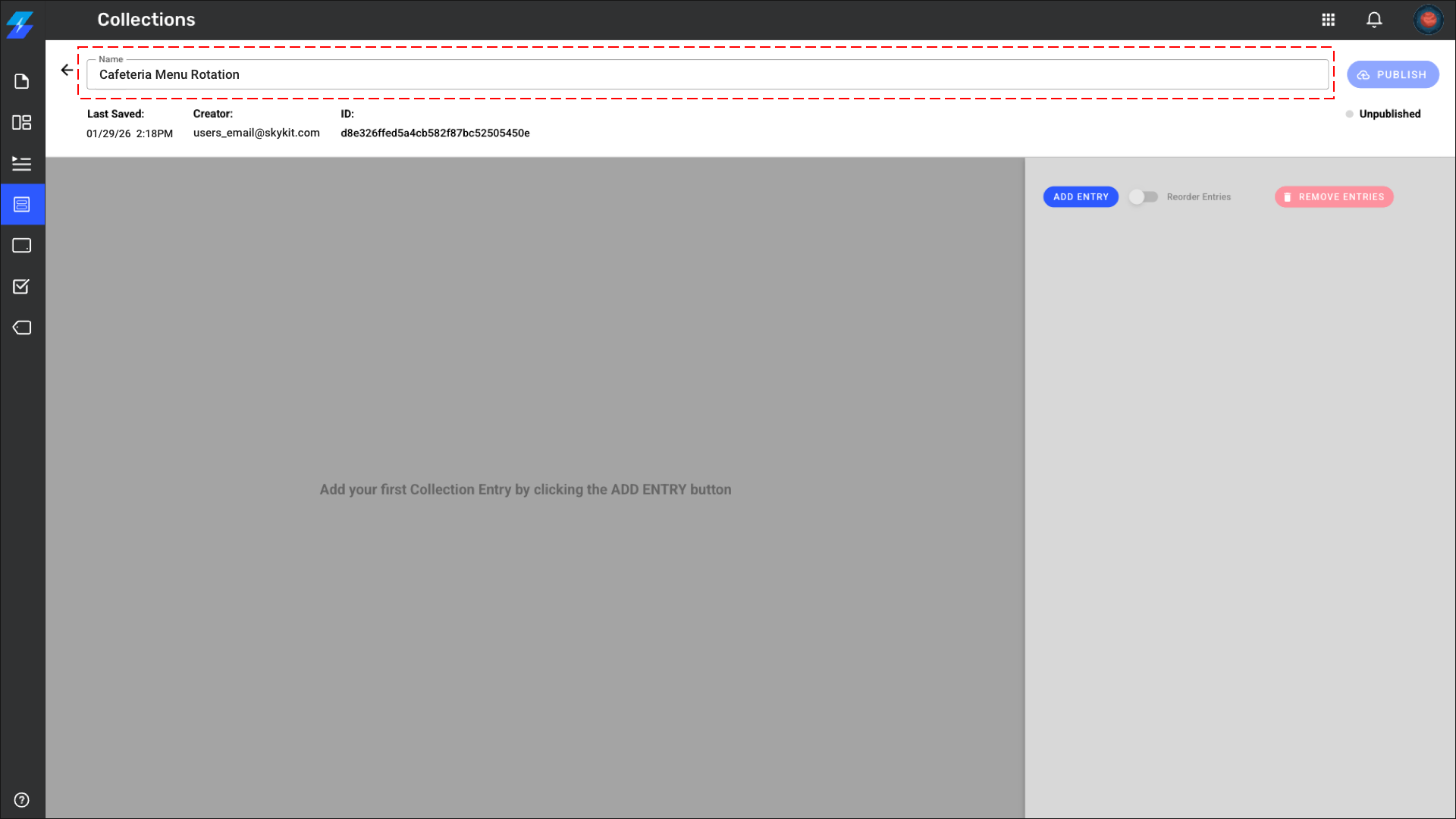
Give your Collection a descriptive name
Example: "Lobby Display - Q1 2026" or "Cafeteria Menu Rotation"
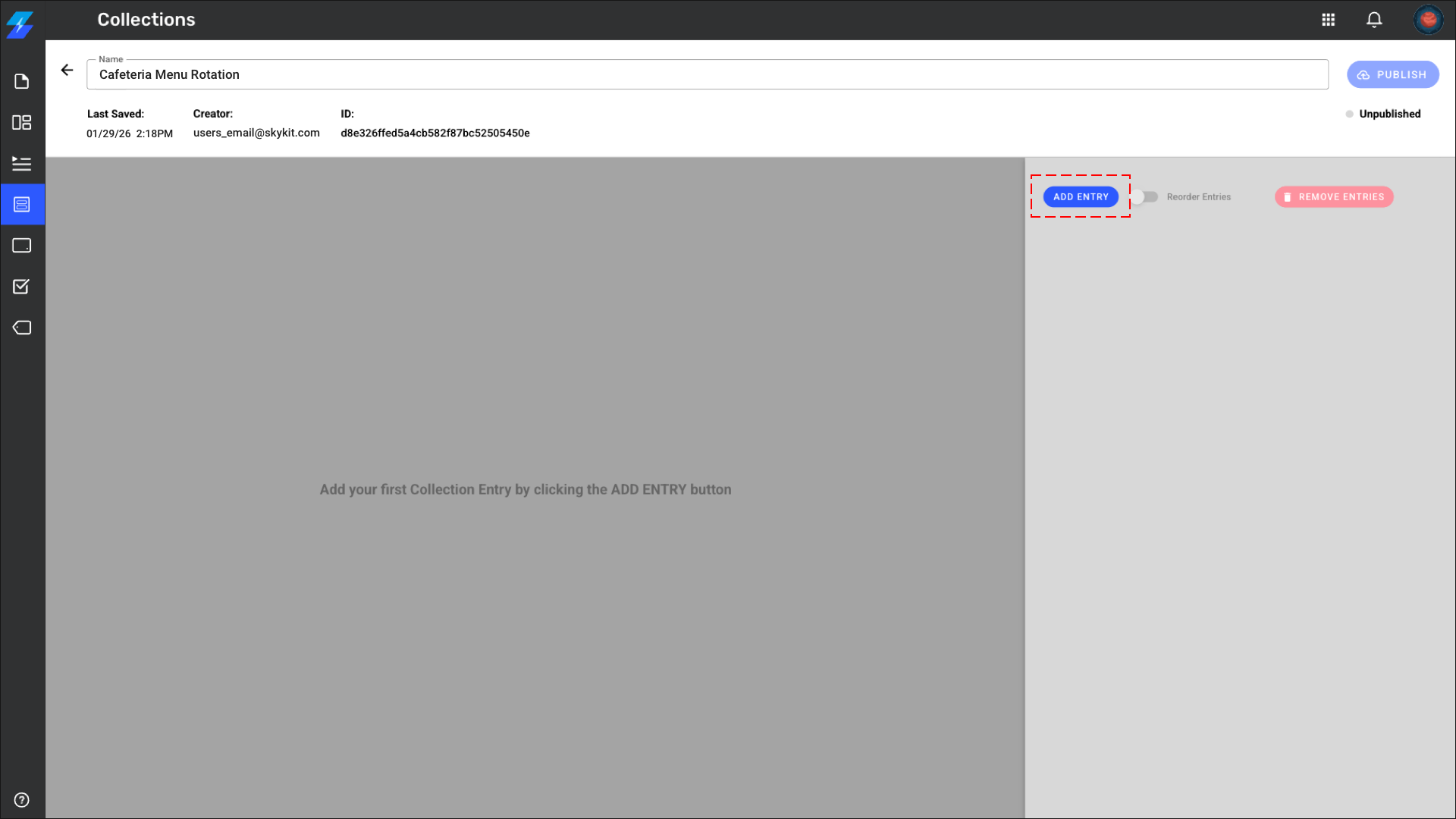
Click Add Entry
Step 2: Add Your First Collection Entry (Layout)
Click the dropdown in Select Orientation:
.png)
Landscape - For horizontal displays (standard)
Portrait - For vertical displays
Unified View - Landscape - For horizontal video wall layouts spanning multiple connected displays (requires E500)
Unified View - Portrait - For vertical video wall layouts spanning multiple connected displays (requires E500)
Note: Unified View layouts are designed for video wall configurations using E500 devices. These layouts span across multiple connected displays in grid arrangements such as 2x1, 2x2, 3x1, and 4x1.
Click your chosen layout to add it to your Collection
Click Create Entry
Step 3: Add Content to Your Layout Zones
Add an individual content item or a Playlist to each zone.
Single-zone layouts also accept Programs, including multi-zone Programs.
Multi-zone layouts can't play multi-zone Programs, including multi-zone Programs inside a Playlist. If you add one, Beam shows a warning with a link to the Playlist so you can fix it.
Option A: Add Individual Content Items
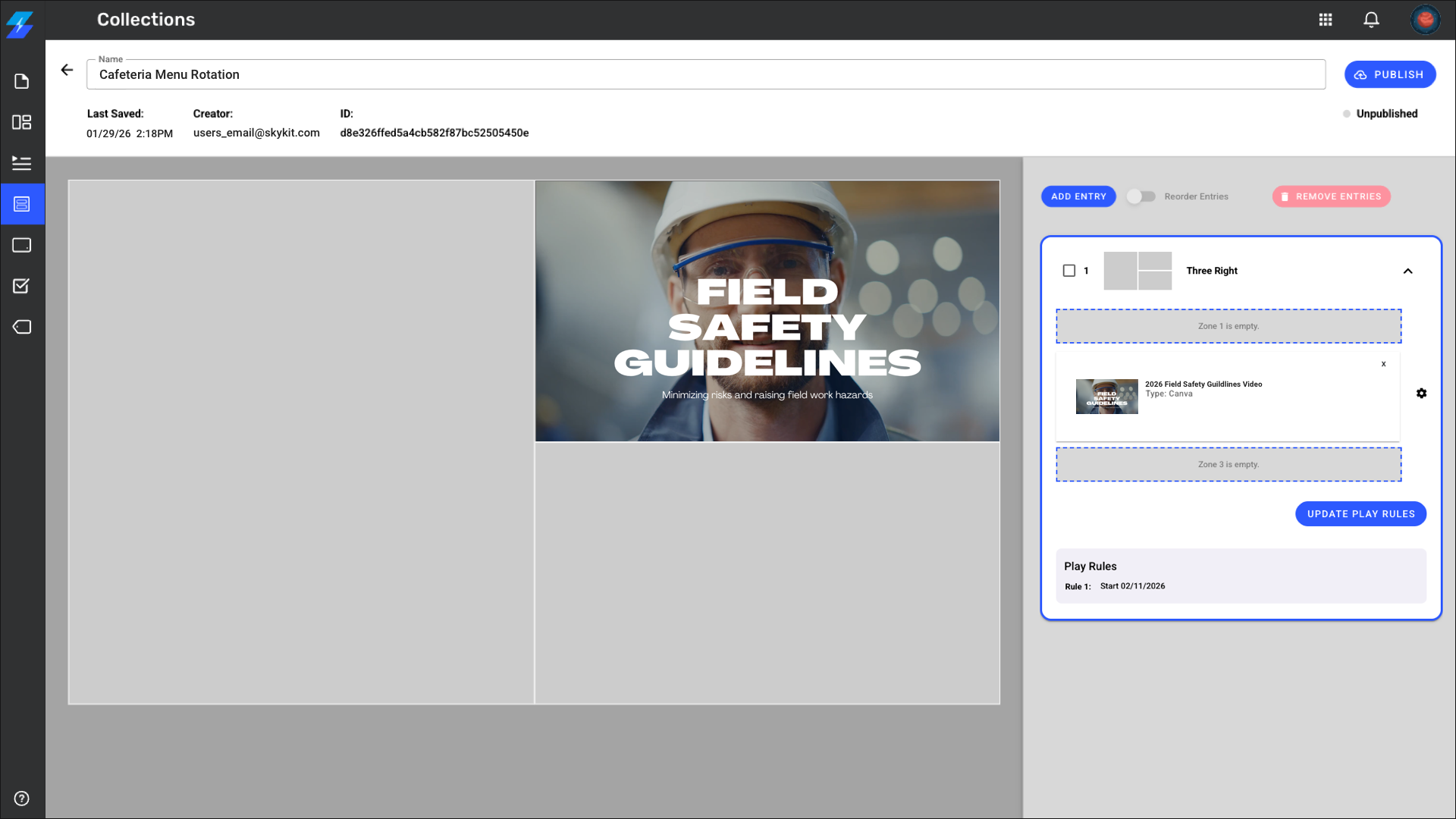
Click the + icon in a zone
.png)
Select the dropdown under Media and select Content
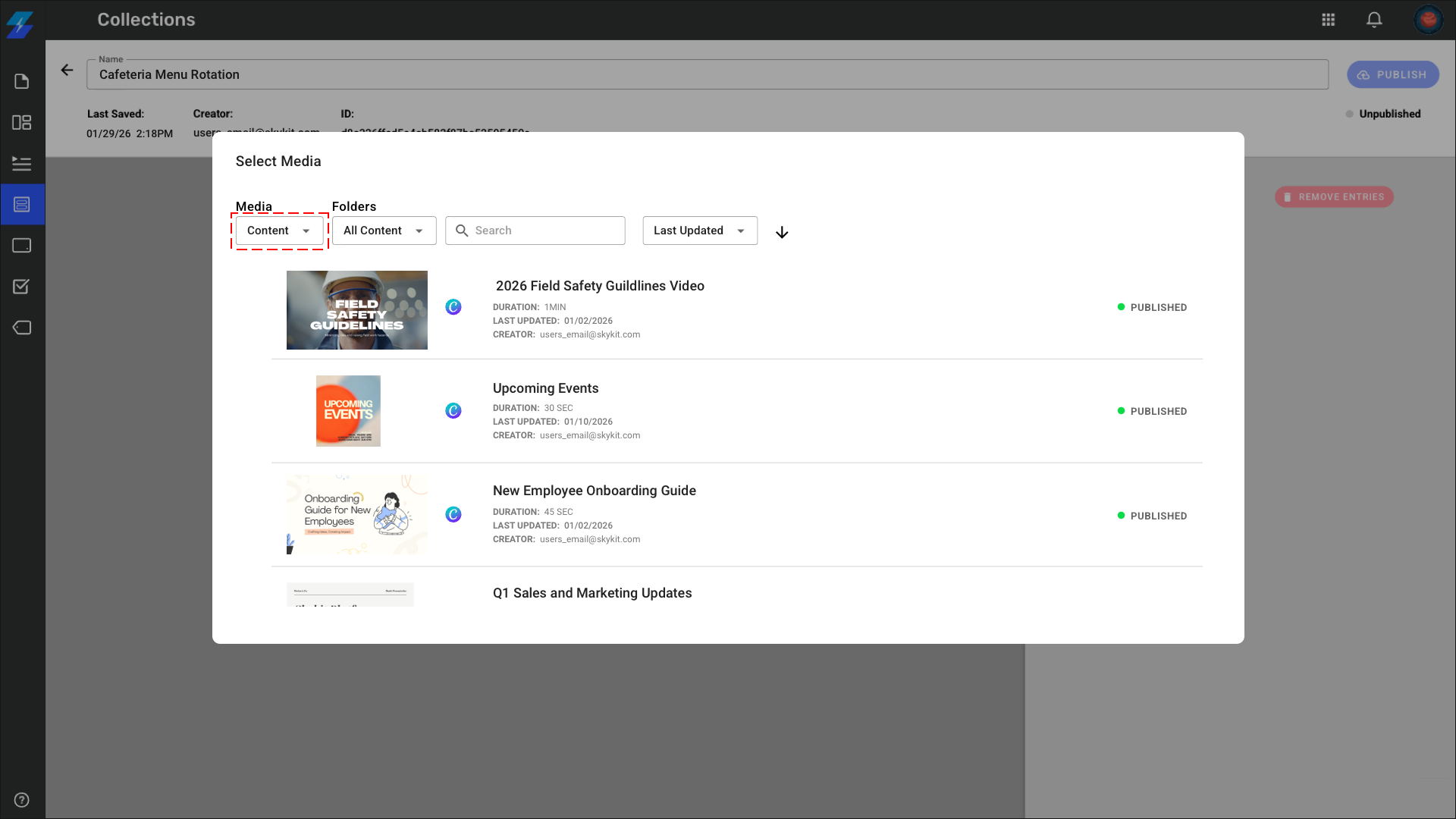
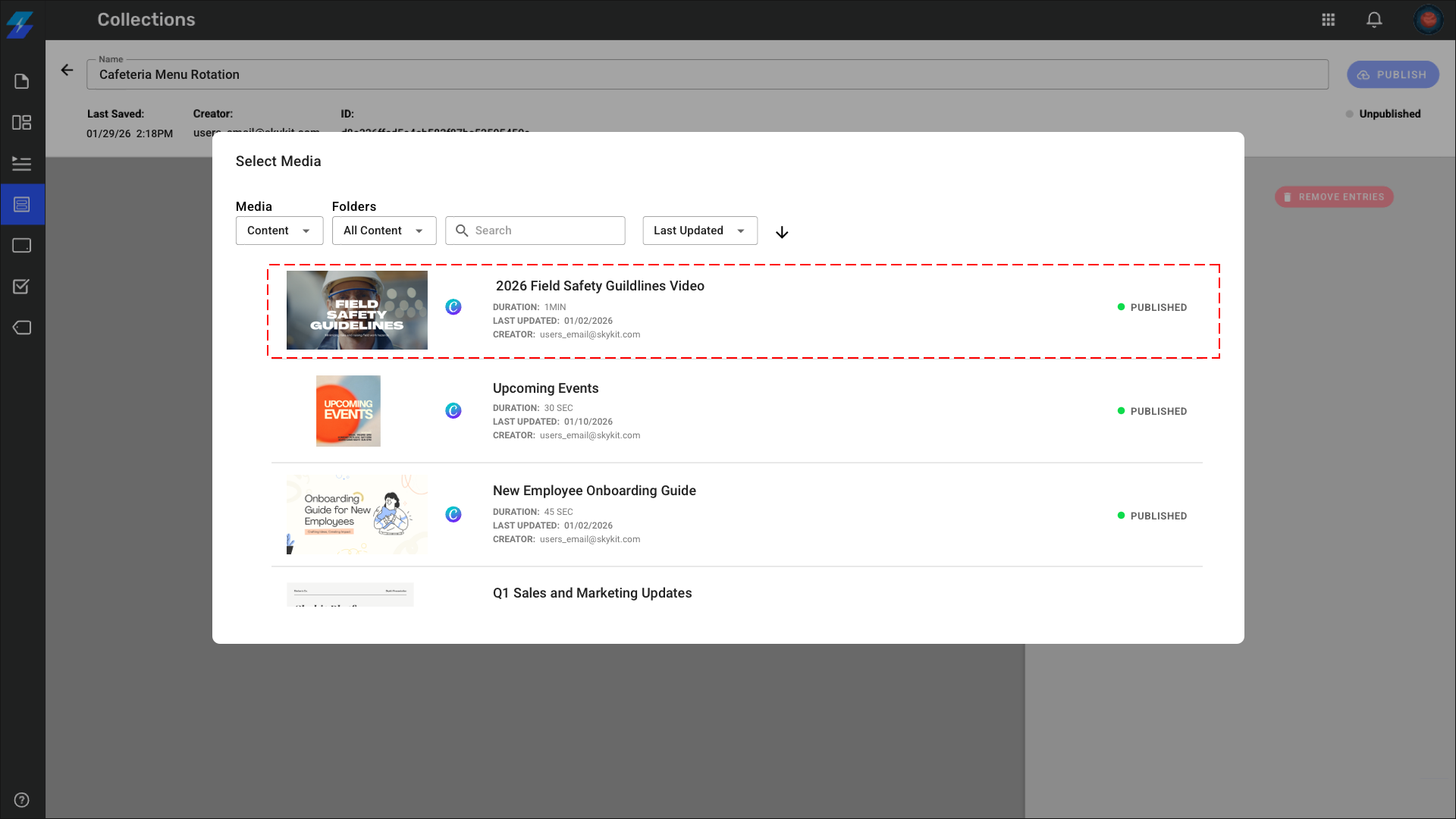
Select the content item you want to display in the selected zone
Option B: Add a Playlist
Tip
Using Playlists in zones is powerful - you can have static content in 3 zones and a rotating Playlist in the 4th zone, all within one layout.
Click the + icon or placeholder in a zone
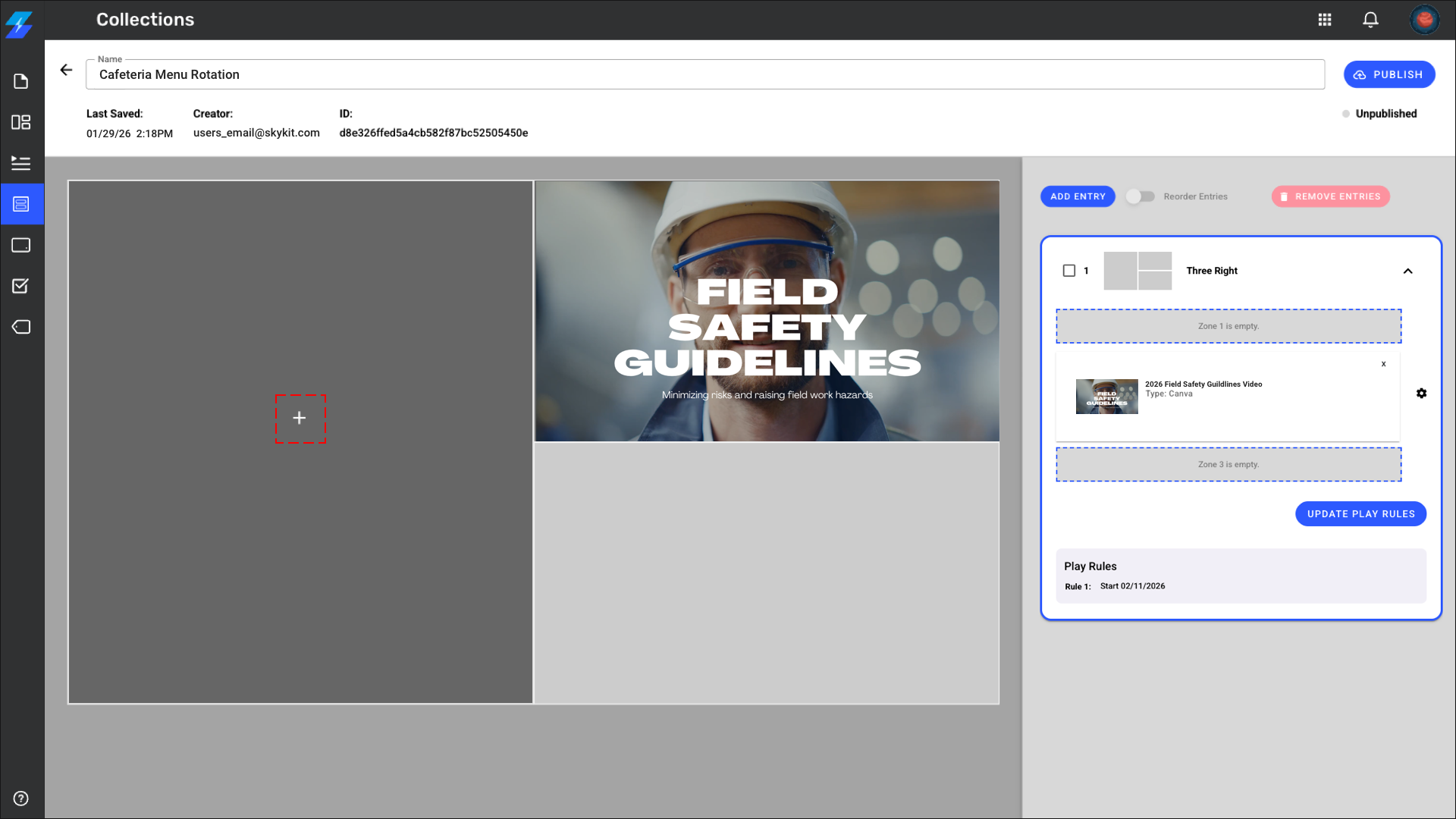
Select the dropdown under Media and select Playlist
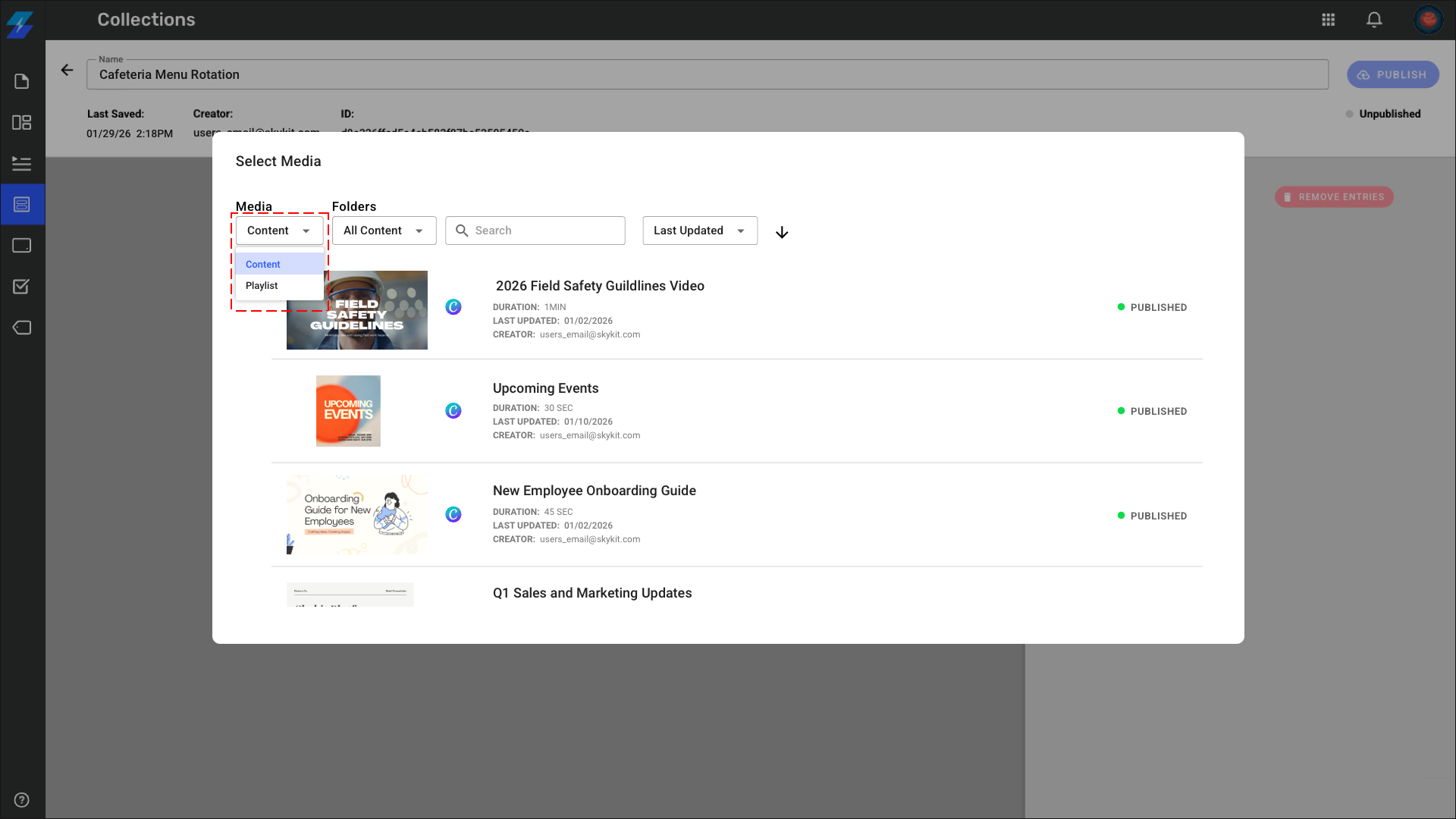
Select the Playlist you want to display in the selected zone
.png)
To remove a content or Playlist simply click the X within the entry. To remove the entire entry, select the entry number and click Remove Entry/Entries.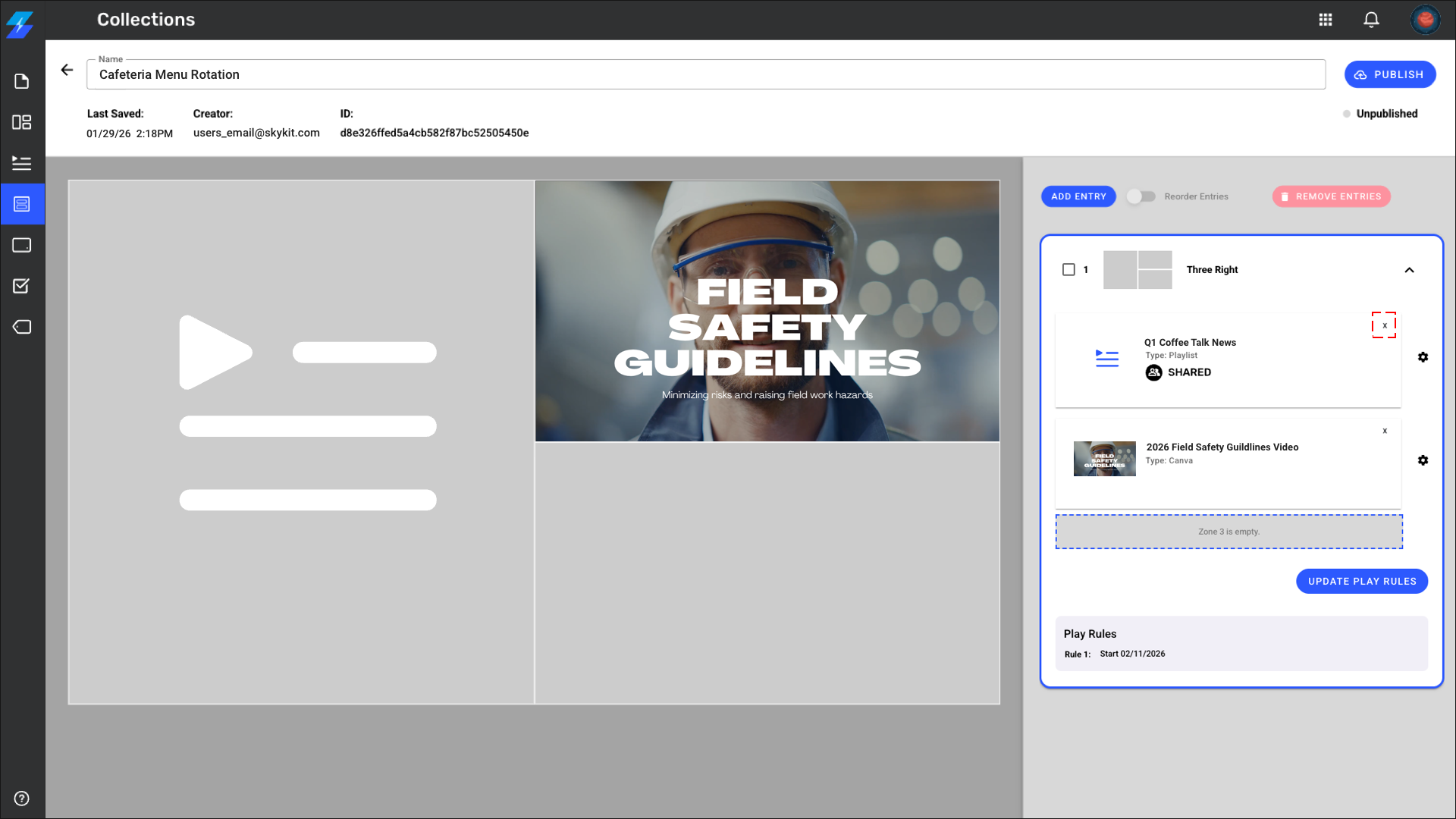
Option C: Add a Program
For those users who have access to Programs, you may also add Programs to Collections.
Important Note
Multi-zone Programs cannot play within multi-zone Collection entries and will not play.
Step 4: Set Lead Zone (Optional)
When you need this:
If your layout zones have different content lengths OR when you have multiple Collection entries and need to control when the Collection advances to the next entry.
How Lead Zones Work:
Within a single entry: The lead zone's content duration determines when that layout completes, regardless of other zones' durations.
With multiple entries: The Collection only advances to the next entry after the lead zone completes a full content rotation. This ensures your primary content finishes completely before moving on.
To Set a Lead Zone:
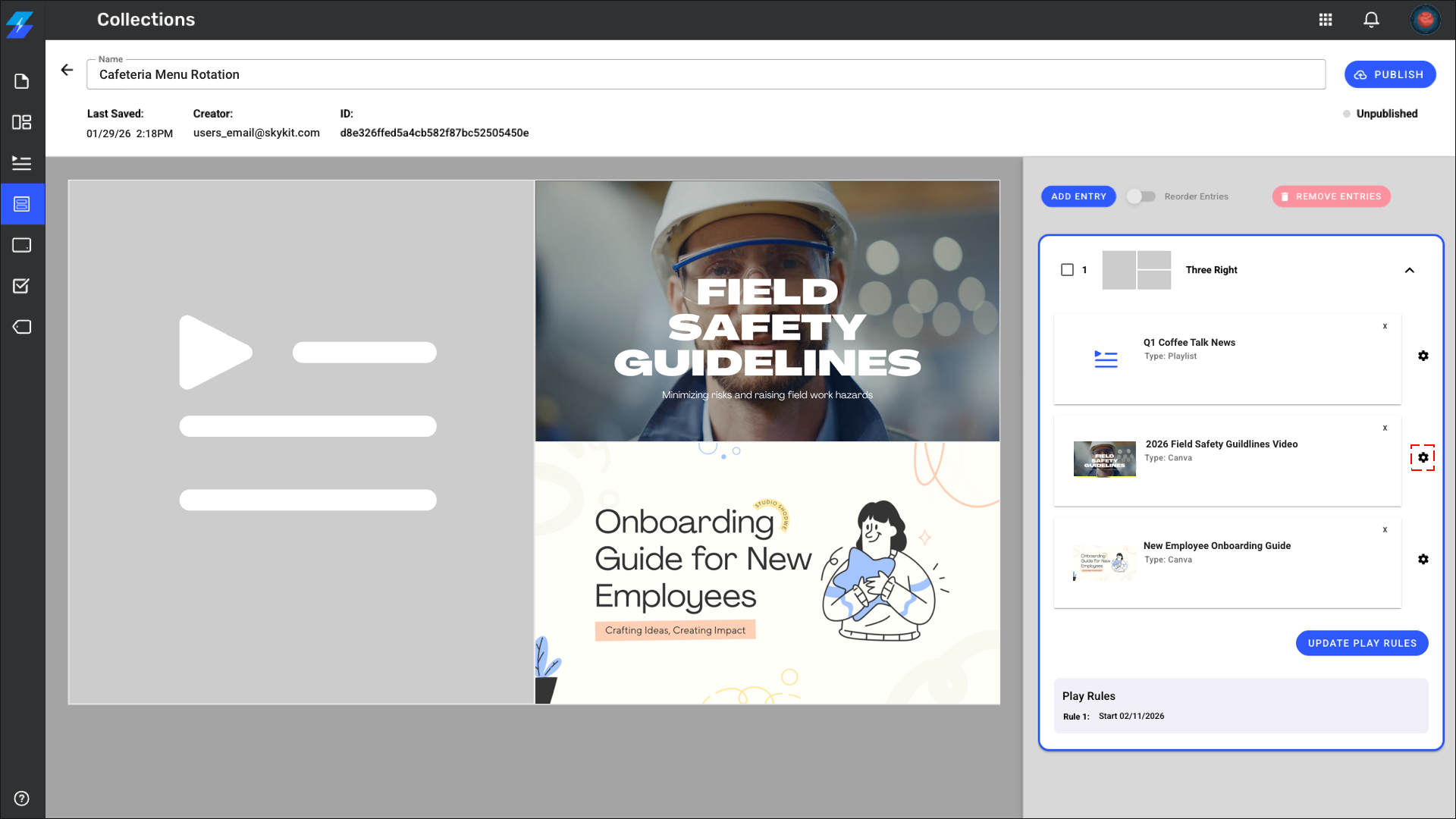
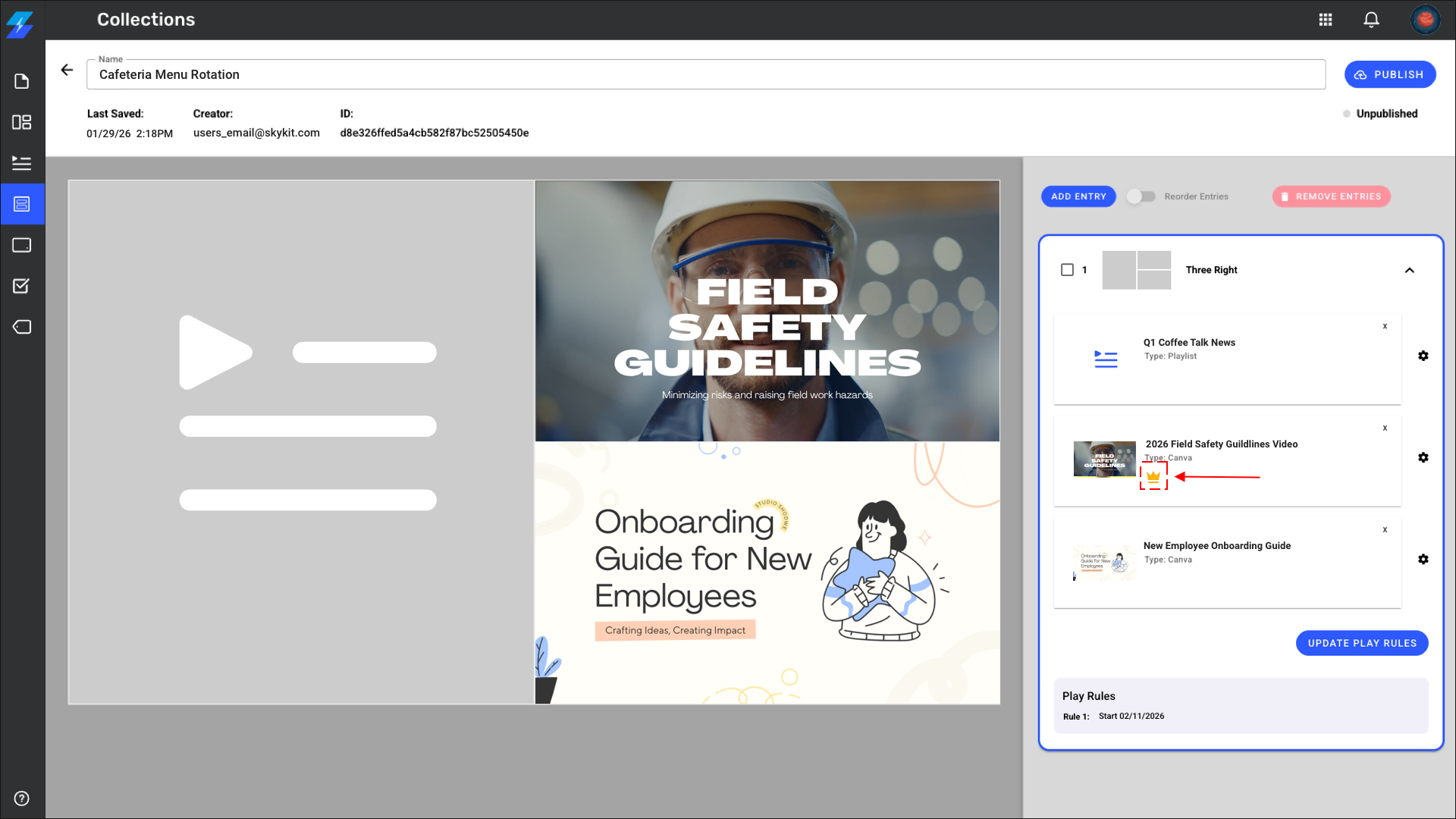
Click the Settings icon on the zone you want to control timing
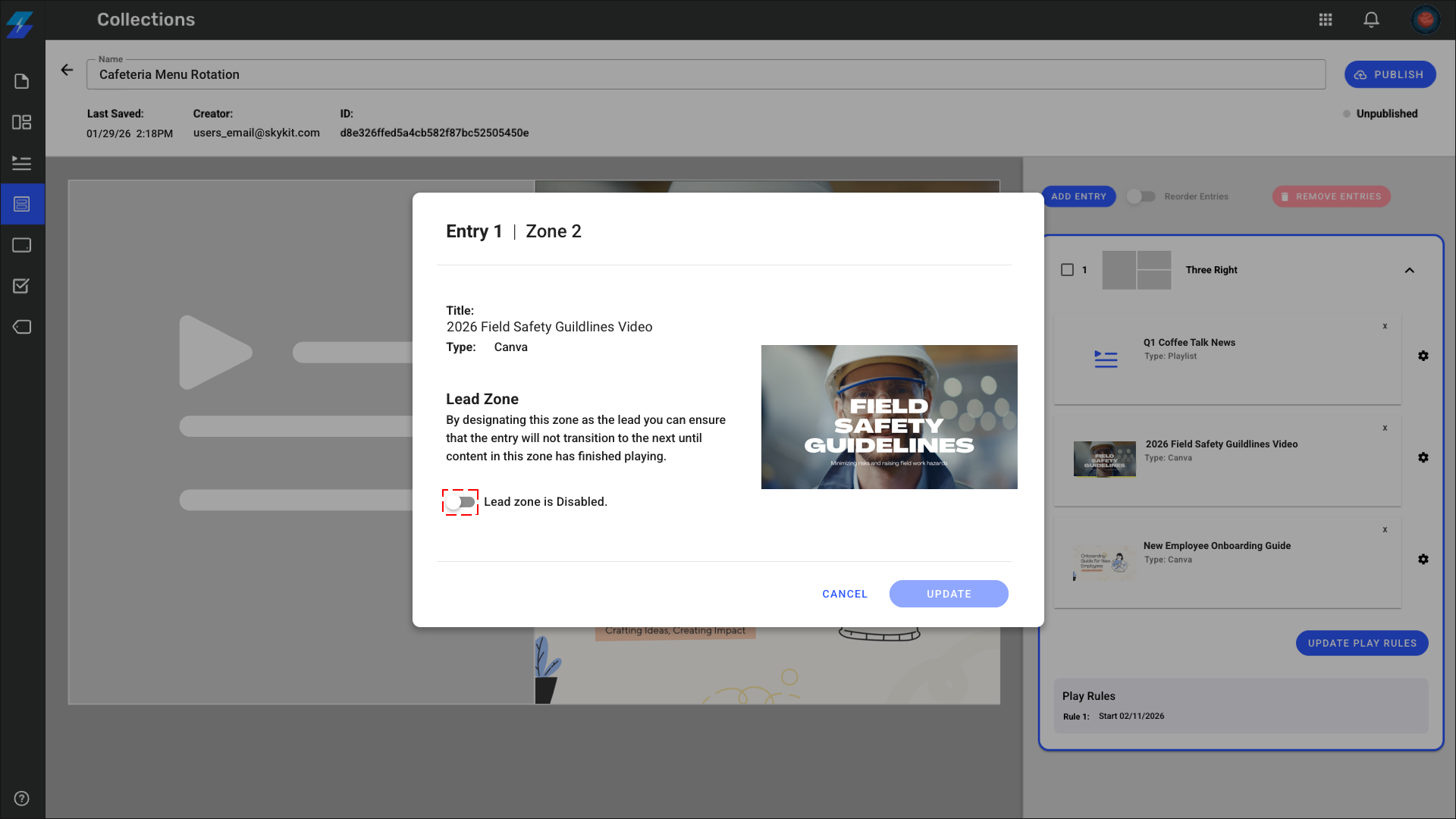
Toggle Lead Zone to Enabled
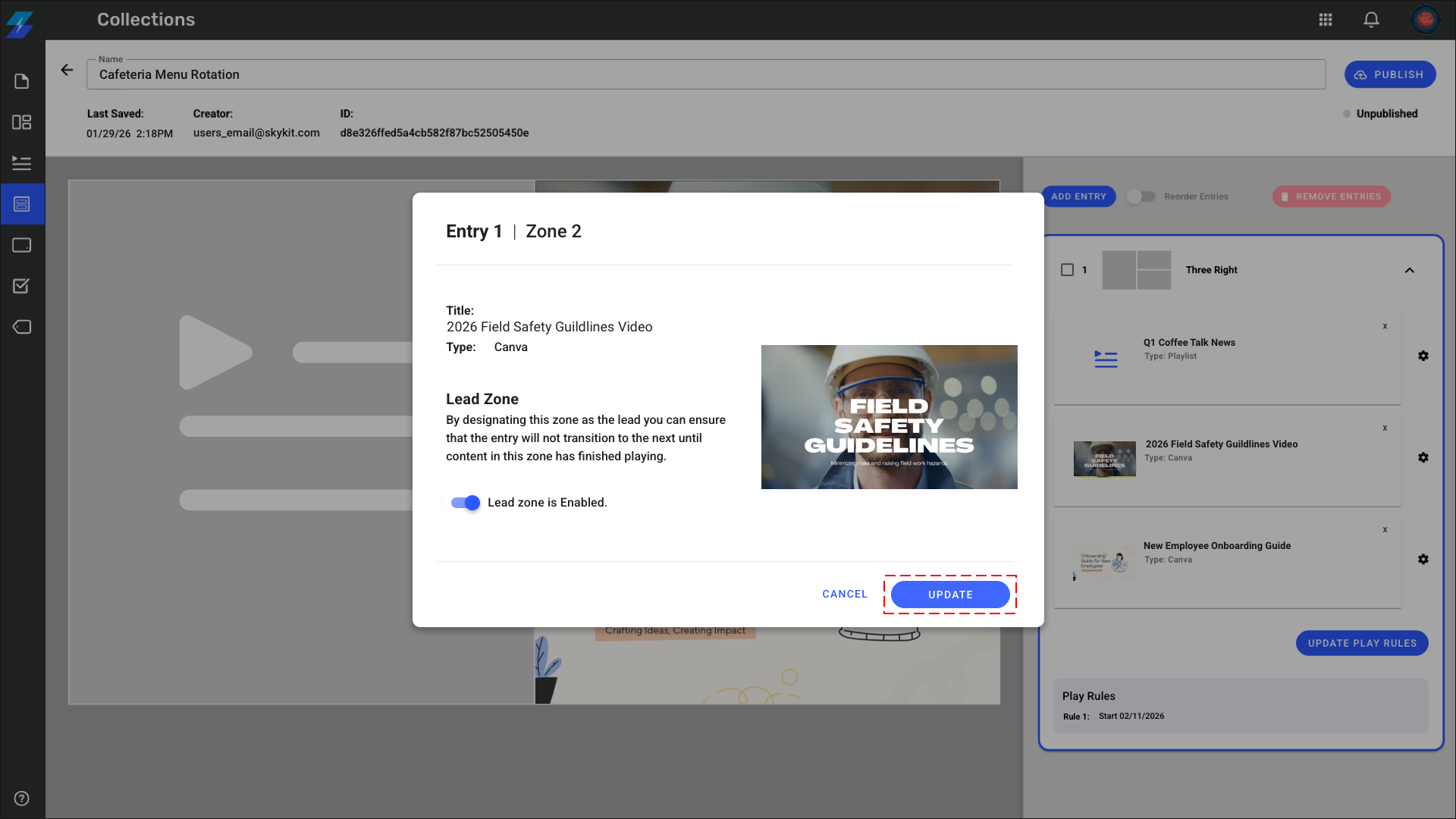
Click Update
The Crown icon indicates that this is the Lead Zone
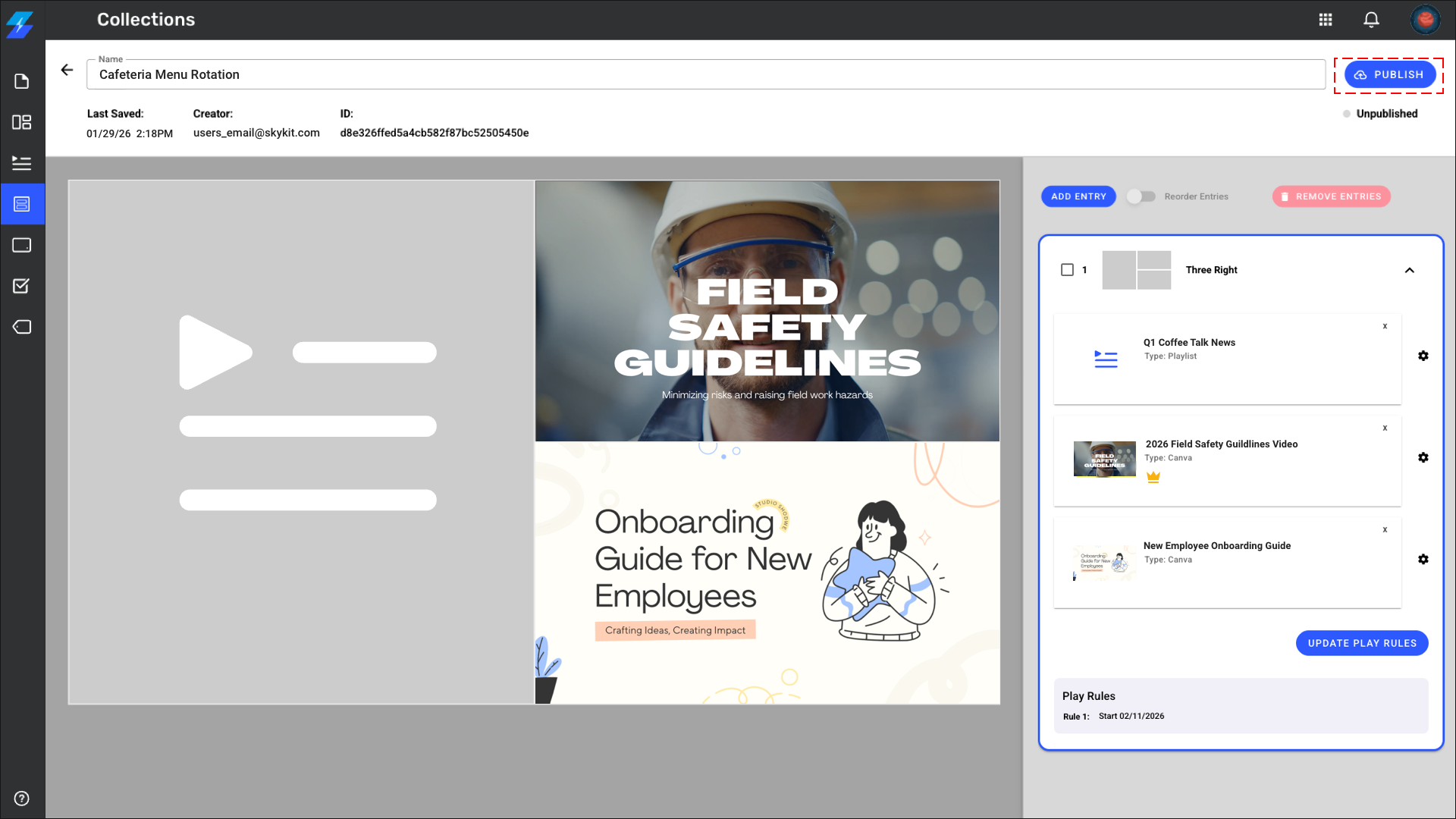
Click Publish
Note:
Only ONE zone per layout entry can be designated as the lead zone. Once a zone is selected as lead zone, this option is disabled for other zones
⚠️ Important:
Setting a lead zone is optional. Without one, the longest content in any zone determines the duration.
Example: If you have three static zones (5 seconds each) and one Playlist zone (rotating 20 videos at 30 seconds each), setting the Playlist zone as the lead zone ensures the entire Playlist completes before moving to the next Collection entry.
Without a lead zone: The longest content in any zone determines the duration, and shorter content may loop awkwardly.
Step 5: Add More Collection Entries (Layouts) - Optional
Want different layouts to rotate? Add multiple Collection entries to your Collection:
Click Add Entry again
Choose orientation (landscape, portrait, or unified view for E500)
Choose a different layout configuration (or the same one with different content)
Add content to the zones
Set a lead zone if needed
Repeat as needed
Your Collection will cycle through all entries in sequence. If any entry has a lead zone designated, the Collection will wait for that lead zone to complete before advancing.
To Copy a Collection Entry:
Open the Collection
Select the number of the entry you wish to copy
Click Copy Entry
A warning message appears “Do you want to copy this Entry? A copy of this Entry includes its content and play rules, will be added to this Collection.”
Click Copy Entry
The copy appears directly below the original
Rename the copy so you can tell the two apart
Click the + icon in each zone to swap in new content
Click Publish
Note: Copying an entry keeps its content, play rules, layout and orientation, so you don't have to rebuild it.
Tip: Check the play rules on the copy before you publish. It starts with the same rules as the original, so update them if the copy should play at a different time or on different displays.
Step 6: Apply Play Rules (Optional)
Control when entries play and on which Displays.
To Set Play Rules on a Collection Entry (Layout):
Click the Update Play Rules on the layout entry
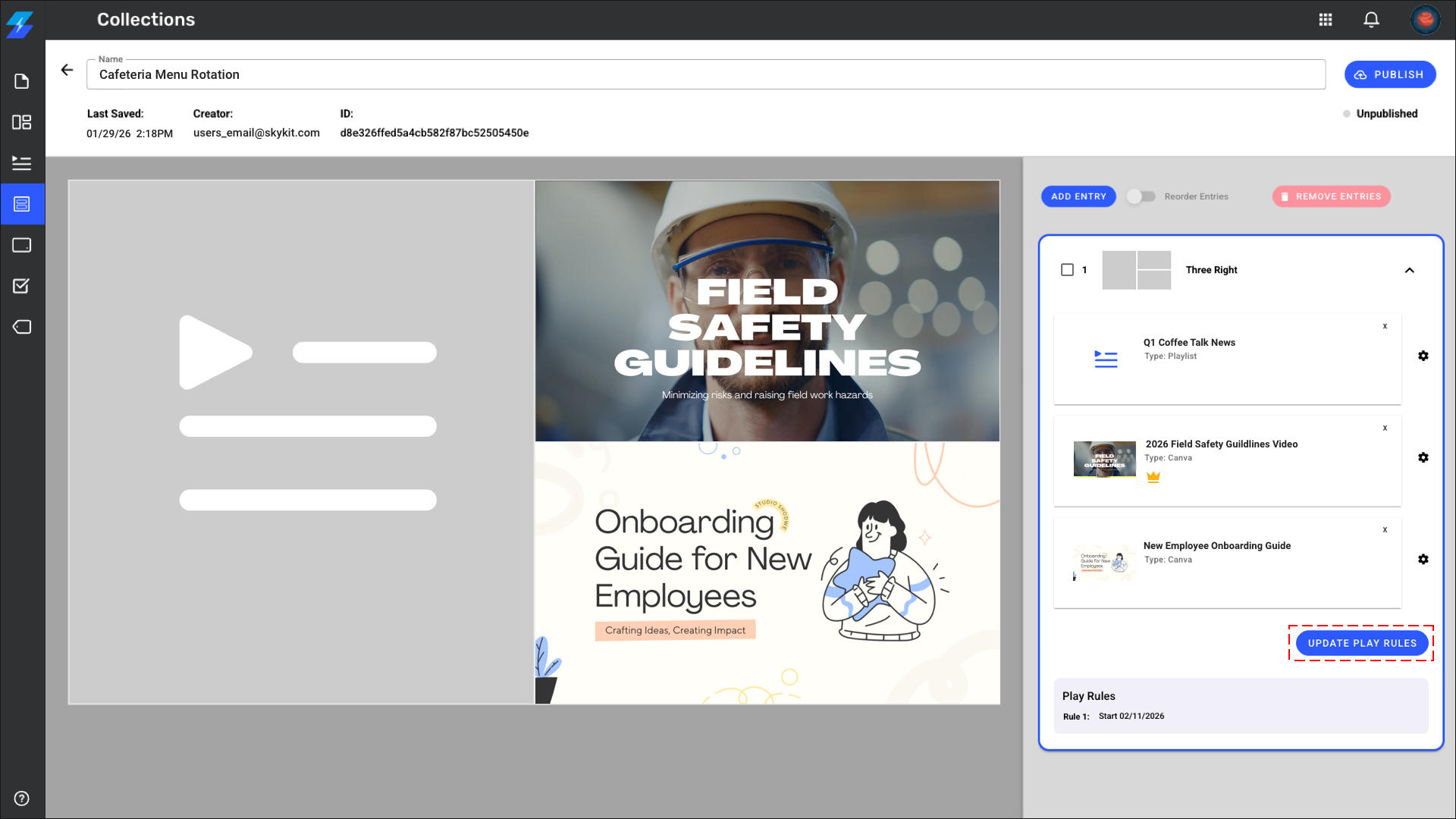
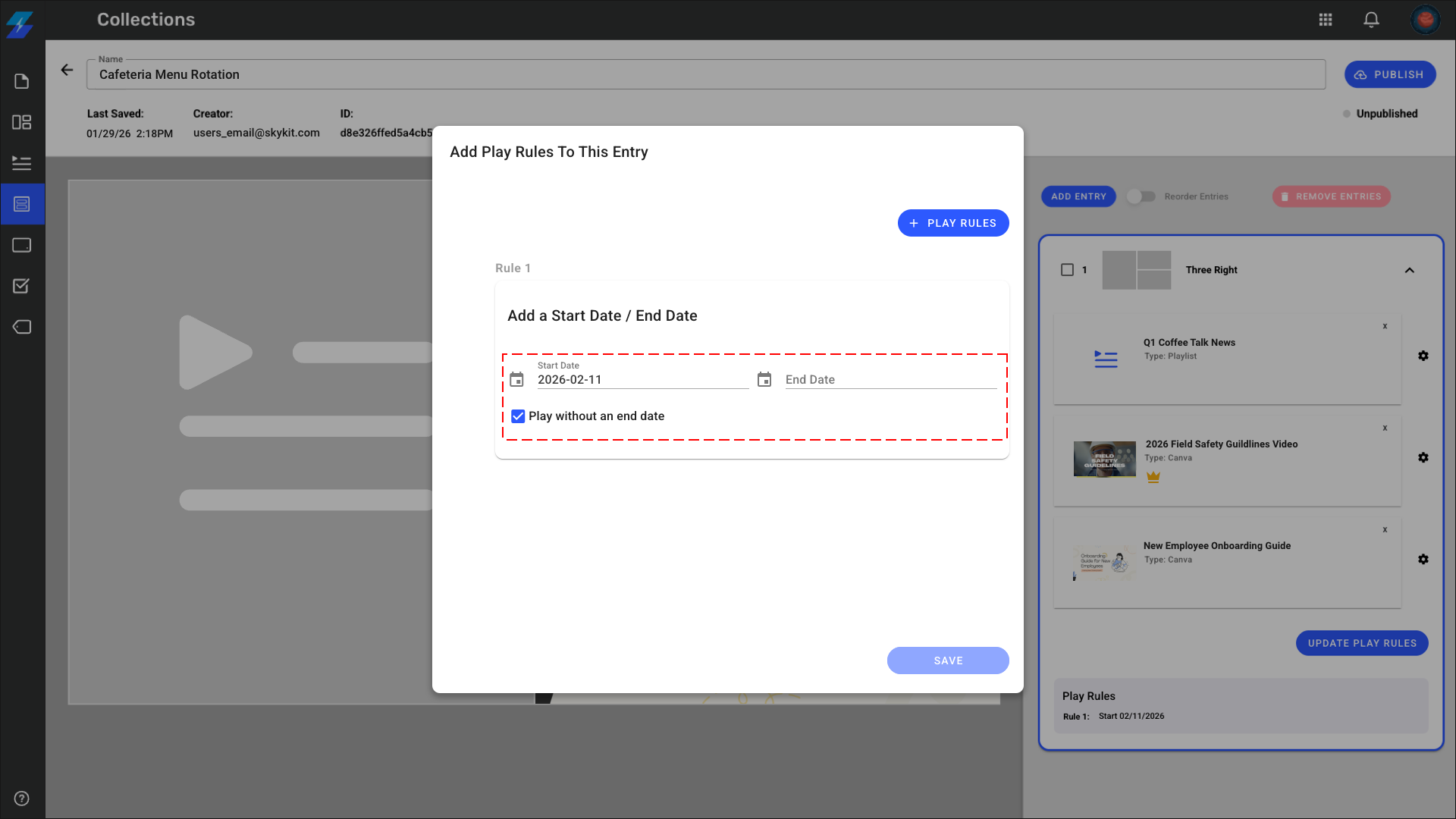
Add a start date and/or end date. Check Play without an end date to keep this playing indefinitely.
Click + Play Rules to further configure:
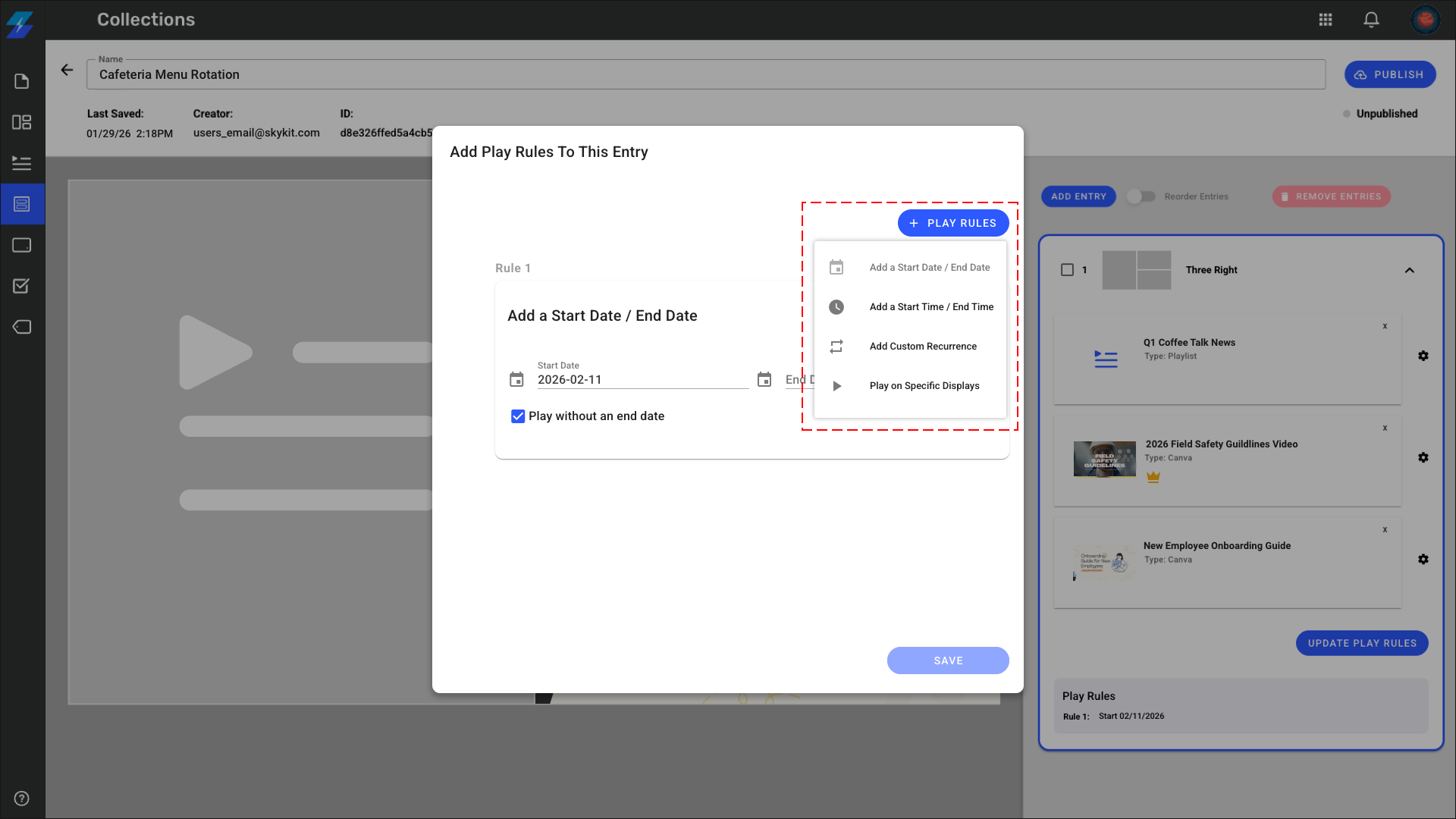
Add a Start Time / End Time
Select what time window your entry will be available to play.
Important notes:
Play Rules will respect the time zone set on the Displays page.
Overnight time windows are not currently supported. Read more and learn about a workaround here.
Add Custom Recurrence
Days of week - Select specific days
Months - Select specific months
Day of the month - Select specifics dates
Play on Specific Displays
Use Labels to determine which Displays will play the entry
Click Save
See Play Rules Best Practices for more information on Evaluation Order.
Step 7: Preview Your Collection
Review the visual preview of your Collection entries
Check that content is in the correct zones
Verify your lead zones are set correctly (if applicable)
Verify your play rules are set correctly
Click Publish to make this collection available to your displays
Note:
There's no built-in preview player, but you can see thumbnails and layout structure. For testing actual playback, consider setting up a dedicated test device.
Step 8: Assign to Displays
Navigate to Displays in the main menu
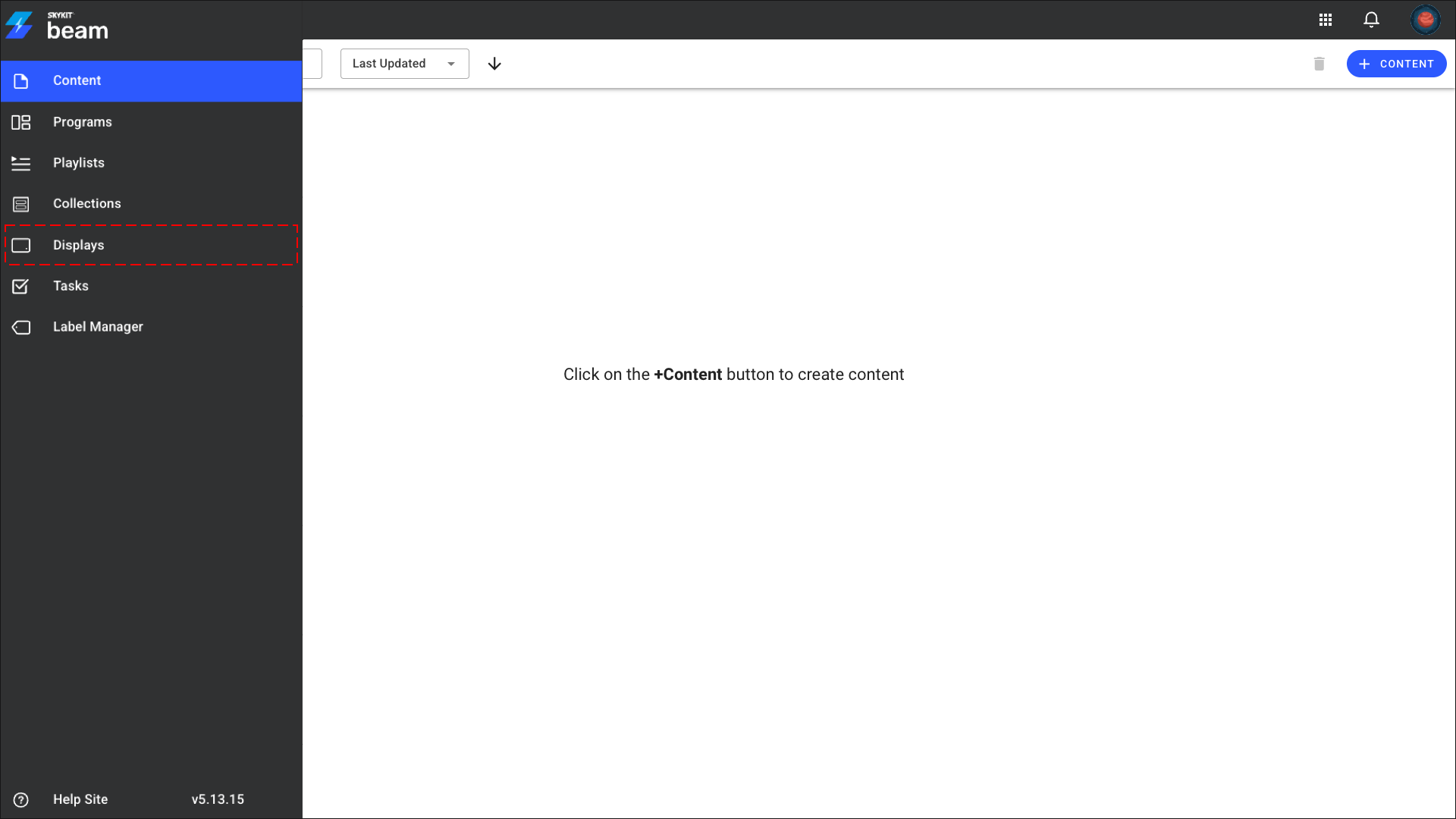
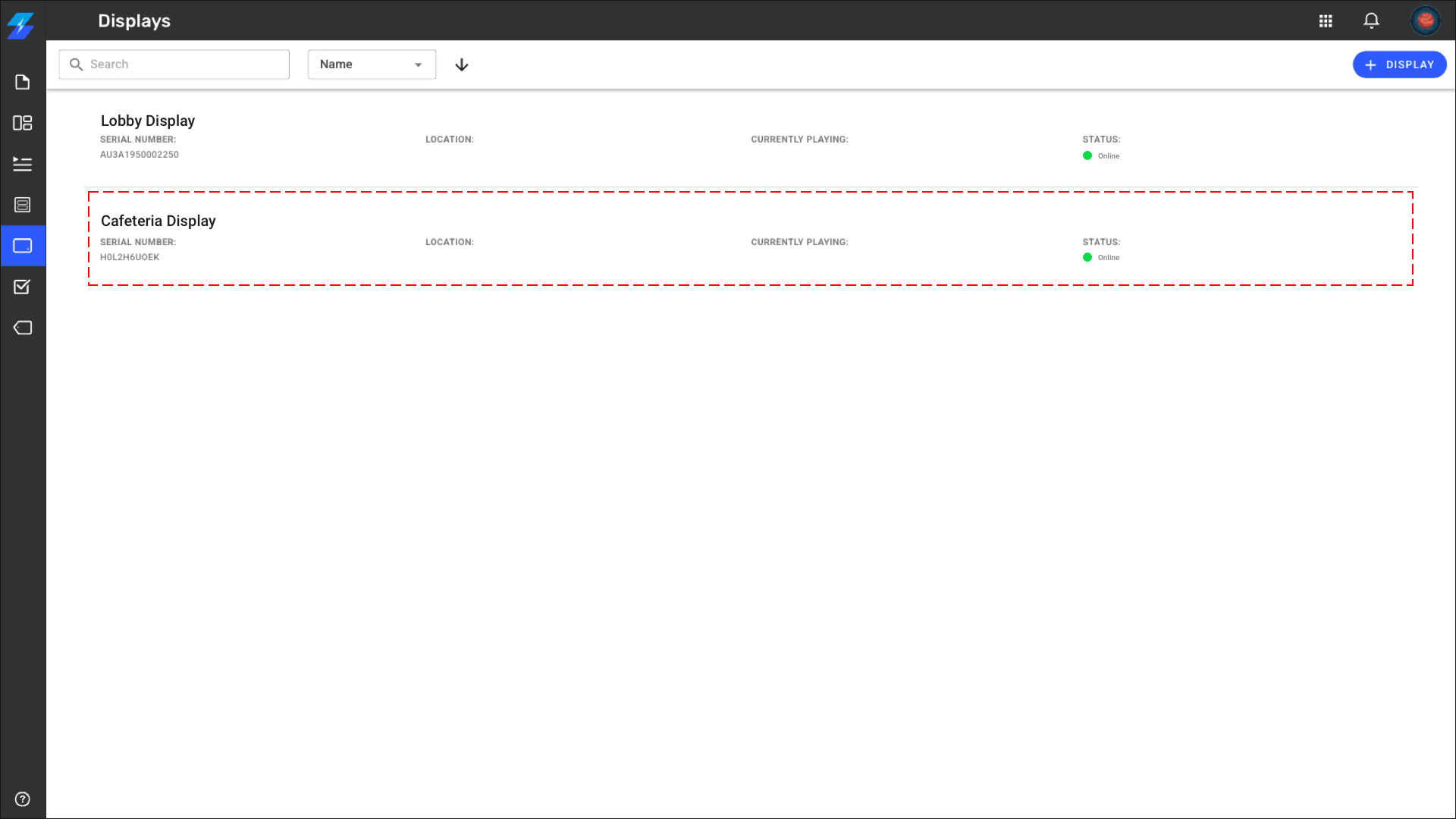
Select the display where you want this Collection to play
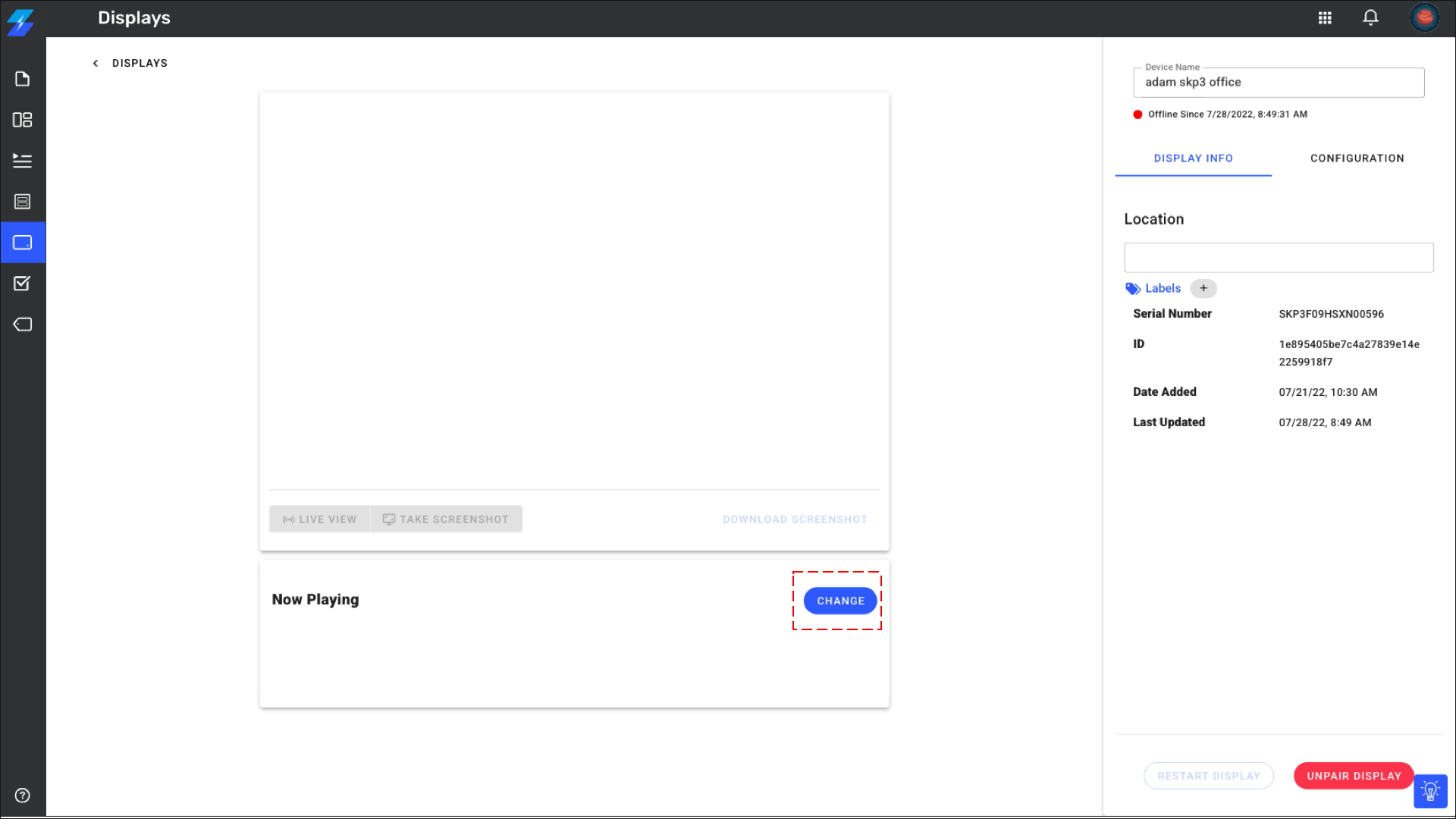
Click Change
Click on the Media dropdown menu and select Collection
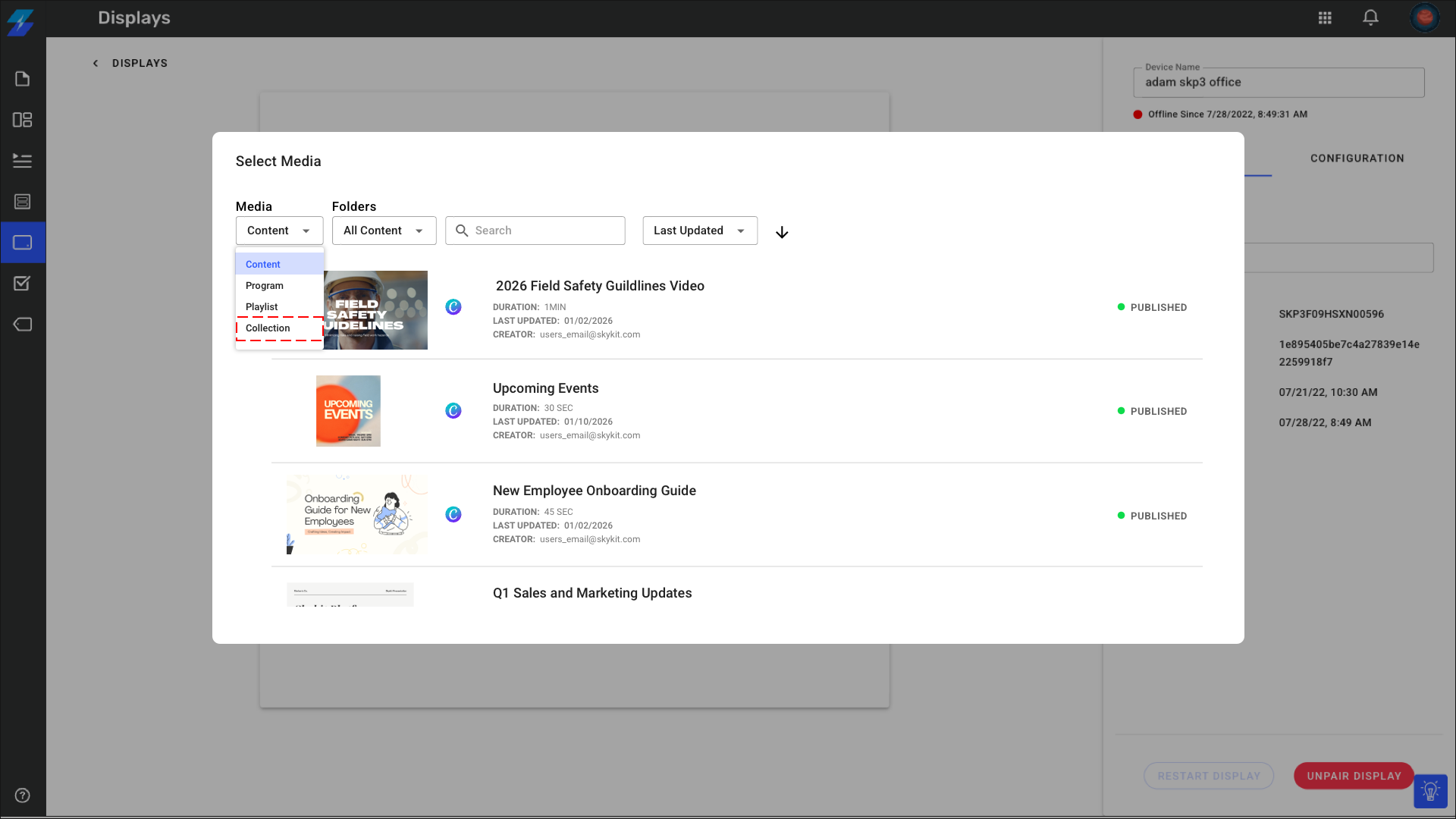
Select the Collection you want to play
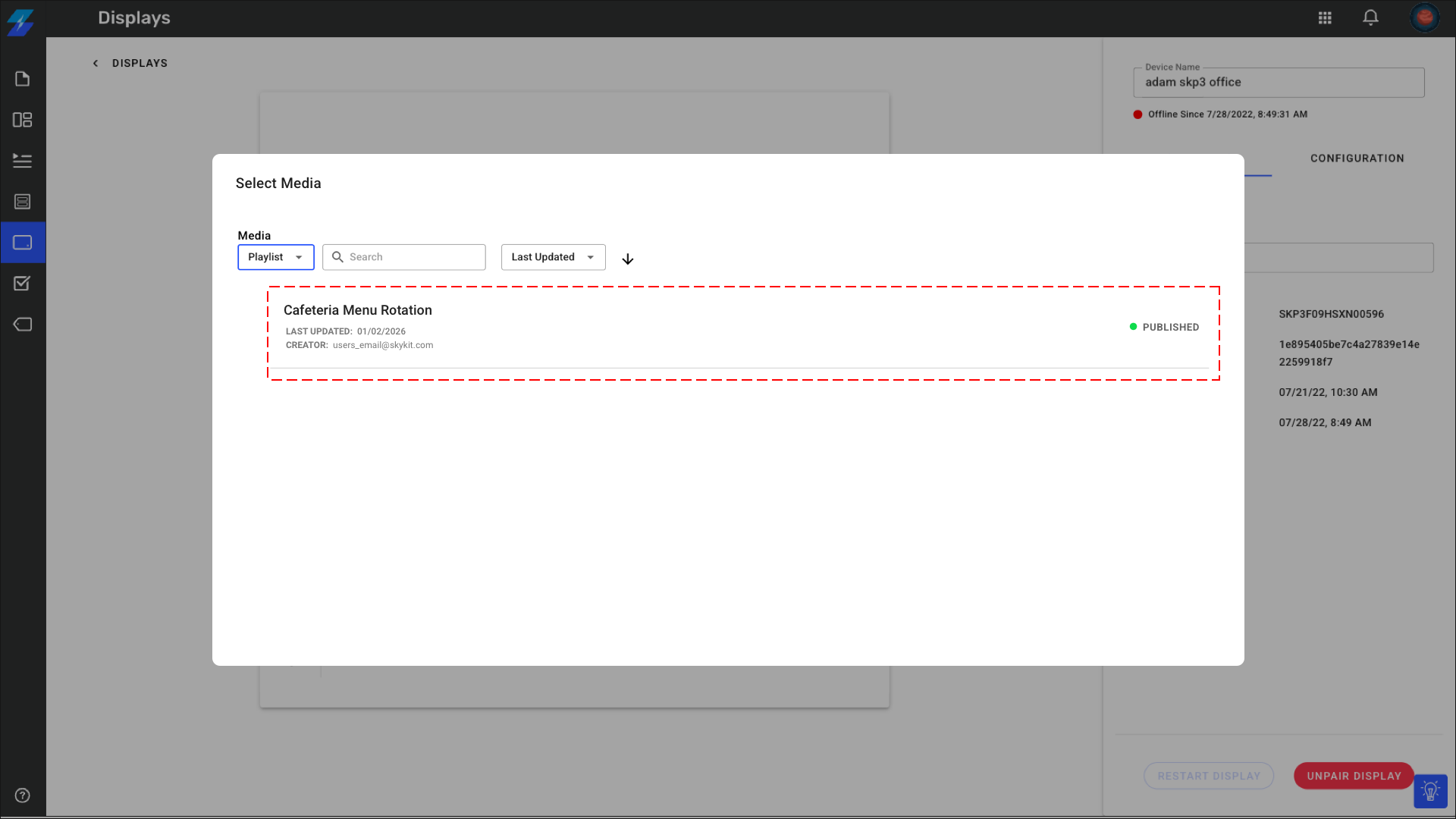
Your Collection will now play on the assigned displays according to any play rules you've set.