📋 Overview
Getting your Skykit device connected properly is key to a smooth digital signage experience. Follow these best practices to avoid common pitfalls and enjoy uninterrupted content playback!
🔍 1. Network Requirements at a Glance
✅ Checklist: Does your network meet these? | |
|---|---|
|
|
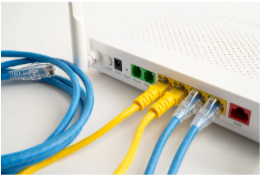
💡Tip: Ethernet connections minimize interruptions and buffering—great for critical displays!
🛠️ 2. Device Placement & Physical Setup
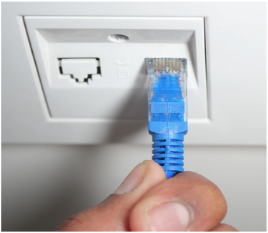
🙌 Your Skykit device likes: | ✔️ Checklist: Have you... |
|---|---|
|
|
📶 3. Wi-Fi Connectivity Tips
Struggling with Wi-Fi? Try this:
Double-check SSID & password (note: they’re case sensitive)
Move the device closer to your router. Walls and metal block signals ⚠️
If many devices share your network, ask IT about a dedicated digital signage VLAN.
📊 Quick check: Is your Wi-Fi signal showing 3 or more bars near the device?
If no, try repositioning your device or upgrading your router.
🚑 4. Troubleshooting Connectivity Issues
When things go wrong, don’t panic!
Try:
A soft reboot: restart your Skykit device.
Power cycle: unplug the device, wait 30 seconds, plug it back in.
Zero in on blocked endpoints
Check out 👉 Network Tab Document for more information on Endpoints & Control UI Endpoint checker.
Check for device errors or run diagnostics
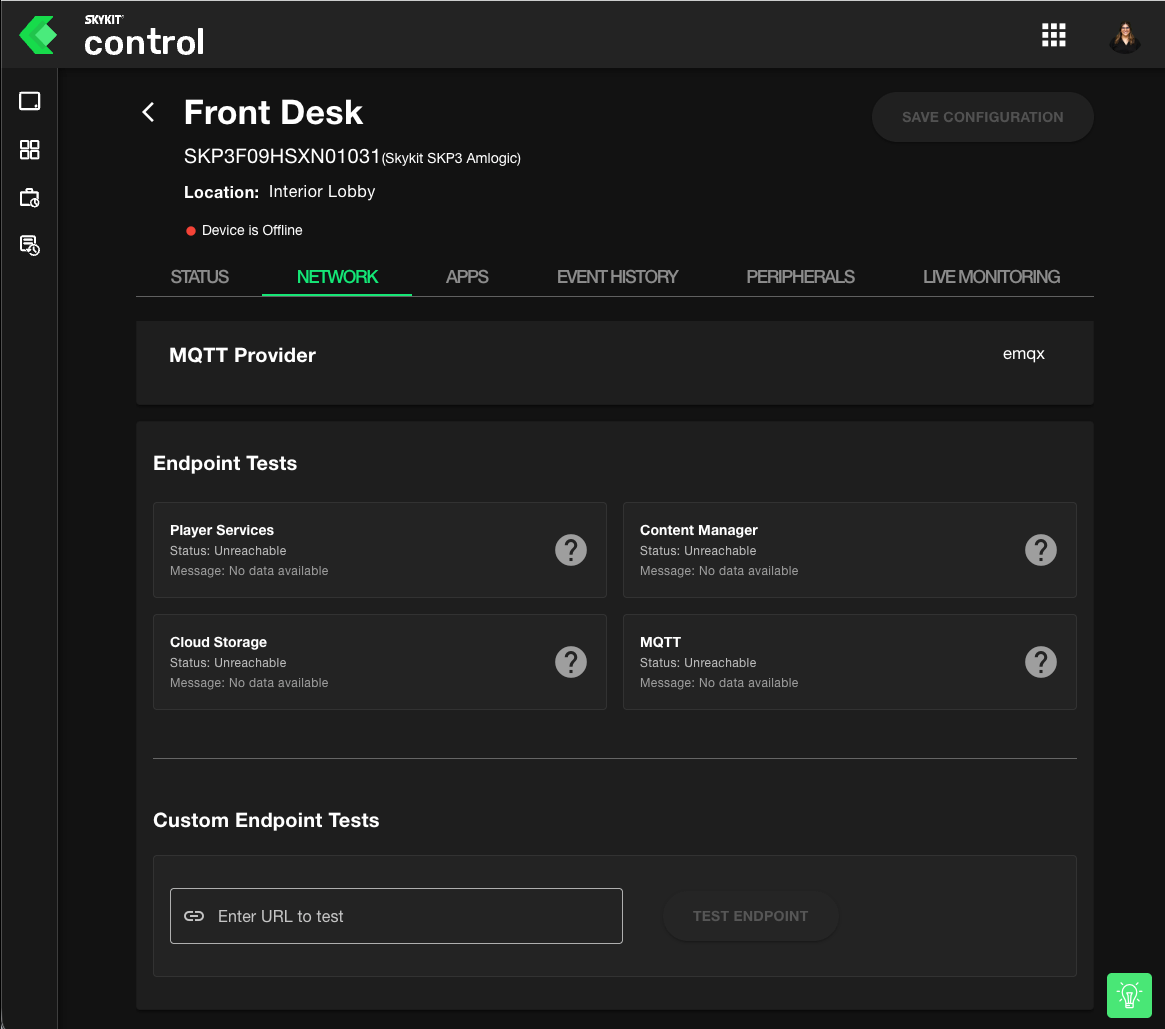
Diagnostics: bring up the device diagnostic screen to check for errors
See 👉 Diagnostics Screen Document for how to bring up device diagnostics.
🛠️ Checklist: Steps you've tried (tick before contacting support) |
|---|
|
🙋♂️ 5. Need Help? Contact Skykit Support!
Before reaching out, please have this info ready:
Device serial number
Connection type (Ethernet/Wi-Fi)
Error messages or symptoms – a picture (or video) is worth a thousand words - tbd
Steps you've taken from above
📞 Support hours: Mon-Fri 8 AM–5 PM CST
📧 Email: support@skykit.com
📚 Additional Resources
Skykit Setup Videos 🎥 Coming Soon