Consider the Skykit Help Center your source of truth for all things Skykit-related. This is where you can go to find information about how to curate a playlist in Skykit Beam, reboot a device using Skykit Control, and any number of other tasks. You'll also find frequently asked questions for issues that the Help Center can't answer, and it's the place to go if you want to submit a feature request or contact the Skykit support team.
Help Center Home
The Help Center home page is a great place to start, especially if you want to browse or search for topics. Simply go to support.skykit.com (we recommend bookmarking the site).
.png)
Navigating the Help Center
There are a number of ways to find helpful content in the Help Center.
Home Page
The home page is an easy way to browse for the article you need. It includes a category for each Skykit product, FAQ and What's New categories, direct links to the Skykit Support email and the Skykit Feature Requests form, and a search function.
Select one of the categories to open the welcome page for that category.
.png)
Home Button
The Home button is accessible from any window in the Help Center. Select it to return to the Help Center's home page.
.png)
Search Function
The search field is available at the top of every window. Type a word or phrase in the Search field to bring up a list of articles that match your search terms, then select the article that fits the bill. Your search terms are highlighted in the results to help you determine which articles are most relevant to you.
.png)
Table of Contents
To the left of every article in the Help Center you'll see a table of contents. From here, you can browse through all published content in the Help Center.
Expand a category to see subcategories; expand the subcategory to see individual articles within that category or subcategory.
.png)
In addition, most articles include an article-specific table of contents with links to the main headings in the article. This gives you a quick look at the content and lets you jump to another section without having to scroll.
.png)
Footer
The Help Center's footer also includes useful links:
Skykit Statuspage: Select this link to open a status page that shows you the operational status of key Skykit systems, as well as a history of reported incidents for the previous two weeks. Select the Subscribe to Updates button if you'd like to get email notifications whenever Skykit creates, updates, or resolves an incident.
API Docs: Select this link to open available API documentation.
Feature Request: Select this link to open the Skykit Feature Requests form.
Email Address: Select the Skykit Support email address if you want to report a problem or need to contact Skykit Support for any reason.
In-App Help Assistant
In Skykit Beam, every window or menu includes a light bulb icon in the lower right corner of the window.
Note: An in-app help assistant will also be added to Control in upcoming releases.
.png)
Selecting this icon opens the Help Center drawer, which displays a help article relevant to the window or menu that's open when you select the icon. This is known as context-sensitive help.
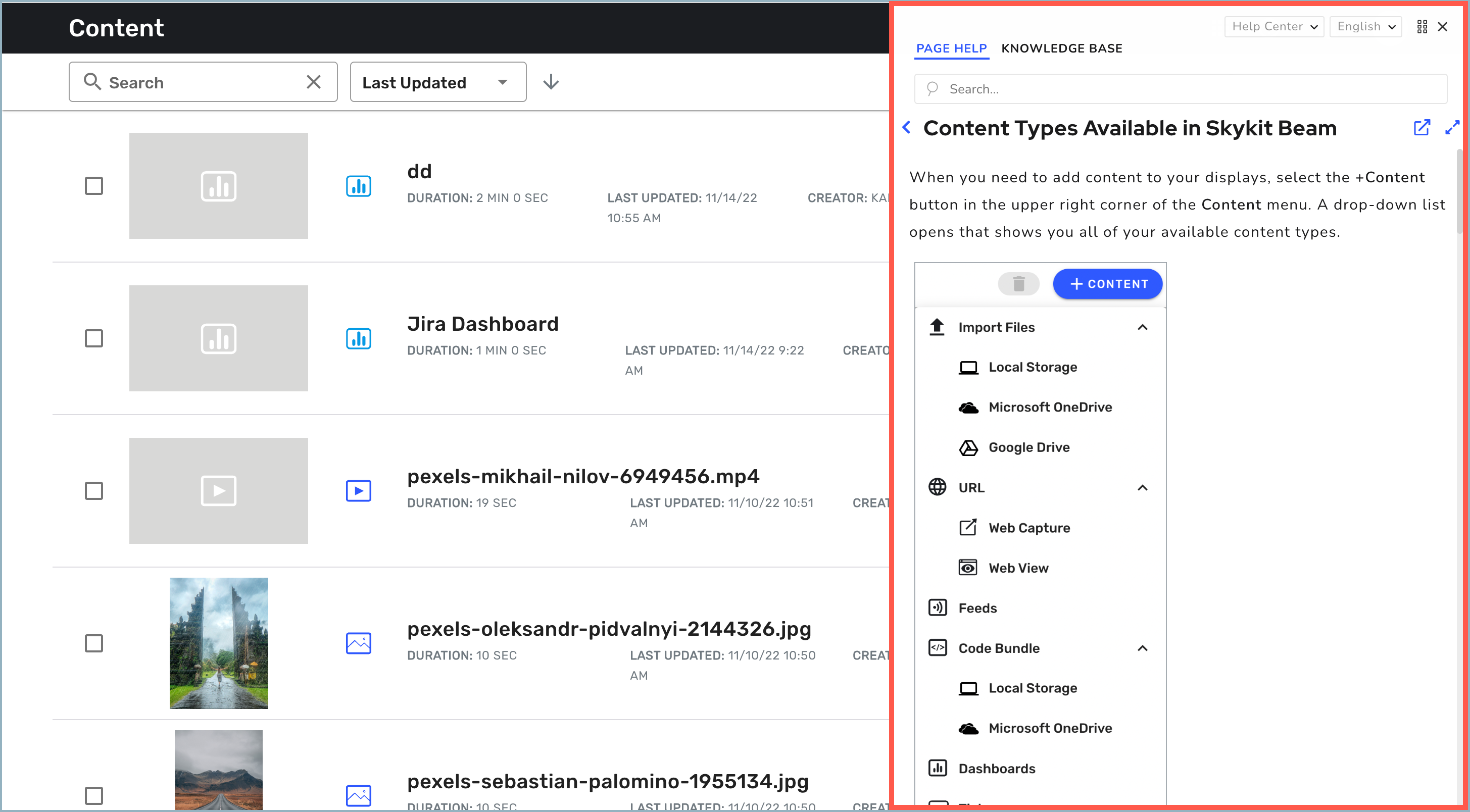
For example, if you select the help icon when the Content menu is open, an overview of available content types opens. If you select the icon when the Playlists menu is open, an overview of playlists opens.
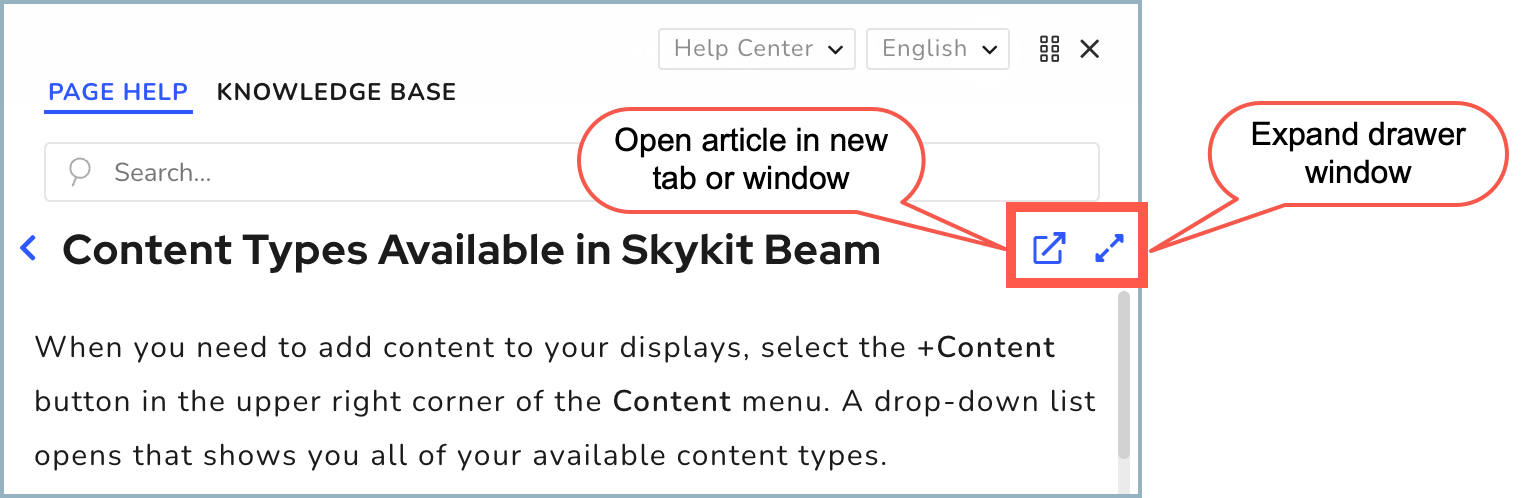
To open the article full-screen in a new tab or window, select the Open article icon to the right of the article title.
To widen the drawer window, select the Expand icon.
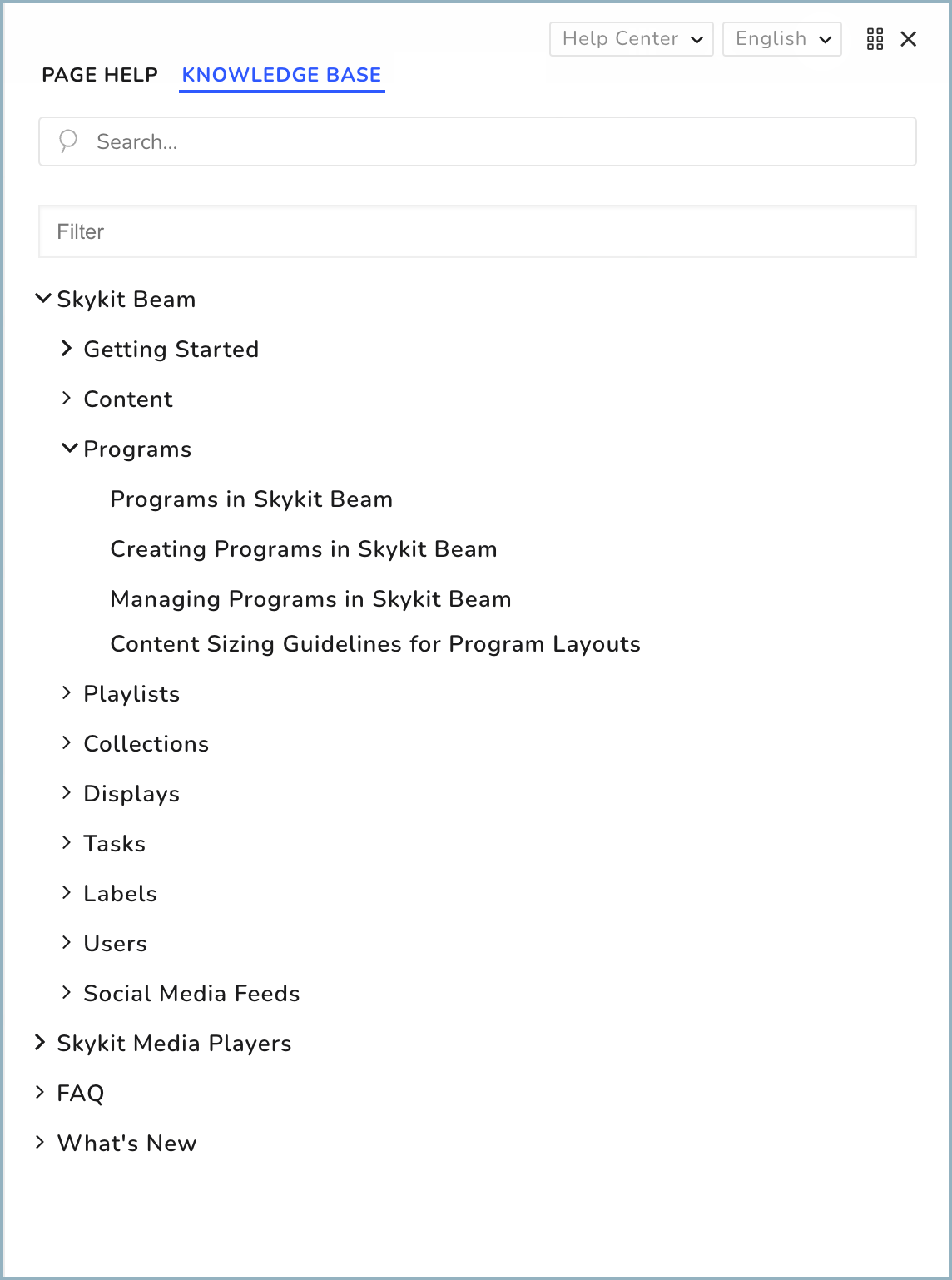
To see the table of contents for all Beam-related content in the Help Center, select Knowledge Base. Click the down arrow next to a category to expand the category so you can see sub-categories and individual articles. When you select an article, it opens in the Help Center drawer.
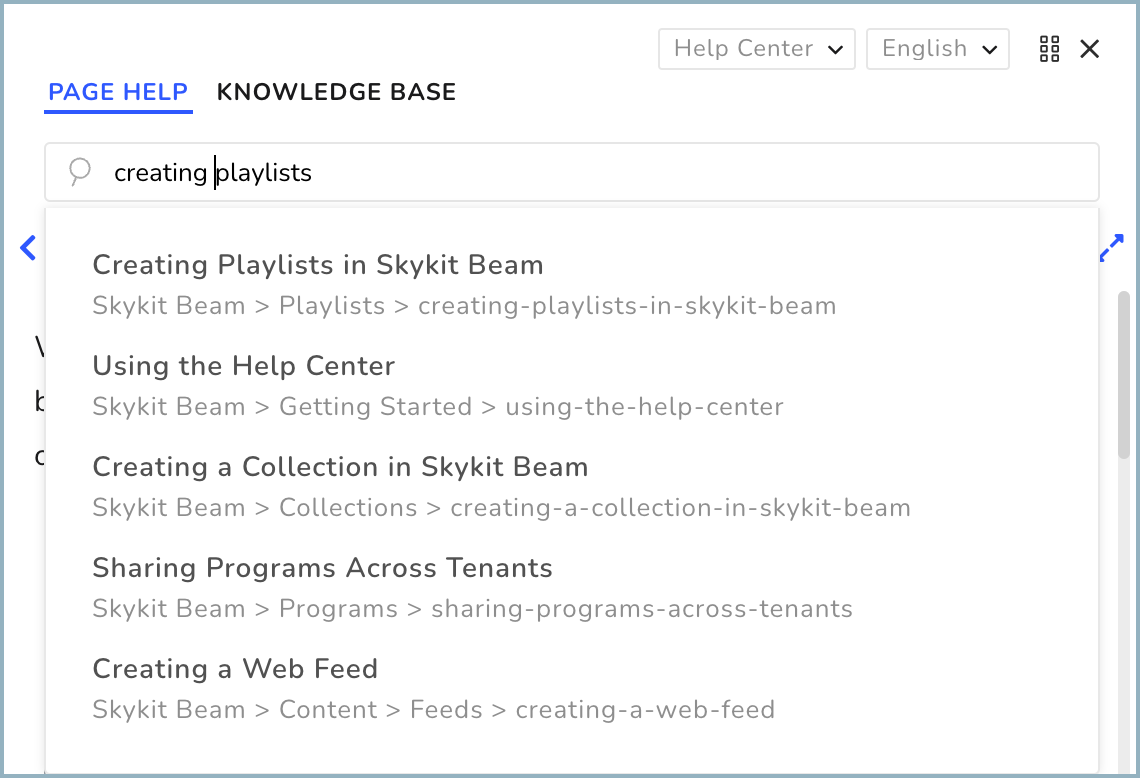
To search for a specific topic, type your search terms in the search field to get a list of articles that contain those terms. Select an article to view it in the Help Center drawer.
Support Tools
Select the arrow to the left of the article title to open a window with links to additional tools.
.png)
Get Started: Opens the Getting Started Guide for Skykit Beam.
FAQs: Opens the FAQ section of the Help Center. From there you can use the table of contents to expand the categories in the FAQ section and see available articles.
API Docs: Opens available API documentation. APIs provide a way for users to manage devices and content without having to be in the Beam interface.
Request a Feature: Opens the Skykit Feature Requests form. Use this form if you have an idea about how to improve something in Skykit Beam—for instance, a feature that would make your workflow easier.
What's New: Opens the Help Center article about the most recent new features and fixes in Skykit Beam.
Skykit Statuspage: Opens a status page that shows you the operational status of key Skykit systems, as well as a history of reported incidents for the previous two weeks.
To return to the article you were viewing, select Page Help.
Additional Help Center Features
Note: The features described below are only available when articles are viewed in the Skykit Help Center website; they are not available when articles are viewed in the Help Center drawer in Beam. To use these features, open the article in the main site. You can do this by selecting the Open article icon in the drawer or the question mark at the bottom of the navigation bar in Beam. You can also go directly to support.skykit.com.
Change Theme
You can switch the background of the Help Center from light with dark text to dark with light text (it defaults to light). Just select the Dark icon at the top of the article. Select Light to return to the default theme.


Print or Convert to PDF
You can print an article or convert it to a PDF file by selecting Print or PDF at the top of the article.

Last Updated
You can find the date the article was last updated under the article title. This tells you how current the information in the article is.

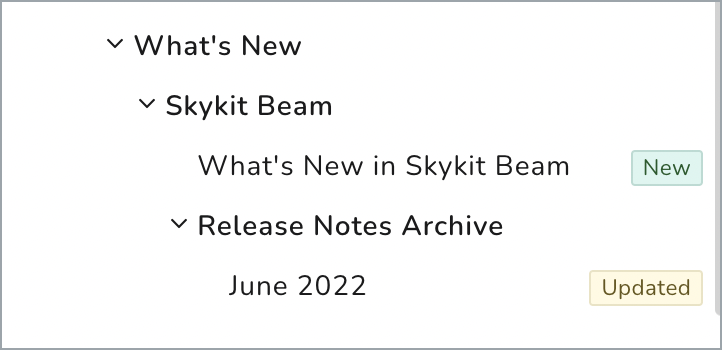
An article isn't necessarily out of date if it hasn't been updated for a few months. Likewise, a recent update doesn't necessarily mean major changes have occurred; sometimes the update is just a minor text change. When an article is brand new or includes important updates, such as information about a new feature, there will be a New or Updated flag next to the article title in the table of contents. This flag will be in place for two weeks after the new or updated article is published.
Providing Feedback
We want the Skykit Help Center to be as useful as possible, so we'd love to get your feedback. If you see incorrect, outdated, or confusing information in an article, or if you have a suggestion for a new article, please let us know.
At the bottom of every article you'll see Yes and No buttons.

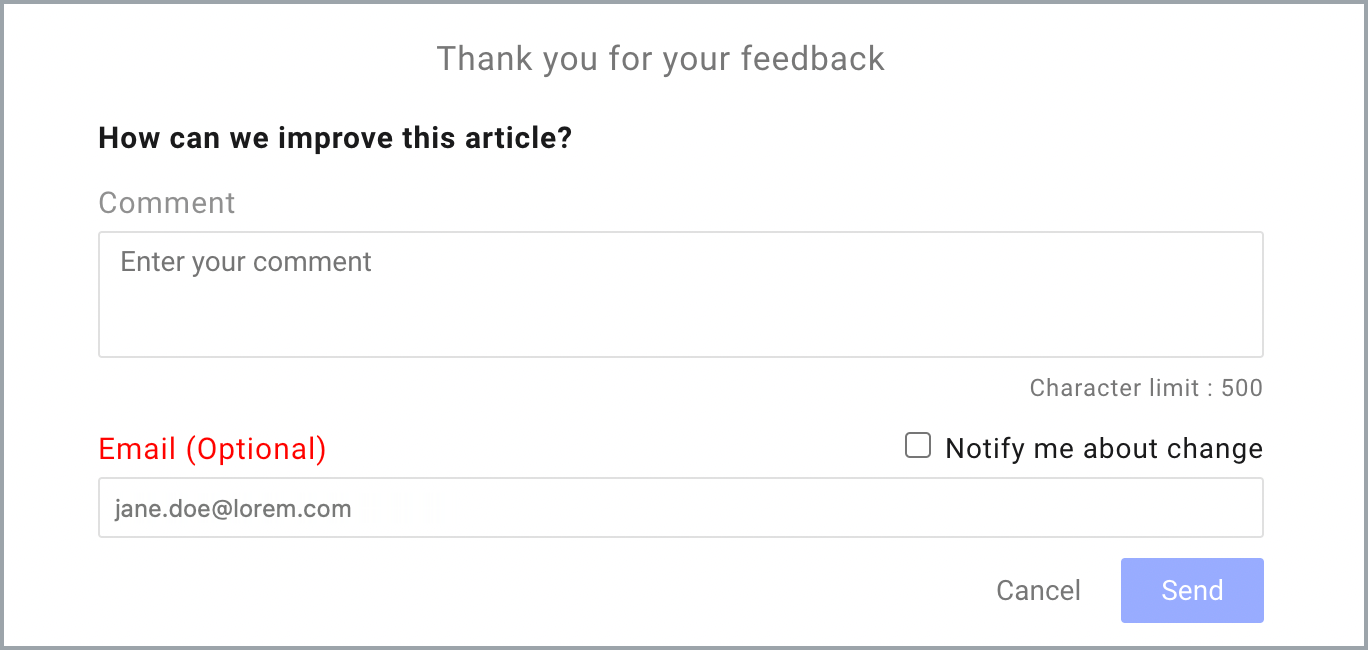
If you found the article useful, select Yes (thumbs up). An optional Comment field opens; you can enter additional feedback here if you want to. There is a 500-character limit. Your email address is optional, but if you provide it, we can get back to you if we have questions. You can also check Notify me about change if you would like to be notified when the article is updated (if you check this box, the Email field is required). When you're done, just select Send.
If you think the article needs improvement, select No (thumbs down). In this case, a set of check boxes opens; this is where you can specify the things we can improve.
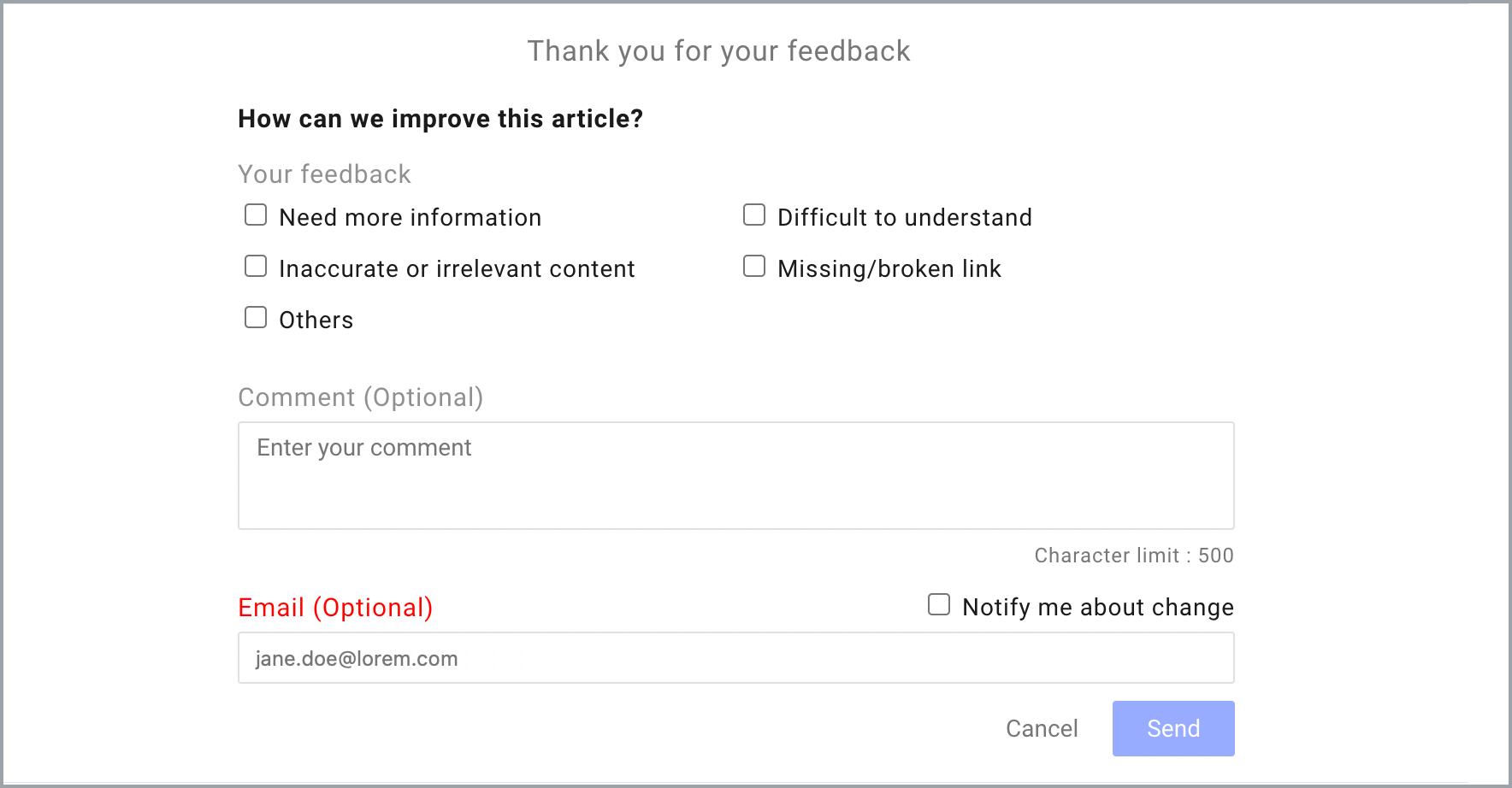
Check any suggestions that apply. Additional comments are optional unless you select Others, in which case the Comment field is required so you can provide more information. Again, your email address is also optional unless you select Notify me about change. When you're done, select Send.
If you have no comments, select Skip. Your reaction will be logged, but not any contact information.
We welcome your thoughts!