A reference for which content plays in single-zone and multi-zone Collection entries, what each program warning means, and how to fix it.
This is available to Manager and Administrator roles.
The Short Version
Whether a Program plays in a Collection depends on how many zones the Collection entry has.
Single-zone entry (one pane): Anything plays, including Programs.
Multi-zone entry (two or more panes): Multi-zone programs don't play, and neither do Playlists that contain multi-zone Programs.
This is because the player can't display a multi-zone Program inside a multi-zone layout.
Not seeing Programs?
Programs are a legacy feature not available in accounts created after May 2026. If you do not have access to Programs, you will not see any of these warnings.
What Plays Where
What you add to the zone | Single-Zone Collection Entry | Multi-Zone Collection Entry |
|---|---|---|
Content item (image, video, web page, etc.) | Plays | Plays |
Playlist without multi-zone Programs | Plays | Plays |
Playlist with multi-zone Programs | Plays | General warning shows in Beam. Will not play. |
Program with only single zone entries | Plays | General warning shows in Beam. Will play. |
Program with multi-zone entries | Plays | General warning shows in Beam. Will not play. |
Playlist that contains a Program with only single zone entries | Plays | General warning shows in Beam. Will play. |
Note:
In multi-zone entries, Beam warns about every Program, including single-zone Programs. A Program can have up to 80 segments with different layouts, so Beam treats all Programs as unsupported in multi-zone entries rather than checking each segment. The simplest fix is to use a Playlist instead.
Warnings You'll See
When you choose a Program for a multi-zone entry:
Programs still appear in the content picker, labeled with the following warning:
Multi-zone Programs aren’t supported in multi-zone layouts and will not play.
If you add a Program to your multi-zone Collection layout, you will see the warning:
Multi-zone Programs cannot be used in multi-zone Collection entries. If this Program contains any multi-zone segments, it will not play.

When you choose a Playlist that contains a Program:
Playlists containing Programs still appear in the content picker, labeled with the following warning:
Contains Programs. Multi-zone Programs are not supported in multi-zone layouts and will not play.
If you add a Playlist containing Programs to your multi-zone Collection layout, you will see this warning:
Playlists containing multi-zone Programs cannot be used in multi-zone Collection entries. This content will not play if it contains multi-zone Programs.
The warning includes a link that opens the Playlist directly, so you can remove the Program and come back.

Inside the Playlist:
If a Playlist contains a Program, the Playlist editor also shows a warning:
Multi-zone Programs cannot play inside a multi-zone Collection layout. This Program may not play inside a Collection.

When a Playlist changes later:
If you add a Program to a Playlist that's already used in a multi-zone entry, the warning appears the next time the Collection is opened or published.
What Happens on Your Displays
Some zones can't play: The other zones play normally. The zone that can't play shows a blue exclamation point, the same icon you see when content has been deleted.
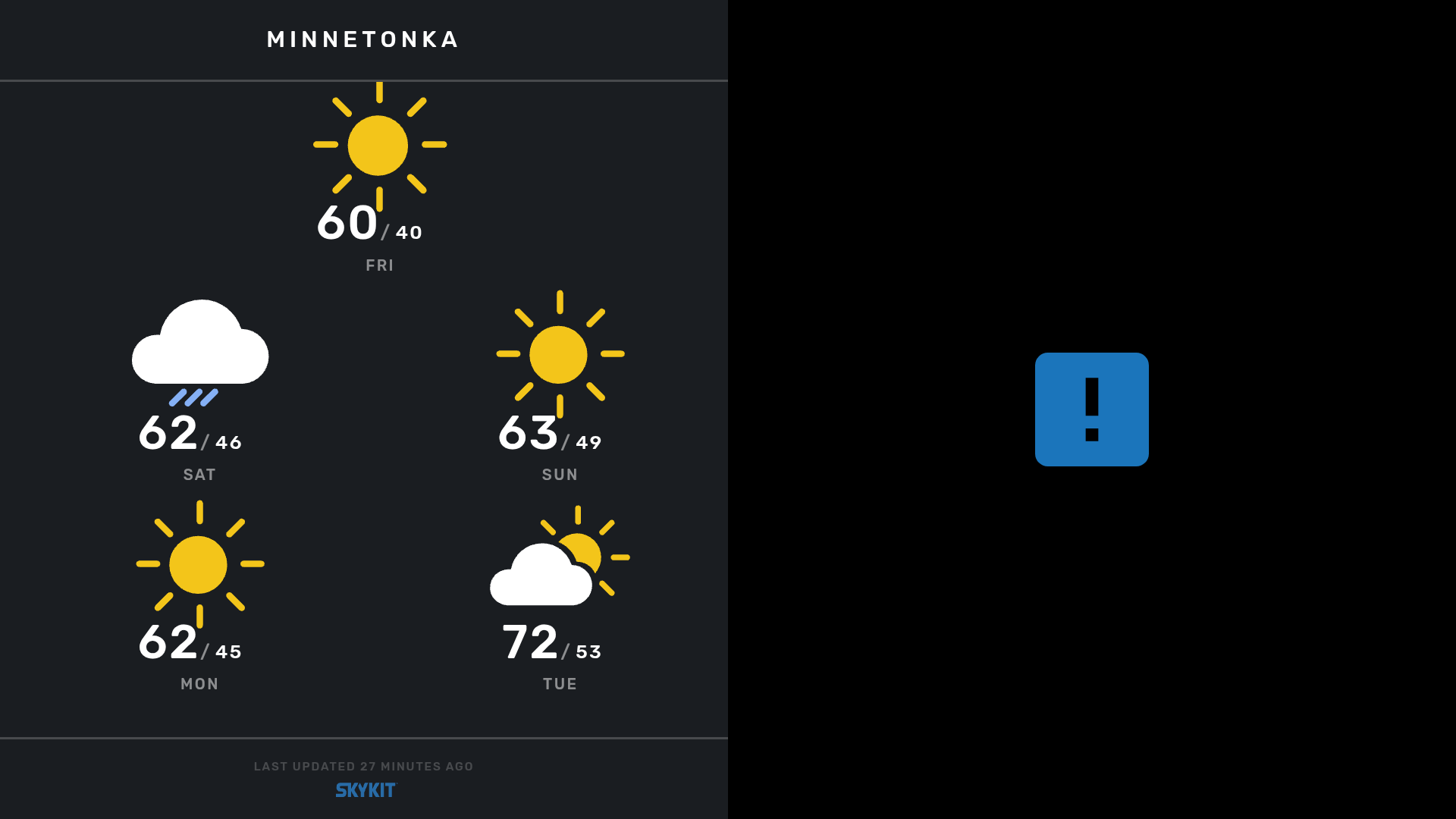
No zones can play: The player skips that entry and moves on to the next one.
Step 1: Find the Zone With the Warning
Navigate to Collections in the main menu
Open the Collection
Look for entries and zones showing a warning
Step 2: Choose How to Fix It
Option A: Replace the Program with a Playlist (recommended)
Create a Playlist with the same content as the Program
Click the zone showing the warning
Replace the Program with your new Playlist
Click Publish
Option B: Remove the Program from the Playlist
Click the link in the warning to open the Playlist
Remove the Program from the Playlist
Click Save
Return to the Collection and click Publish
Option C: Move the Program to a single-zone entry
Click Add Entry
Choose a single-pane layout
Add the Program to the zone
Remove the Program from the multi-zone entry
Click Publish
Tip:
Anything a single-zone Program does, a Playlist can also do, and Playlists support play rules. For new content, use Playlists instead of Programs.
Related articles
Why Isn't My Collection Content Playing?
Skykit Beam > Collections > Collections & LayoutsMoving From Programs to Collections
Skykit Beam > Collections > Collections & LayoutsClassic and New Collections
Skykit Beam > Collections > Collections & Layouts