Apps in Skykit Beam help your organization connect to dashboard providers, business intelligence tools, and other content providers so users can create content for digital signage. Before users can create content from an App, the App must be available to the Tenant and any required login credentials must be saved.
This article explains how to use App Management to add Apps, understand App availability, and manage credentials. It is intended primarily for Administrators, because only Administrators can add Apps, remove Apps, open connected App detail pages, and create, edit, or delete credentials.
Before you begin
App Management controls which Apps are available to your Tenant. Your experience depends on two things: your Skykit Beam role and your organization’s edition. Your role determines what you can do in App Management, while your edition determines which Apps can be added.
Managers and Basic users may be able to view the App Management page, but they cannot add Apps, open connected App detail pages, or manage credentials. If a Manager or Basic user needs access to an App or credential that is not available, they should contact a Skykit Administrator.
Role permissions for App Management
Administrators manage the App setup experience for the Tenant. Other users can create Dashboard content when the App and credentials are already available, but they do not manage the underlying App connection.
Role | View App Management | Add Apps | Remove Apps | Open App Details | Create Dashboard Credentials | Edit or Delete Dashboard Credentials | Create Apps |
|---|---|---|---|---|---|---|---|
Administrator | ✅ | ✅ | ✅ | ✅ | ✅ | ✅ | ✅ |
Display Manager | ✅ | 🚫 | 🚫 | 🚫 | 🚫 | 🚫 | ✅ |
Content Manager | ✅ | 🚫 | 🚫 | 🚫 | 🚫 | 🚫 | ✅ |
Content Organizer | 🚫 | 🚫 | 🚫 | 🚫 | 🚫 | 🚫 | 🚫 |
Content Creator | ✅ | 🚫 | 🚫 | 🚫 | 🚫 | 🚫 | ✅ |
Basic (legacy) | ✅ | 🚫 | 🚫 | 🚫 | 🚫 | 🚫 | ✅ When App has been added by an Admin |
Administrators should add the App first, then add any credentials the Dashboard provider requires. After that setup is complete, users can create App content from Content > + Content > Apps.
Credential privacy: Users who create Dashboard content can select a saved credential nickname, but they cannot view the saved username or password.
App availability by edition
Your Skykit Beam edition determines which Apps can be added to your Tenant. Apps that are not available may still appear in App Management, but they display as locked or unavailable.
Edition | What appears in App Management | What Administrators can add |
|---|---|---|
Enterprise Edition | All Apps | All Apps |
Pro Edition | All Apps | Apps included with Pro; Advanced Dashboards appear locked |
Basic Edition | All non-Dashboard Apps | Dashboard Apps appear locked |
When an App is unavailable, Skykit Beam displays the following message:
This App is currently unavailable. It may not be connected or your plan may not include access. Please Contact your Skykit Administrator.
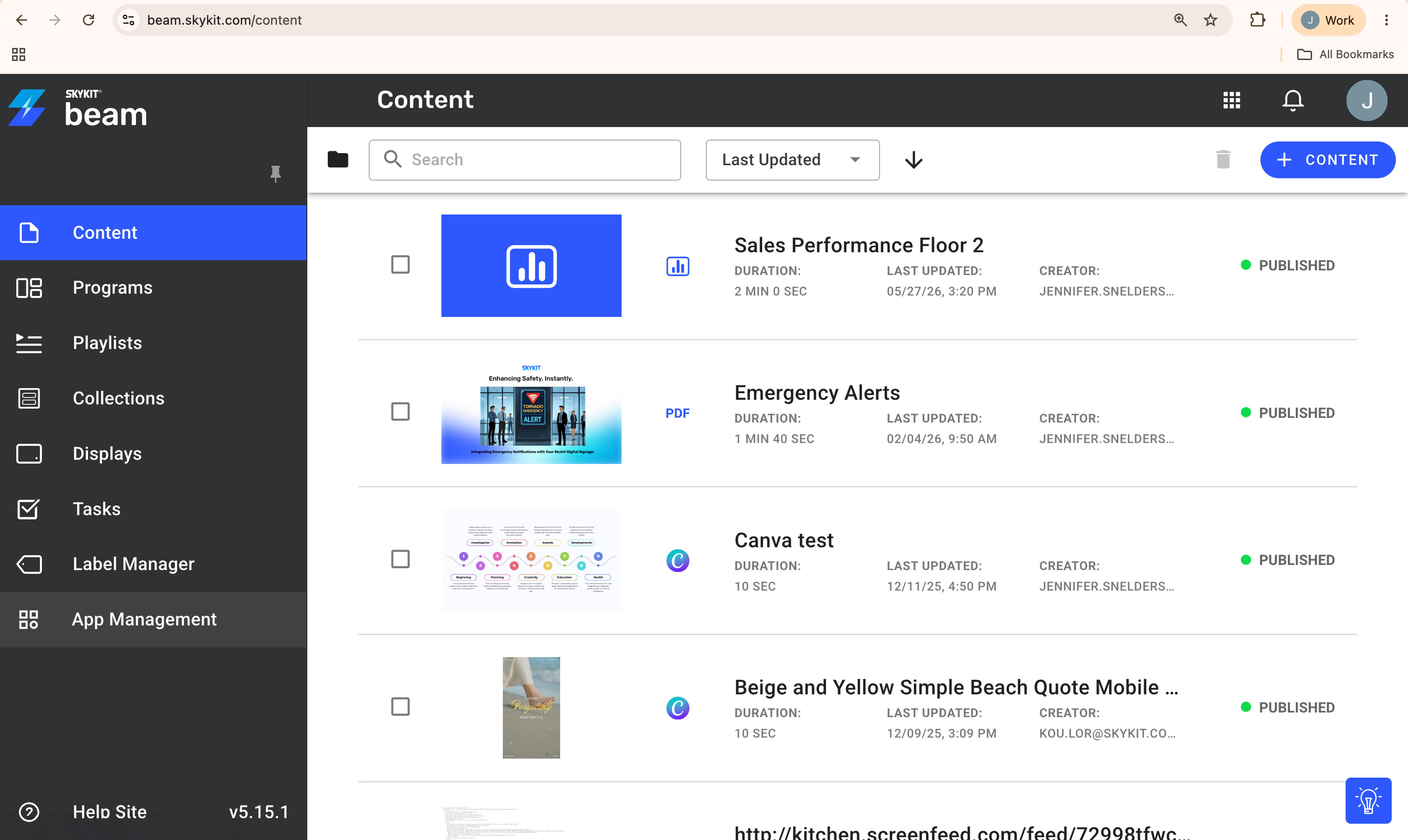
Open App Management
After you log in to Skykit Beam, use the left navigation menu to open App Management. The App Management page lists the Apps available for your Tenant and displays key information such as the App name, App type, and date added.
You can search for an App by name or scroll through the App list. The App list may include Dashboard Apps, content provider Apps, and other provider-based App types depending on your edition and Tenant configuration.
Add an App
Only Administrators can add Apps to a Tenant. Adding an App makes it available for the Tenant so users can create content from it, as long as they have the appropriate role and any required credentials are available.
From App Management, search for the App you want to connect or scroll through the App list. When you find the App, click Add.
You may also filter by App type, including Alerts, Dashboards, Feeds, and Videos.

Skykit Beam opens an App details window. Review the App name, App type, preview image, and description to confirm that you selected the correct App. When you are ready, click Add.
After the App is added, Skykit Beam displays a Successfully Added App message. Beam then opens the connected App detail page, where Administrators can review the App and manage credentials.
View a Connected App
The connected App detail page shows the App name, App type, date added, setup guidance, and the Credentials section. Administrators use this page to create and manage saved credentials for the App.
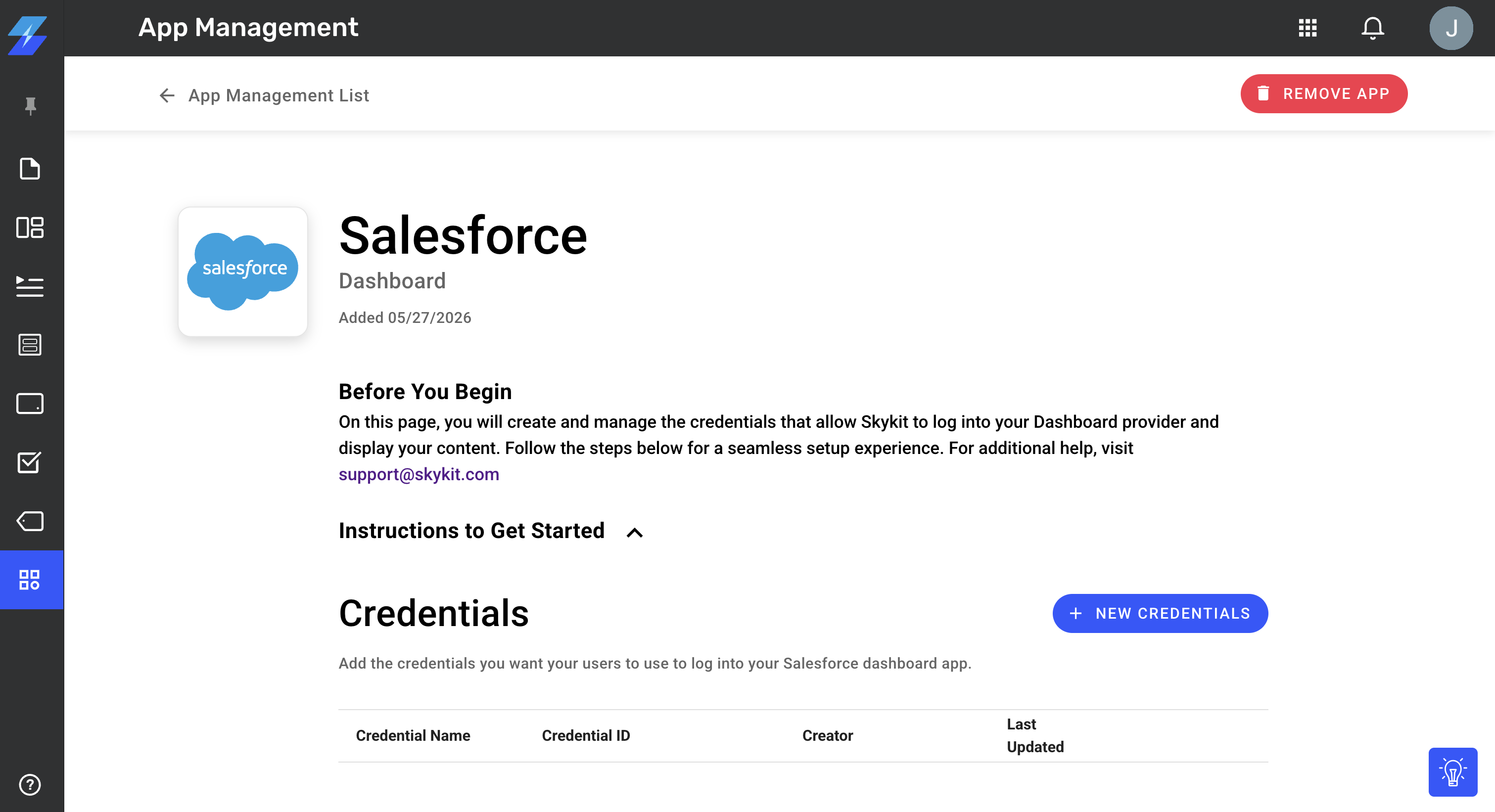
Managers and Basic users can view App Management, but they cannot open the connected App detail page. If they need an App changed, removed, or configured with additional credentials, they should contact an Administrator.
Add Credentials for an App
Dashboard Apps require authentication before Skykit Beam can display Dashboard content. When authentication is required, an Administrator can save credentials for the connected App. Saved credentials make it easier for users to create Dashboard content without entering or viewing the underlying username and password.
On the connected App detail page, click + New Credentials.
The Credentials window opens on the General Info tab. Enter a clear nickname for the saved credentials. The nickname should help users select the correct login later, such as a department, location, dashboard purpose, or provider account name.
Then enter the Dashboard Username, enter the Dashboard Password, and confirm the password.
After all required fields are complete, click Create.
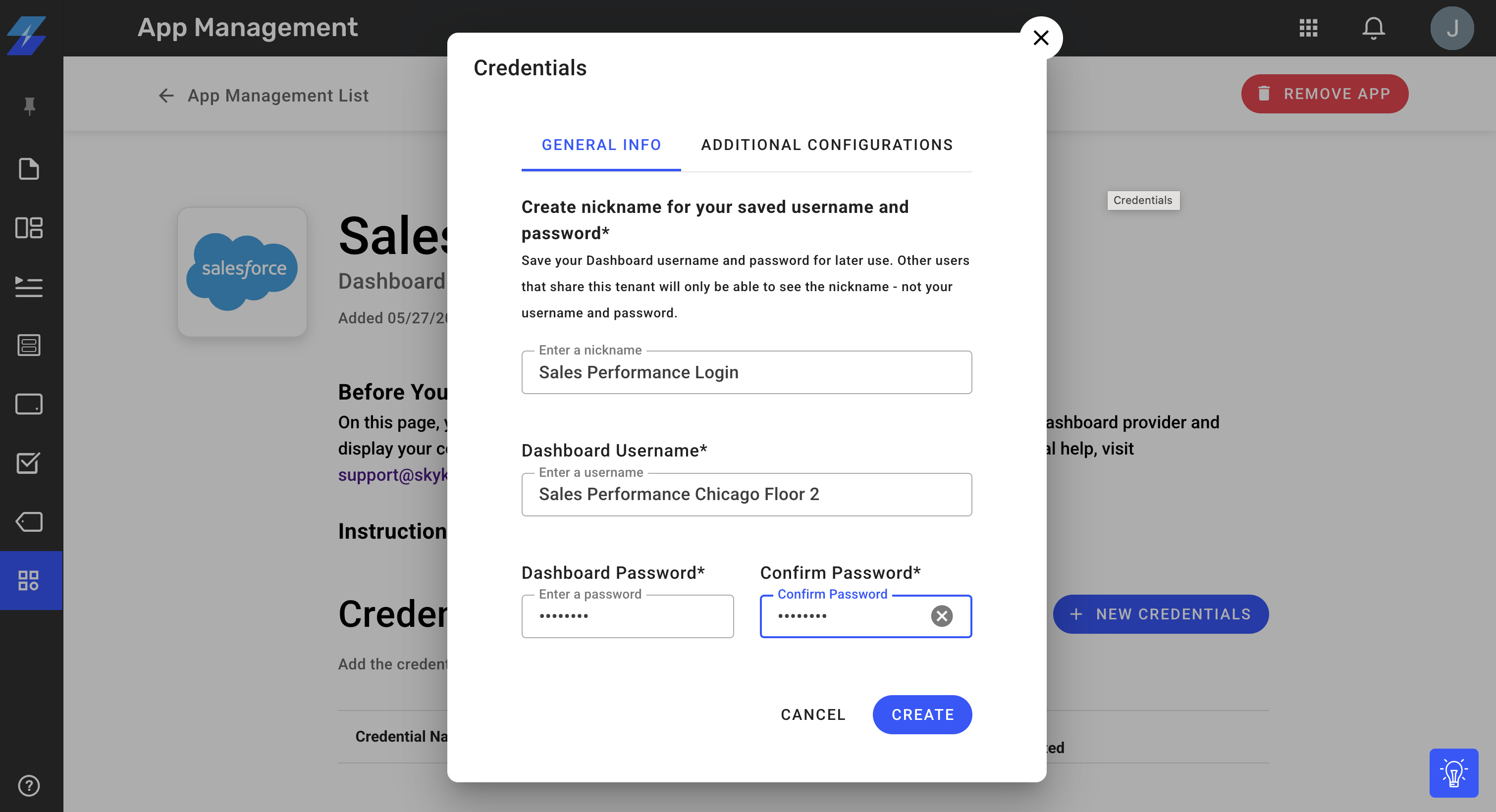
A Successfully Added Credentials message appears when the credentials have been saved. Users can then select the credential nickname when they create Dashboard content from the connected App.
Note: The Additional Configurations tab is used only when an App or Dashboard provider requires setup beyond the standard username and password fields. If you are not sure whether additional configuration is needed, confirm the provider requirements before saving the credentials.
Manage Saved credentials
Administrators can create, edit, and delete saved credentials from the connected App detail page. Credential management should be handled carefully because users may rely on those credentials for Dashboard content that is already published to displays.
Action | Who can do it | Recommended use |
|---|---|---|
Create credentials | Administrator | Add a new login for a connected Dashboard provider. |
Edit credentials | Administrator | Update a nickname, username, password, or required configuration. |
Delete credentials | Administrator | Remove credentials that should no longer be used. |
Before deleting credentials, confirm whether any existing Dashboard content depends on them. If credentials are removed while content still relies on them, that content may no longer be able to authenticate with the Dashboard provider.
Remove an App
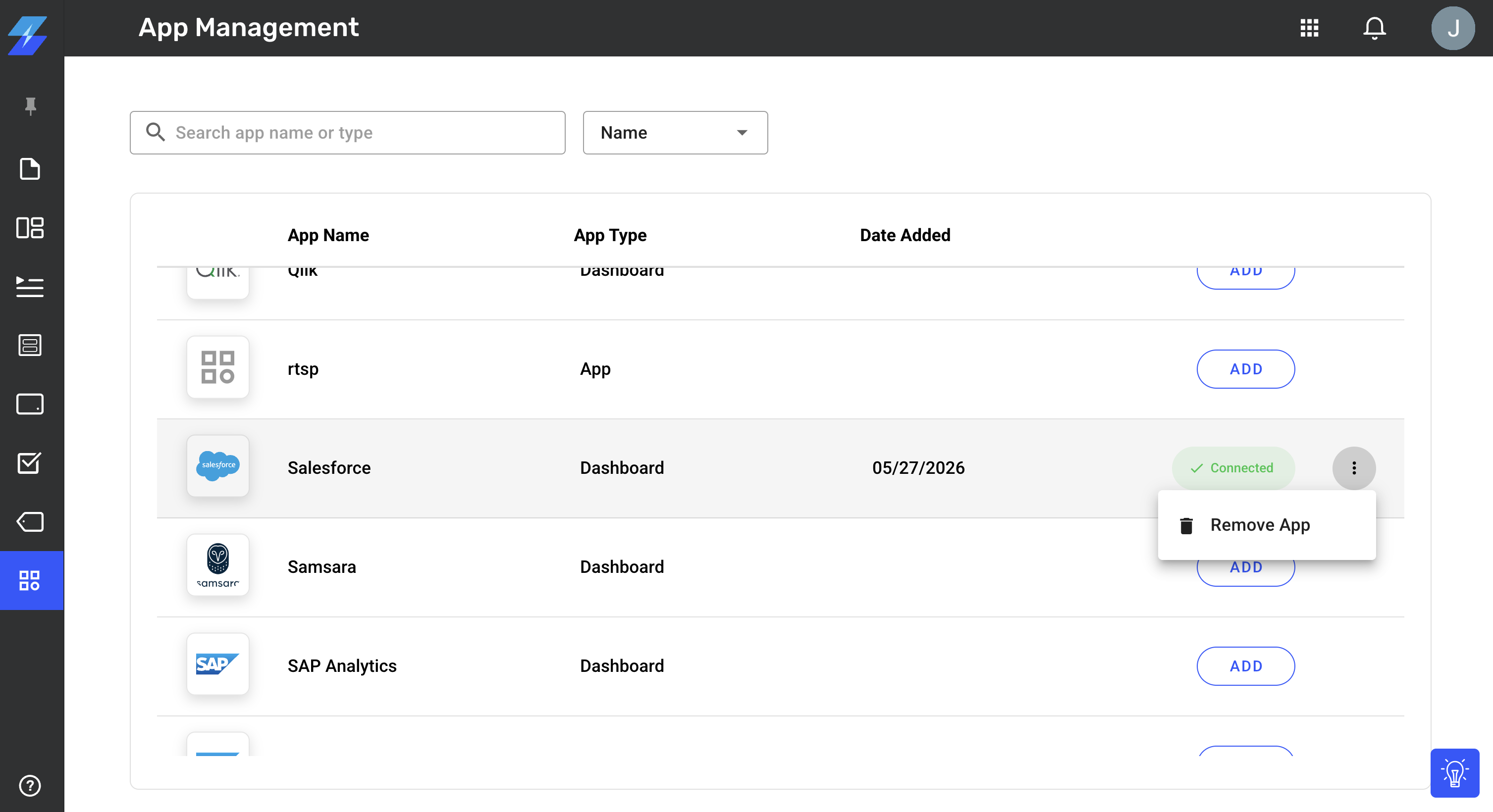
Administrators can remove an App from the Tenant when it is no longer needed. From the connected App detail page, click Remove App.
What Non-Admin Users can do
Non-Admin users cannot access the App Management page, though they can see what Apps when creating App content.
If these users are creating a Dashboard and credentials have not been added, they will see this message:
Don’t see the correct credentials? Please reach out to your Skykit Administrator.
If an App has not been added, non-Admin users will see this message:
This App is currently unavailable. It may not be connected or your plan may not include access. Please Contact your Skykit Administrator.
Troubleshooting
Use the table below if an App, credential, or App Management option does not appear as expected.
Issue | What to check |
|---|---|
App Management is not visible | Confirm that your role includes access to the App Management page. If needed, contact your Skykit Administrator. |
An App is locked | The app may not be included in your edition, or it may not be connected to your Tenant. Contact your Skykit Administrator. |
The Add button is disabled | Only Administrators can add Apps. The App may also be unavailable for your edition. |
You cannot open a connected App detail page | Only Administrators can open connected App detail pages. Managers and Basic users have view-only access to App Management. |
You cannot create credentials | Only Administrators can create credentials. Ask an Administrator to add the credentials for the App. |
You cannot edit or delete credentials | Only Administrators can edit or delete saved credentials. |
Users do not see the credentials they need | Confirm that the credentials were created for the correct connected App and that the nickname is clear. |
An App was added but users cannot create Dashboard content from it | Confirm that the App is connected, required credentials are saved, and users are creating content from Content > + Content > Apps. |
The App requires more configuration | Review the App provider’s requirements and determine whether the Additional Configurations tab is needed. |
Next steps
After an Administrator adds the App and saves any required credentials, users can create content from the connected App. To continue the workflow, go to Content > + Content > Apps, choose the connected App, and fill out the required fields to create new content.
Create Dashboard Content from a Skykit App
Create Screenfeed Content from a Skykit App