Skykit Apps make it possible to display dashboards from supported business intelligence tools, dashboard providers, and content providers in Skykit Beam. After an Administrator adds an app and saves any required credentials, users can create dashboard content from Content > + Content > Apps and then add that content to a playlist, collection, or layout.
Availability: Dashboard apps are available to Pro and Enterprise customers. If you do not see dashboard apps or the dashboard content option in Skykit Beam, your plan may not include access or the feature may need to be enabled. Contact support@skykit.com or your Skykit Administrator for help.
This article explains how to create dashboard content from a connected app. If you need to add an app or manage saved credentials first, see Add and Manage Apps in Skykit Beam.
.jpg)
Before you begin
Before you create dashboard content from an app, the app must already be available in your Skykit Beam tenant. Some dashboard apps also require saved credentials so Skykit Beam can authenticate with the dashboard provider and display the content on a screen.
Administrators are responsible for adding apps and creating saved credentials. Once that setup is complete, Administrators, Managers, and Basic users can create dashboard content from connected apps, as long as the app and the required credentials are available.
| Requirement | Why it matters |
|---|---|
| The app has been added to your tenant | The app must be connected before users can create dashboard content from it. |
| Saved credentials are available, if required | Credentials allow Skykit Beam to log in to the dashboard provider when authentication is needed. |
| You have the dashboard URL | The URL tells Skykit Beam which dashboard to display. |
| You know the correct login method | The login method should match how your organization normally signs in to that dashboard provider. |
| You have access to create content | Users must have the appropriate Skykit Beam access to create new content. |
Credential privacy: When you create dashboard content, you select a saved credential nickname. You cannot view the saved username or password behind that nickname.
Who can create dashboard content from apps?
Dashboard content creation is separate from app and credential management. Administrators manage the setup, while users can create dashboard content after the setup is complete.
| Role | Create dashboard content from a connected app | Add apps | Create or manage credentials |
|---|---|---|---|
| Administrator | Yes | Yes | Yes |
| Manager | Yes, when the app and credentials are available | No | No |
| Basic user | Yes, when the app and credentials are available | No | No |
If you are a Manager or Basic user and you do not see the app or credentials you need, contact your Skykit Administrator. Administrators can add the app and create the credentials from App Management.
Create dashboard content from a connected app
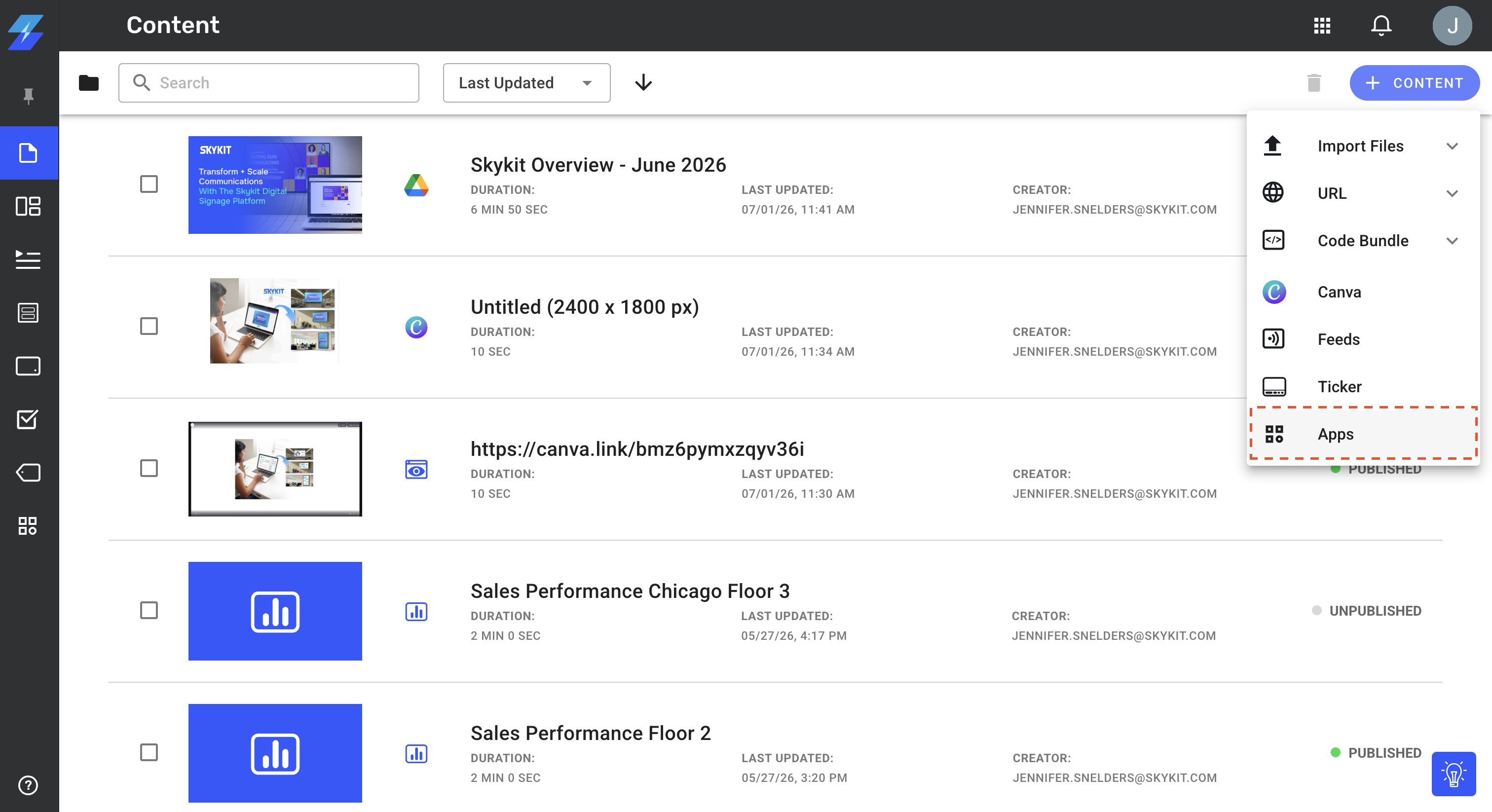
To begin, go to the Content page in Skykit Beam. Click + Content, then select Apps.
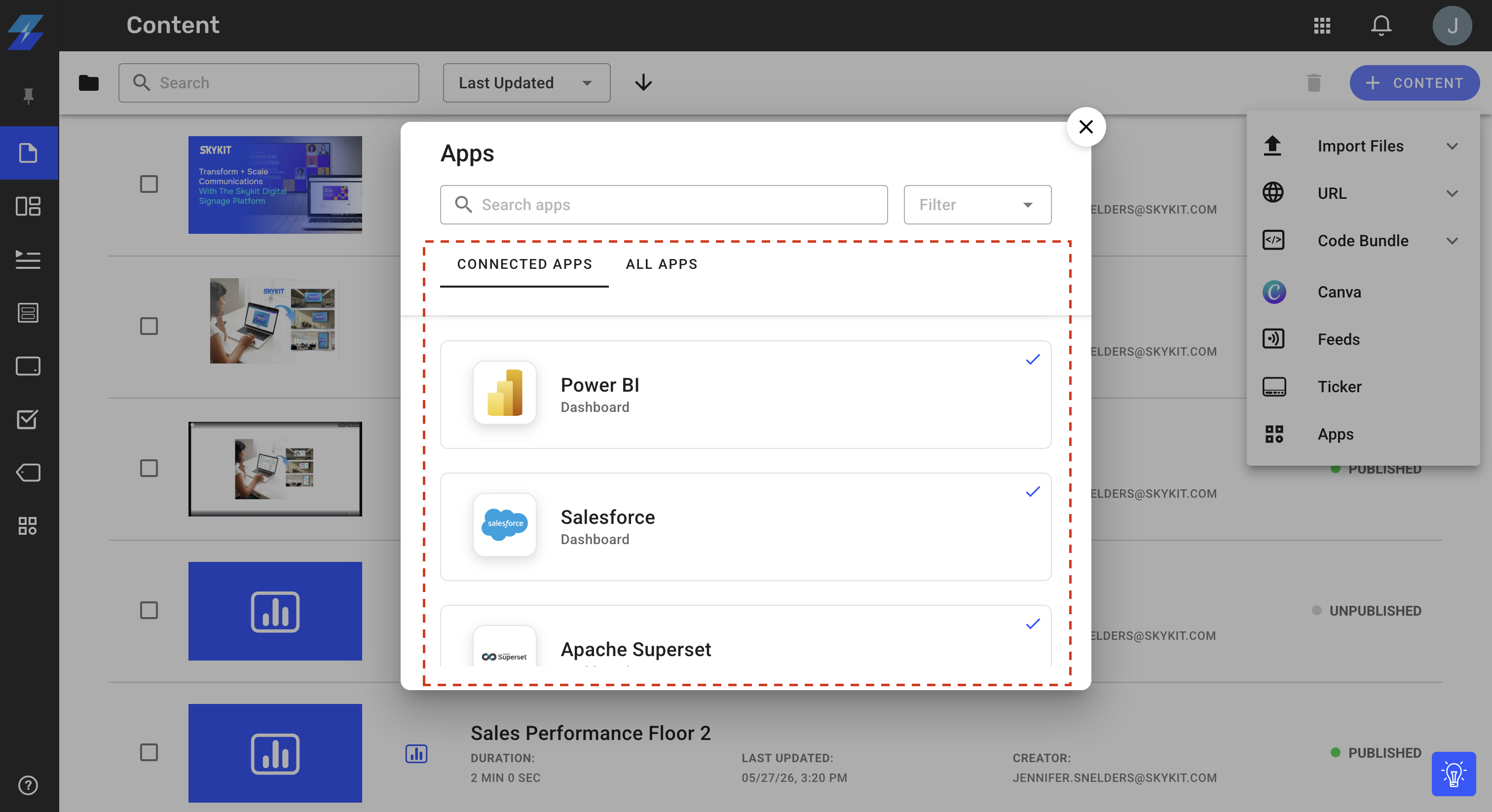
Skykit Beam opens the app selection flow. Scroll to the app you want to use. If the app has already been connected, it displays Already connected.
Review the app details to confirm that you selected the correct app. Then click Next.
If the app does not show Already connected, the app may not be available to your tenant yet. Administrators can add the app if it is included with your edition. Managers and Basic users should contact a Skykit Administrator.
Step 1: Enter the dashboard URL and select credentials
In Step 1 of 3, enter the URL for the dashboard you want to display. Copy the URL directly from the dashboard in your browser, and include the full URL with https:// or http://.
Next, choose the saved credentials Skykit Beam should use to log in to the dashboard provider. The credential list shows saved credential nicknames only. Select the nickname that matches the dashboard, team, location, or provider account you want to use.
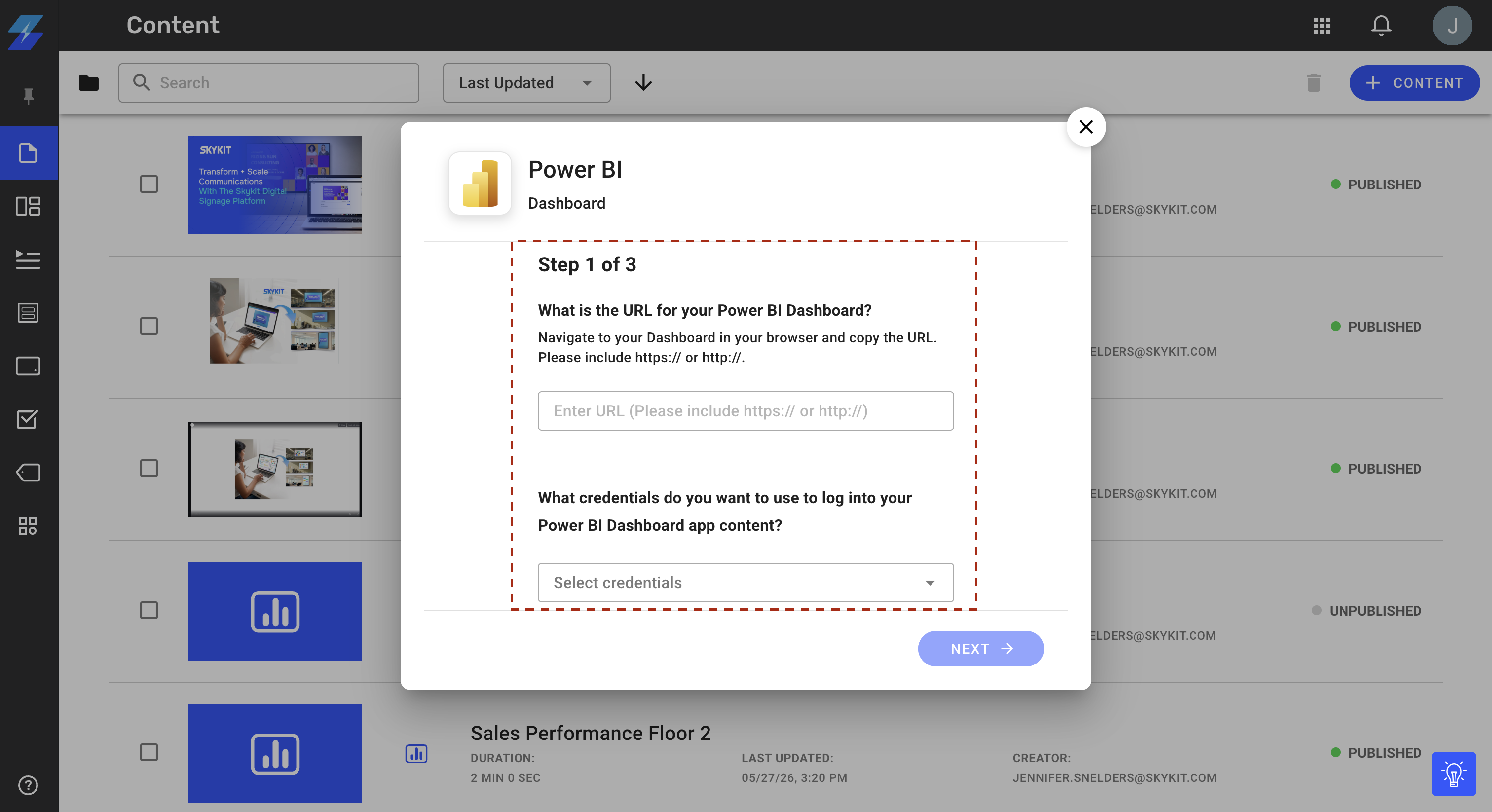
After you enter the dashboard URL and select the correct credentials, click Next.
Don’t see the correct credentials? Please reach out to your Skykit Administrator. Only Administrators can create, edit, or delete saved credentials.
Step 2: Select the login method
In Step 2 of 3, select the login method that matches how you normally sign in to your dashboard. For example, your organization may use a provider login, single sign-on, or an identity provider such as Okta.
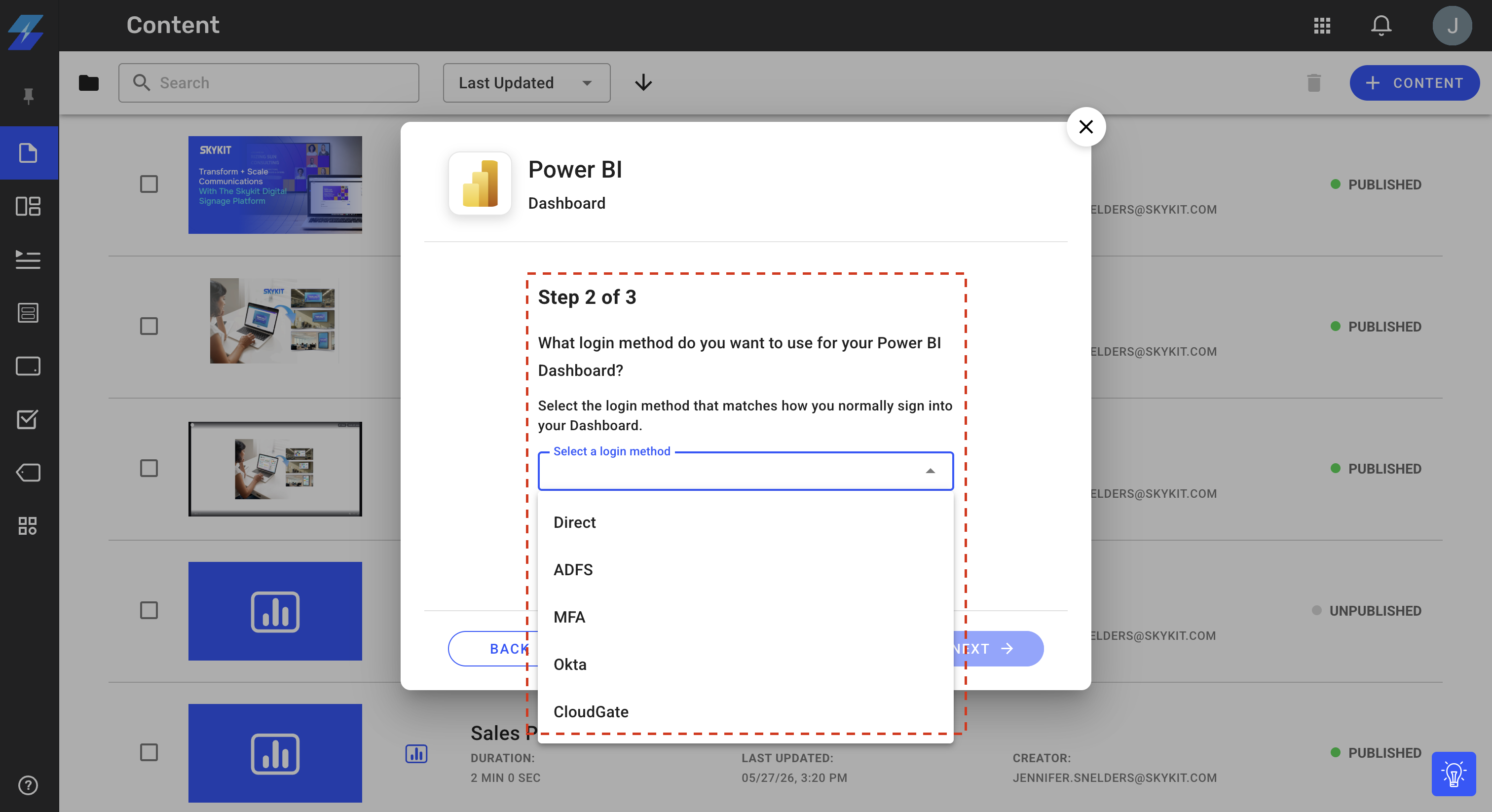
Choose the correct login method from the dropdown, then click Next.
Selecting the right login method helps Skykit Beam authenticate with the dashboard provider using the saved credentials selected in the previous step. If you are not sure which method to select, confirm how your organization signs in to that dashboard outside of Skykit Beam.
Step 3: Name the dashboard content and review advanced settings
In Step 3 of 3, enter a clear name for the dashboard content. Choose a name that will help other users find and understand the content in the library. A useful name often includes the dashboard purpose, location, department, or audience.
Examples include Sales Performance Floor 2, Service Dashboard - North Region, or Executive KPI Dashboard.
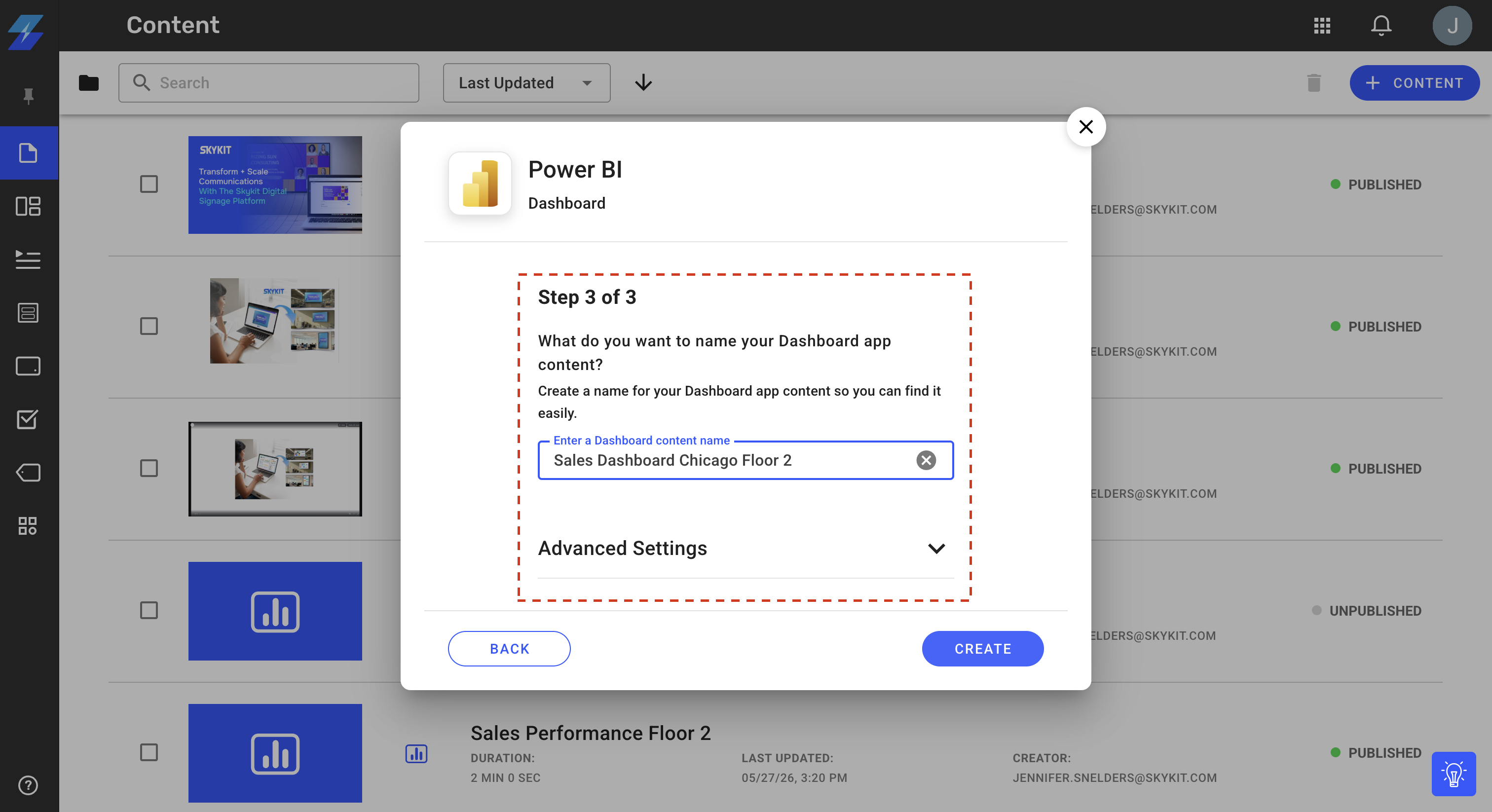
You can also expand Advanced Settings if you need to adjust dashboard playback behavior.
| Advanced setting | What it controls | When to adjust it |
|---|---|---|
| Reload Duration | How often the dashboard reloads while playing | Use this when the dashboard should refresh periodically to show updated data. |
| Timeout Duration | How long Skykit Beam waits before timing out the dashboard load | Use this when a dashboard needs more time to load because of provider performance, network speed, or dashboard complexity. |
After you enter the content name and review any advanced settings, click Create.
A Successfully created [App Name] Dashboard message appears when the content has been created.
Find and use the dashboard content
After the dashboard content is created, it appears in your Content library. You can manage it like other content in Skykit Beam and add it to a playlist, collection, or layout so it can play on a display.
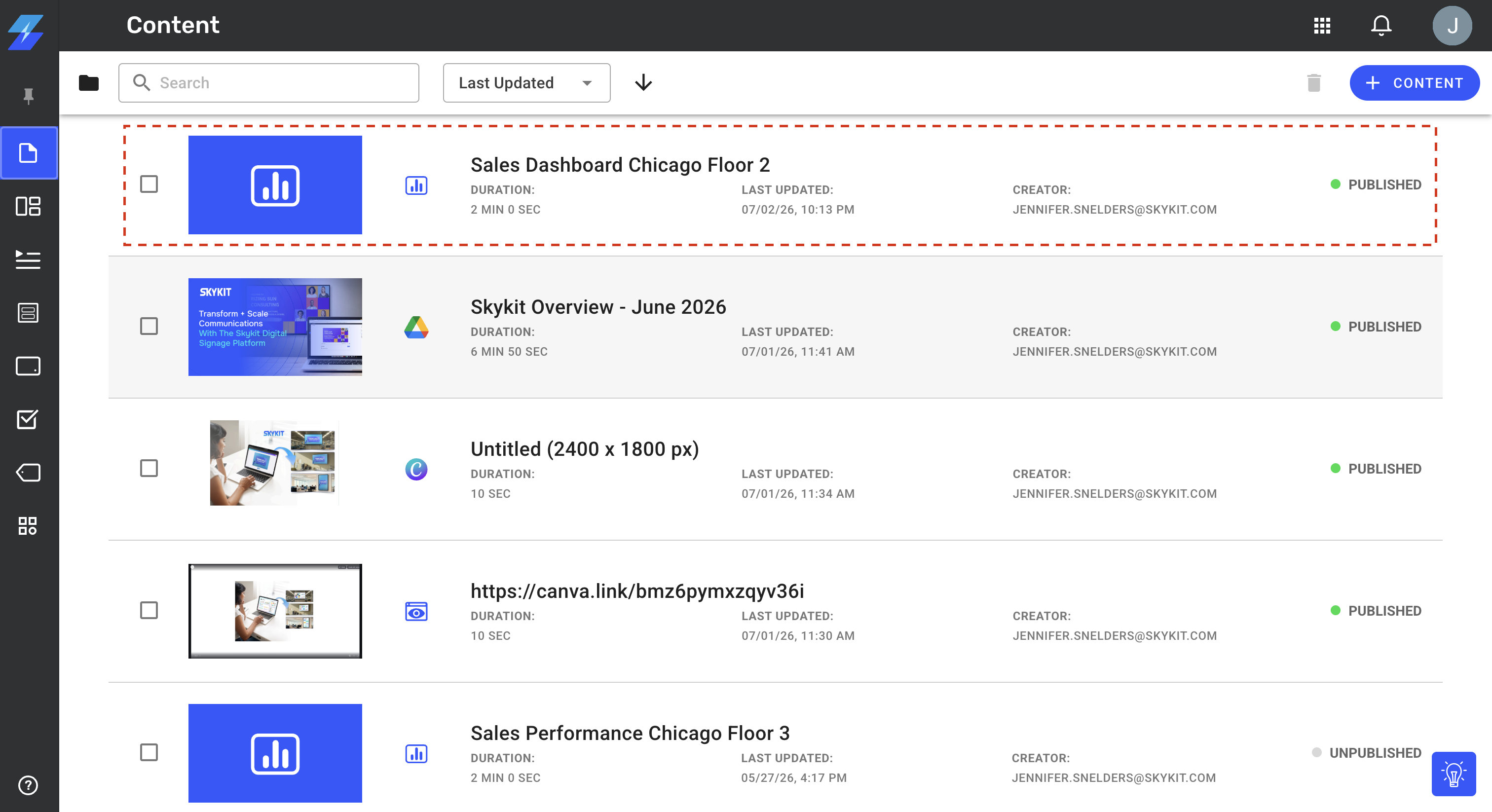
The content library item displays the dashboard content name, duration, last updated date, creator, and publishing status. Use a descriptive content name so other users can quickly identify the dashboard and understand where it should be used.
Troubleshooting
Use the table below if you cannot create dashboard content from a connected app or if something does not appear as expected.
| Issue | What to check |
|---|---|
| I do not see Apps under + Content | Dashboard apps may not be available for your edition, or the feature may need to be enabled. Contact support@skykit.com or your Skykit Administrator. |
| The app I need is not listed | The app may not be available for your tenant or edition. Ask an Administrator to review App Management. |
| The app does not say Already connected | An Administrator may need to add the app before users can create dashboard content from it. |
| The app is unavailable or locked | Your plan may not include the app, or the app may not be connected. Contact your Skykit Administrator. |
| I do not see the correct credentials | Ask your Skykit Administrator to create or update the saved credentials for that app. |
| I do not know which credential to select | Choose the credential nickname that matches the dashboard, department, location, or provider account. If the nickname is unclear, contact your Administrator. |
| I do not know which login method to select | Select the method that matches how your organization normally signs in to the dashboard provider. |
| The dashboard does not load or times out | Confirm that the URL is correct, the credentials are valid, and the login method is correct. If needed, ask an Administrator to review the saved credentials or adjust the timeout duration. |
| The dashboard shows a login page instead of content | The selected credentials or login method may not match the dashboard provider’s sign-in flow. Confirm the correct credential and login method. |
| The dashboard content was created but does not appear on a display | Add the dashboard content to a playlist, collection, or layout, then confirm the assigned display is online and using the correct content schedule. |
If an app is unavailable, Skykit Beam may display this message:
This app is currently unavailable. It may not be connected or your plan may not include access. Please Contact your Skykit Administrator.
Related articles
If you need to prepare an app before creating dashboard content, see Add and Manage Apps in Skykit Beam. That article explains how Administrators add apps, manage edition availability, and create saved credentials.
If your dashboard workflow starts from Content > + Content > Dashboards instead of Content > + Content > Apps, see Creating a Dashboard Connection in Skykit Beam.