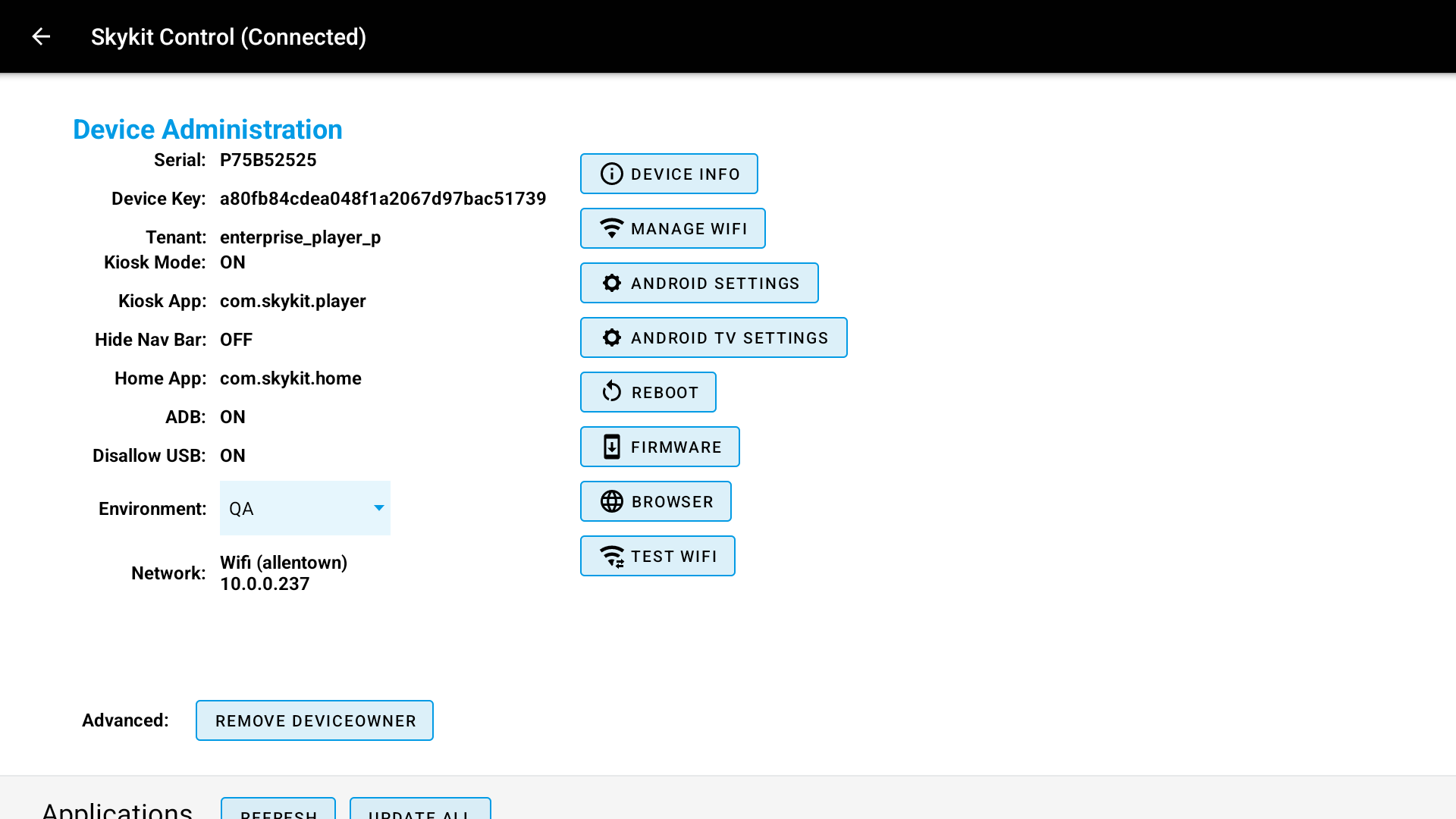
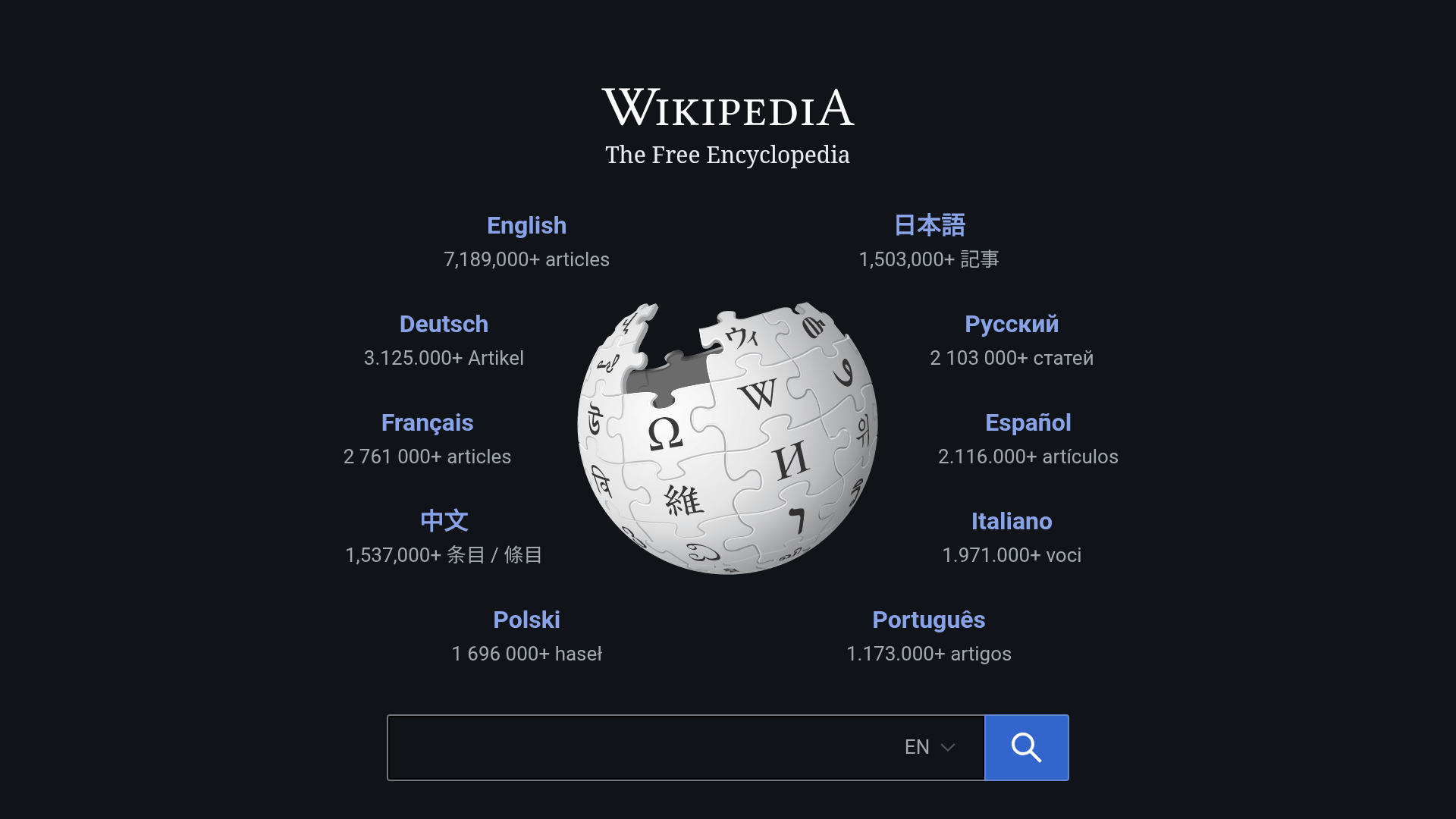
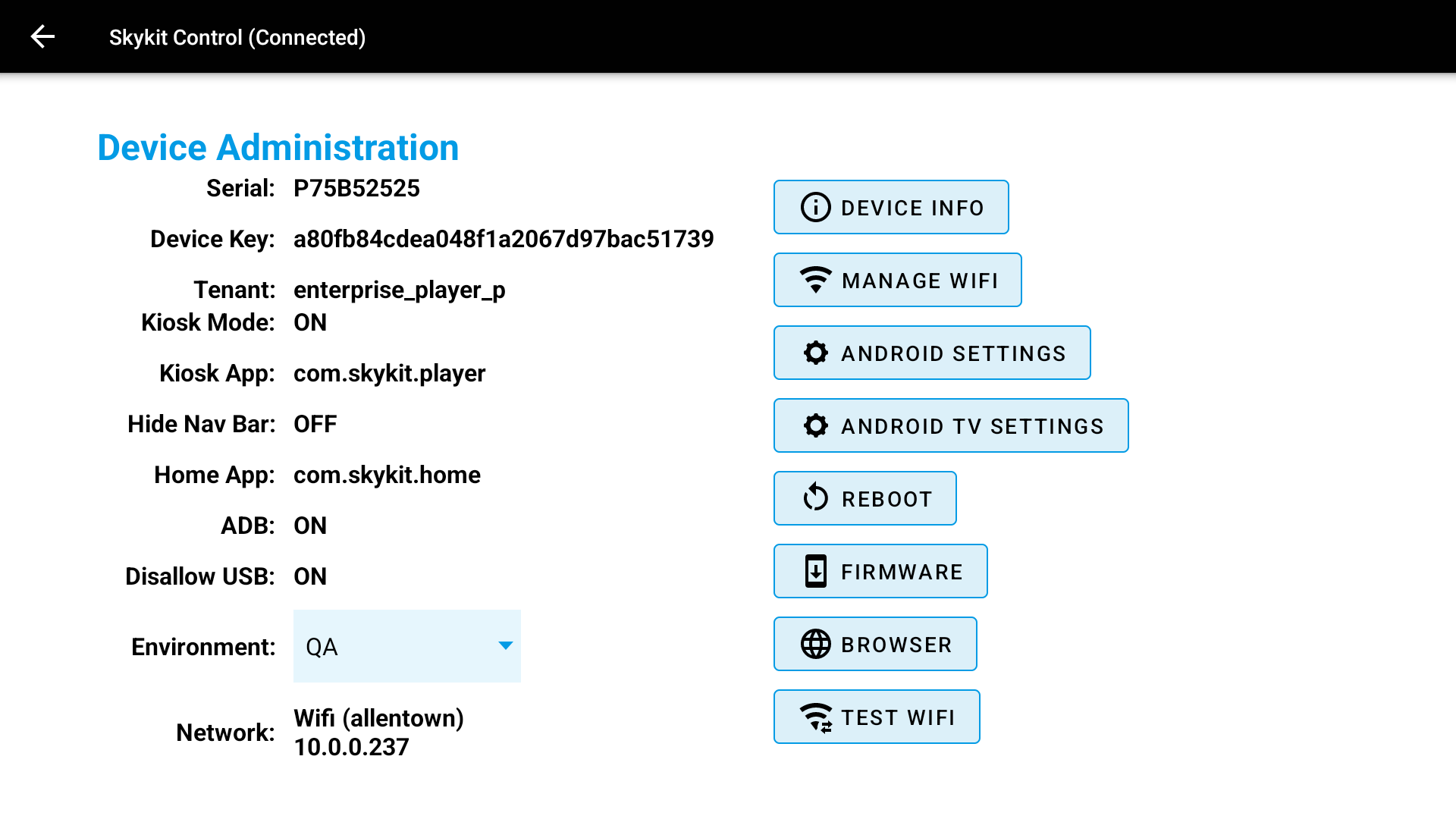
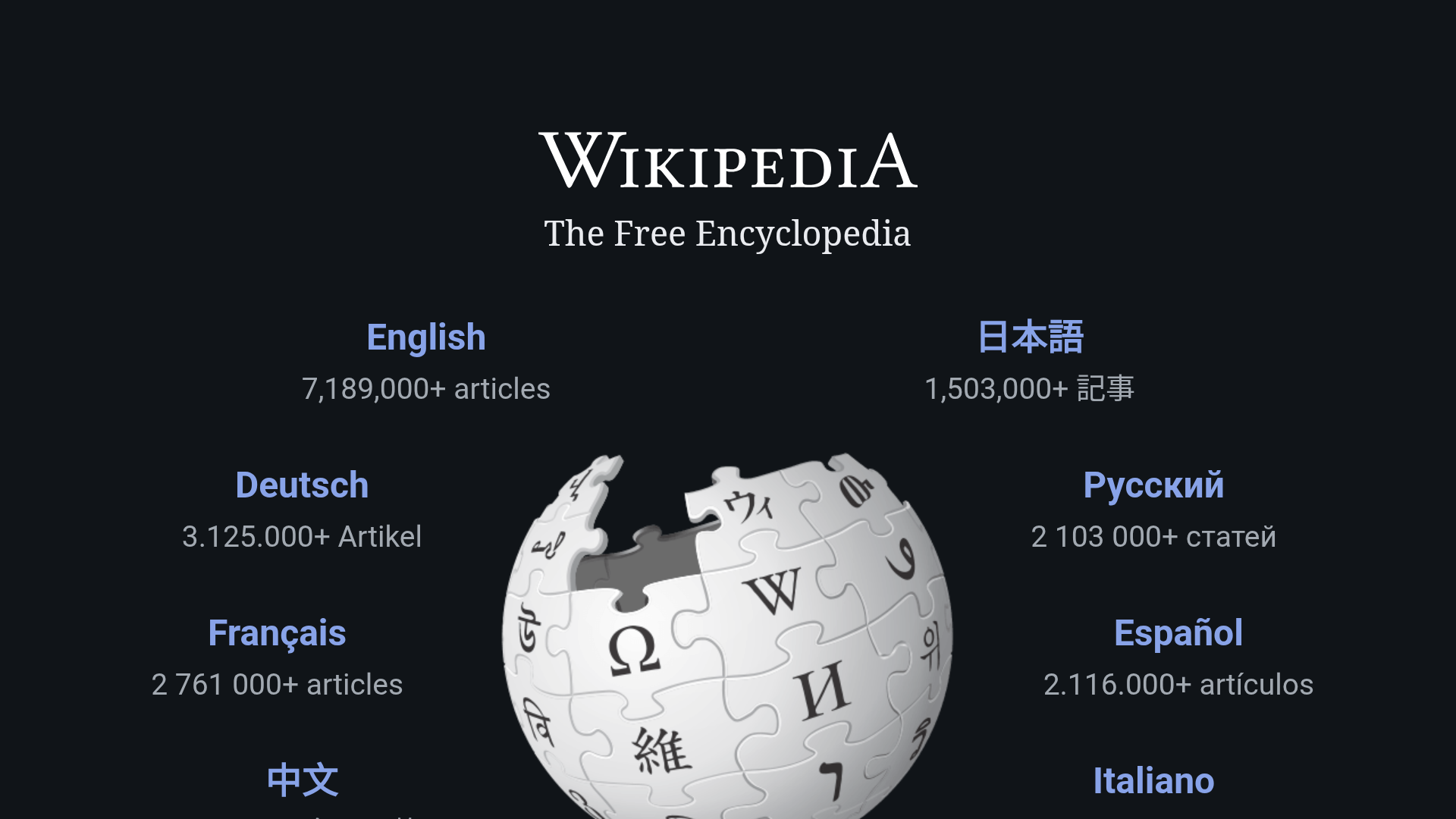
In most cases, the default setting for your Display’s pixel density in the Control Status Tab does not need to be adjusted. However, if your web-based content is getting cut off or looking too zoomed in or out on your Display, adjusting pixel density can help.
Think of pixel density as how tightly packed the dots on your screen are. Changing this number tricks the screen into making things look larger or smaller. However, this setting only applies to web or code bundle content:
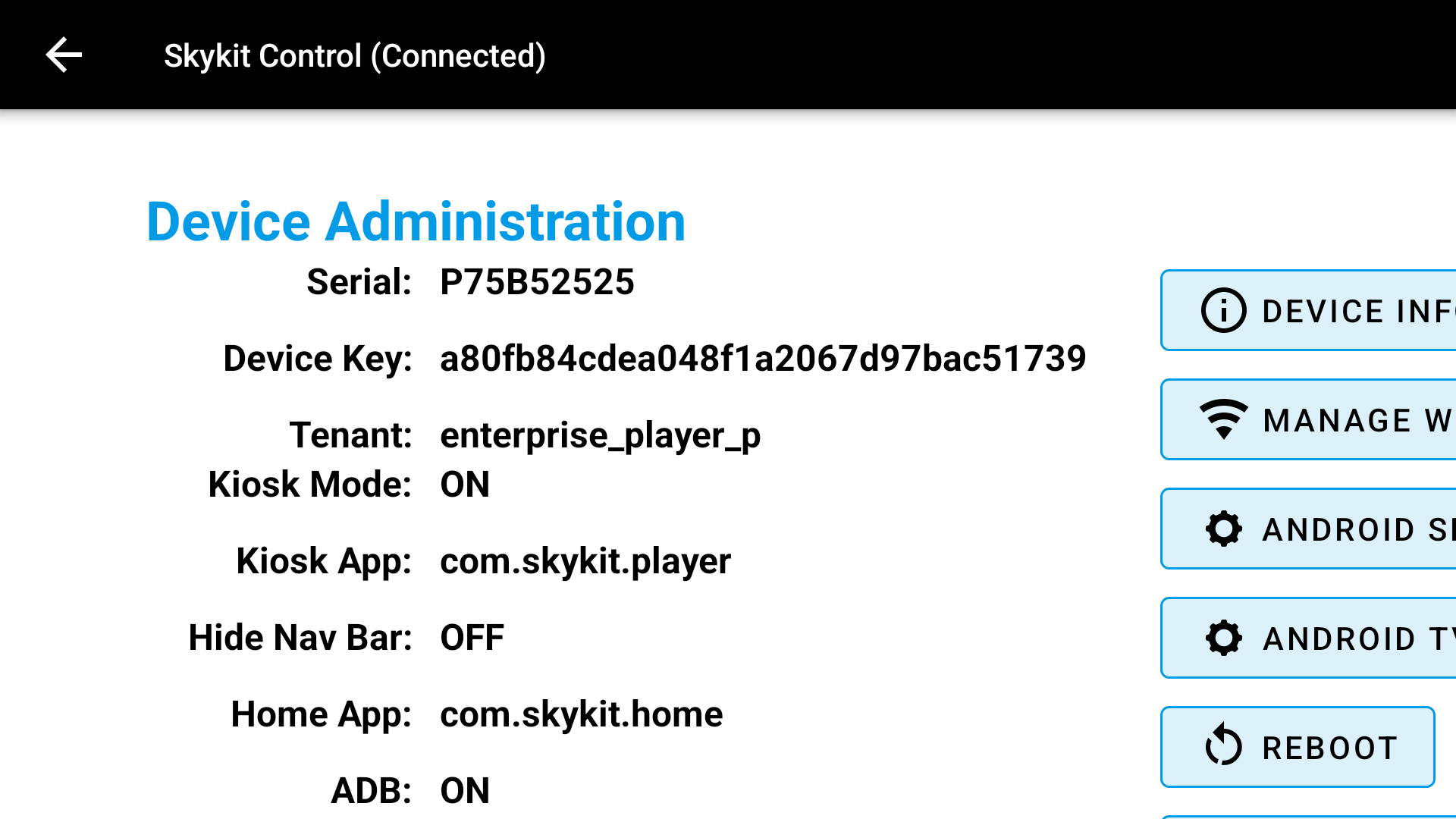
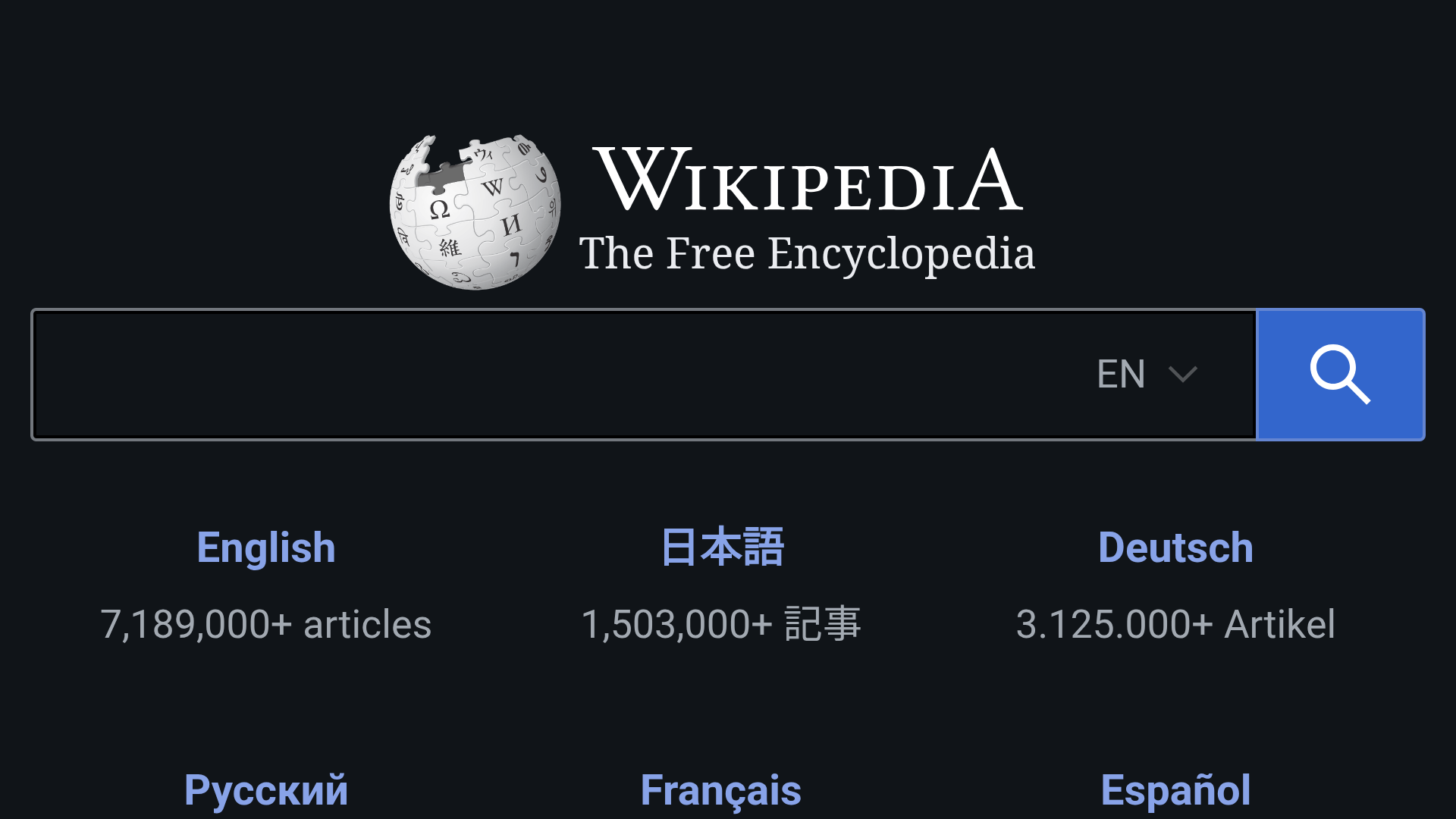
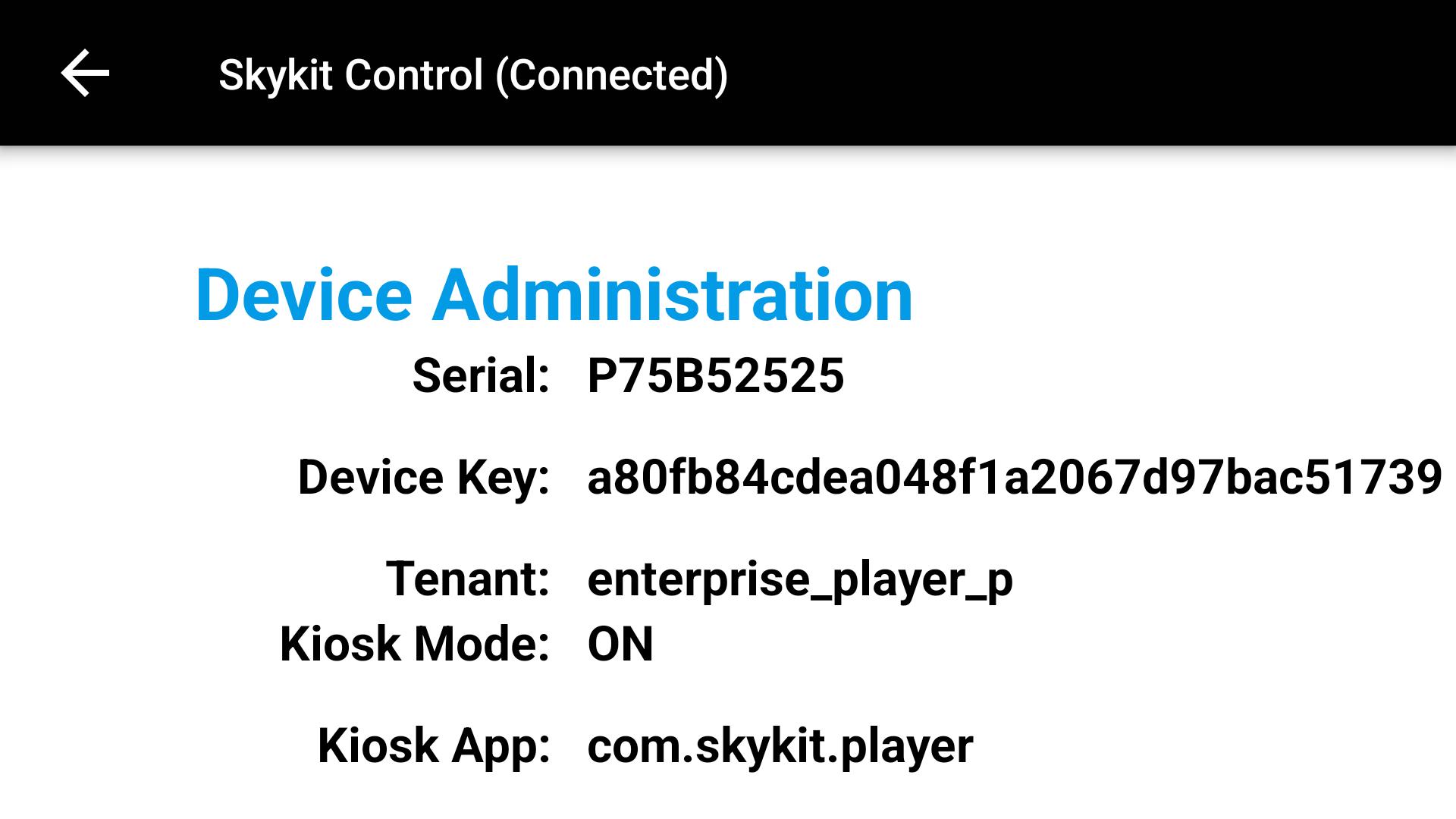
This setting WILL resize Web Views, Dashboards, Code Bundles, and Skykit’s system menus and launch logo.
This setting WILL NOT resize images, videos, PDFs, and all other content that has a specific height and width. These items will not attempt to stretch to fill the space on the screen and will appear letterboxed if the content doesn’t fit perfectly.
By default, Skykit Displays are set to a density of 240. If your content appears too big and you want to “zoom out” to fit more on the screen, trying lowering the density number.
We recommend trying a value of either 120 or 160 first.
To reset your screen back to the standard zoom at any time, just change the value back to 240.
You may need to reboot your display for changes to take affect
Important Note
Updates to density will apply to any content being played on the Display.
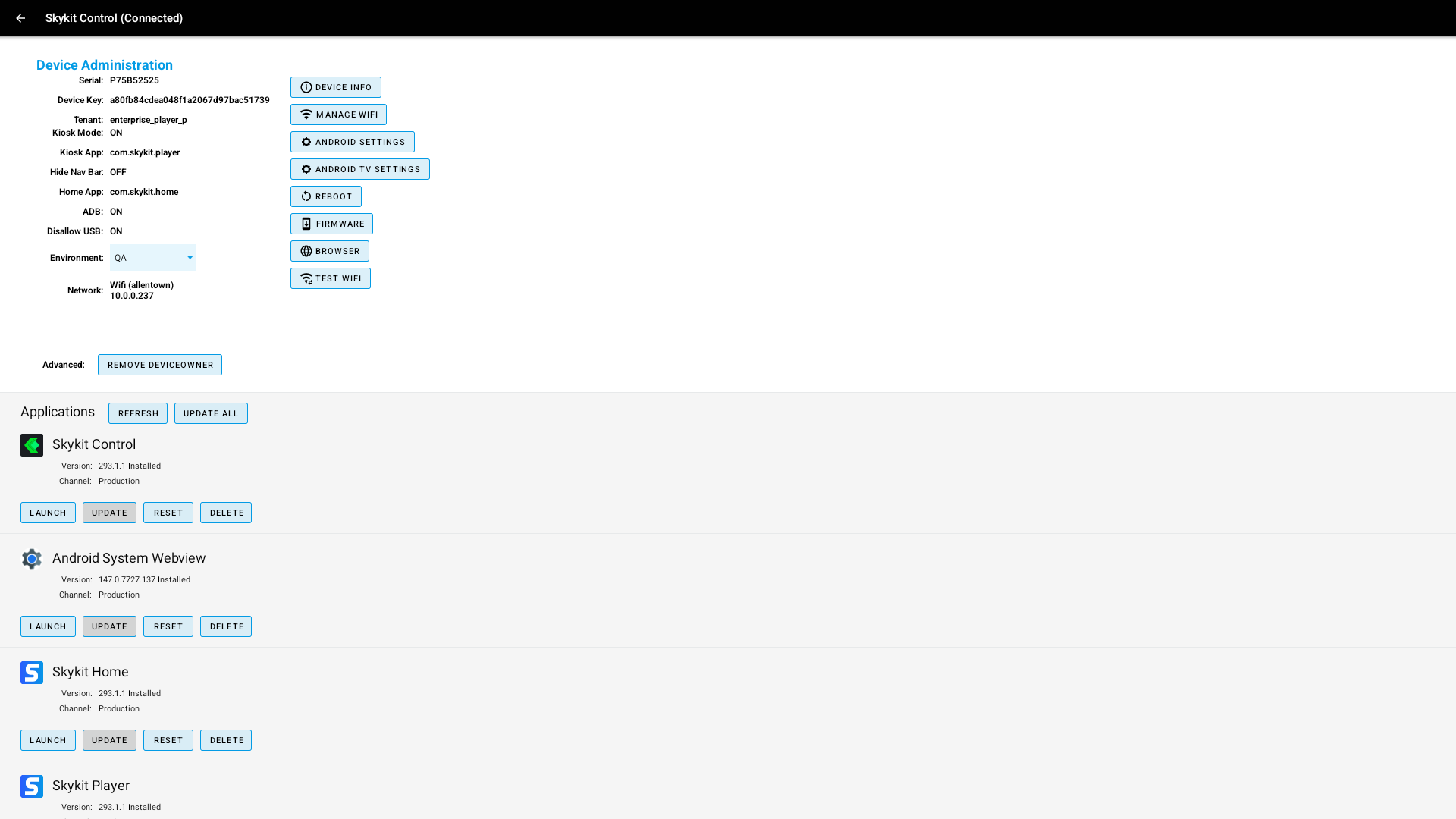
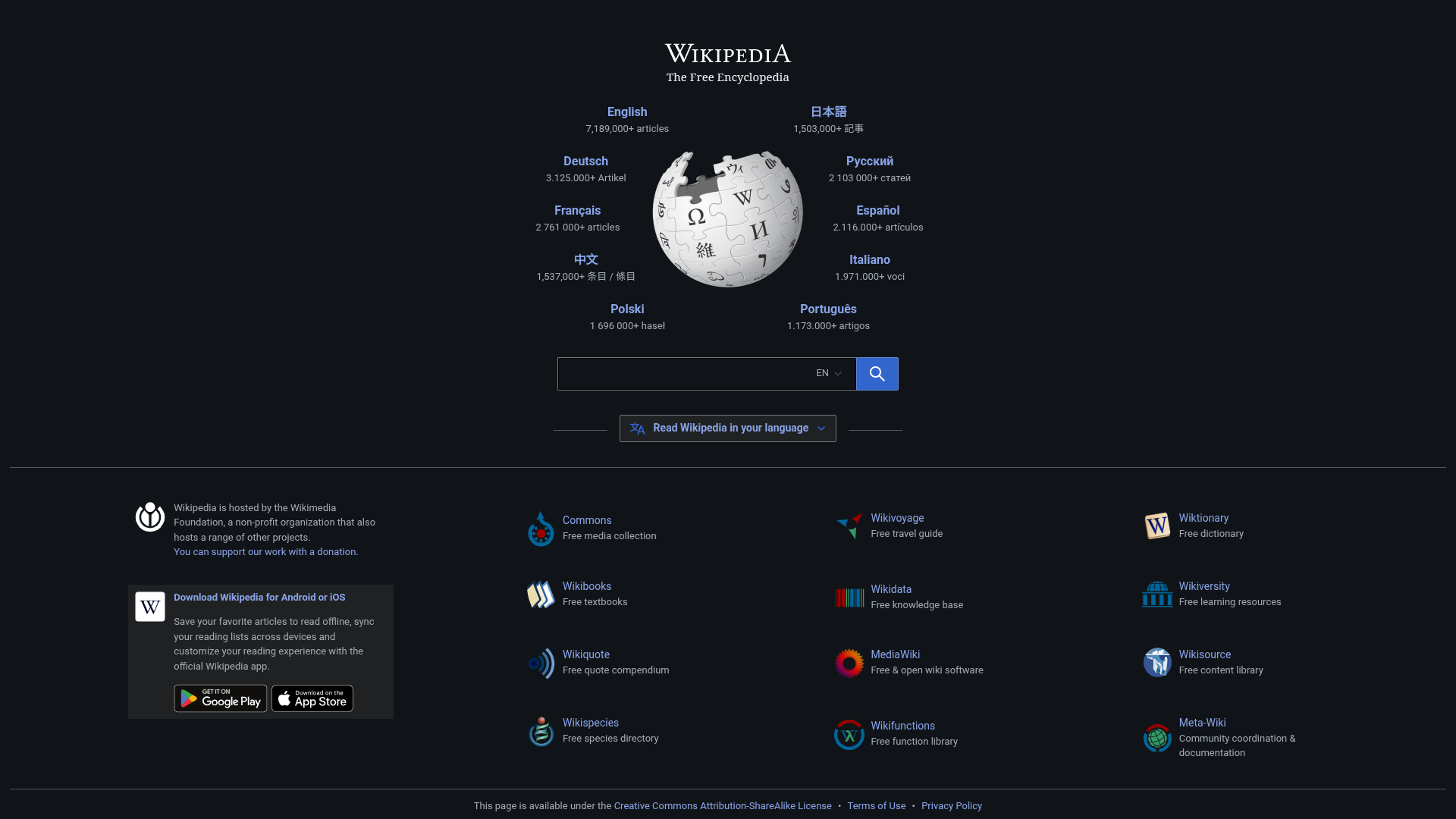
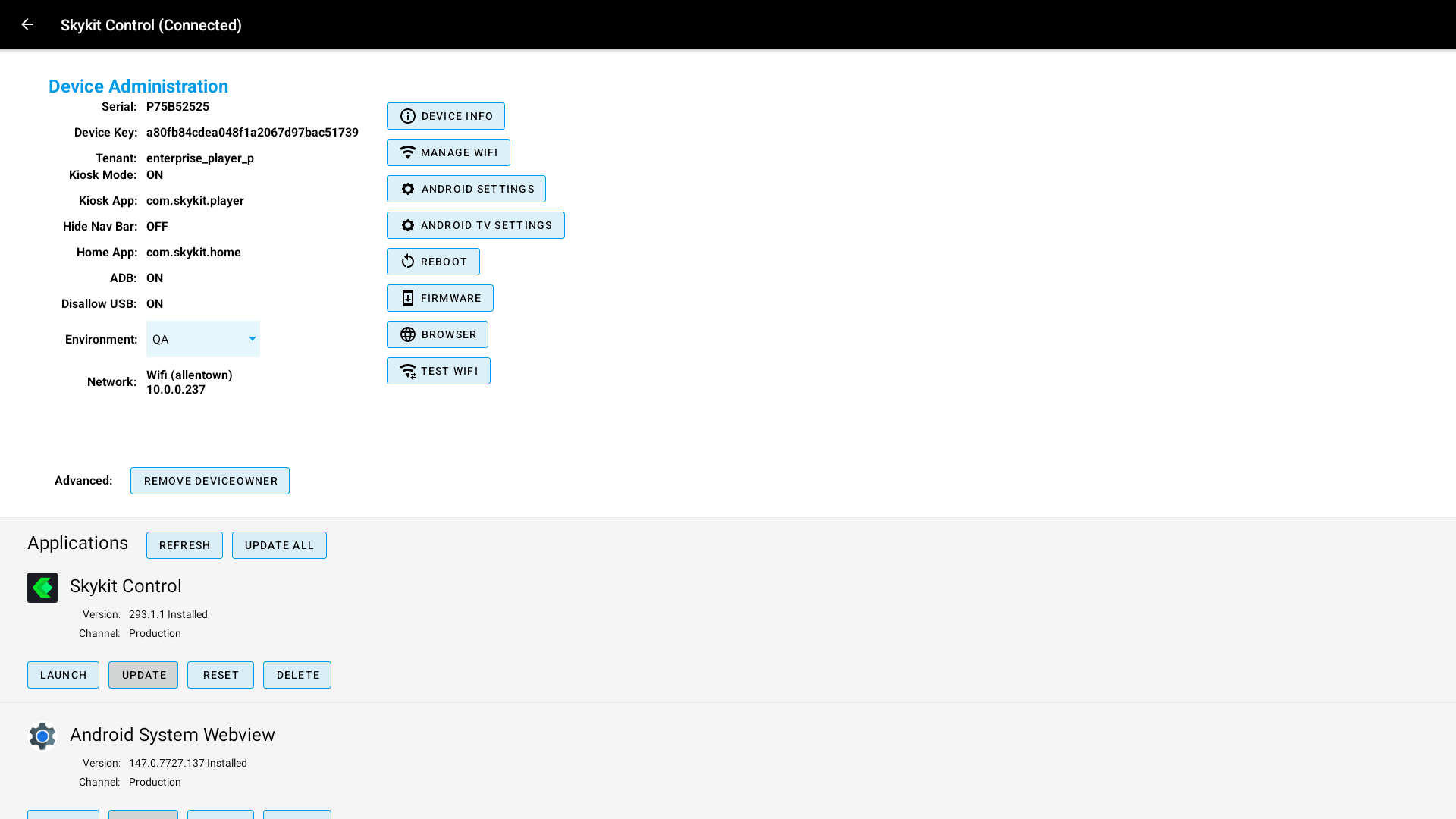
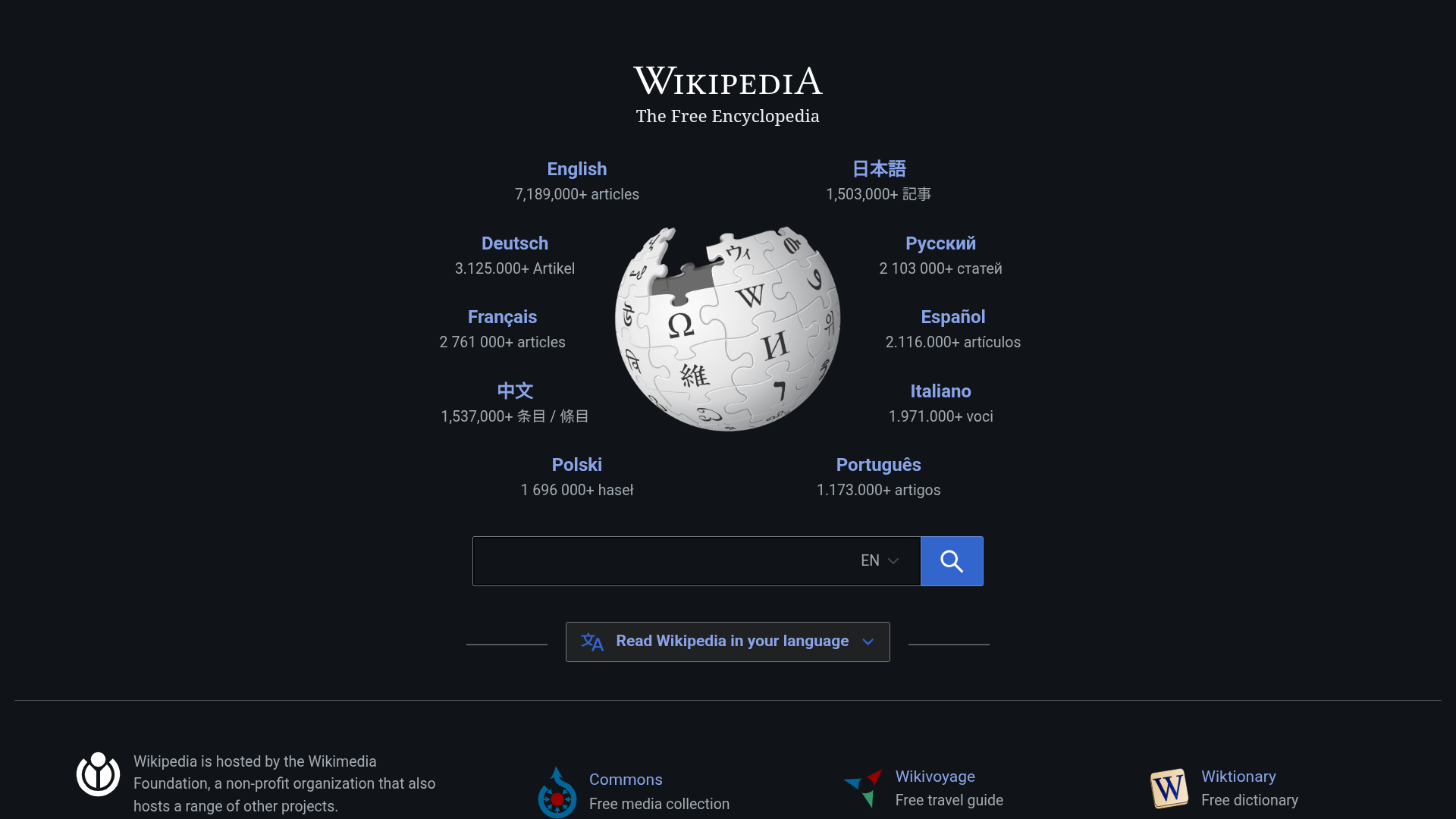
Density | Image | Website | Control App |
|---|---|---|---|
120 dpi |
|
|
|
160 dpi |
|
|
|
240 dpi |
|
|
|
320 dpi |
|
|
|
480 dpi |
|
|
|
640 dpi |
|
|
|

.png)
Need to update density for multiple devices?
Control Bulk Actions allow you to update device settings in bulk.