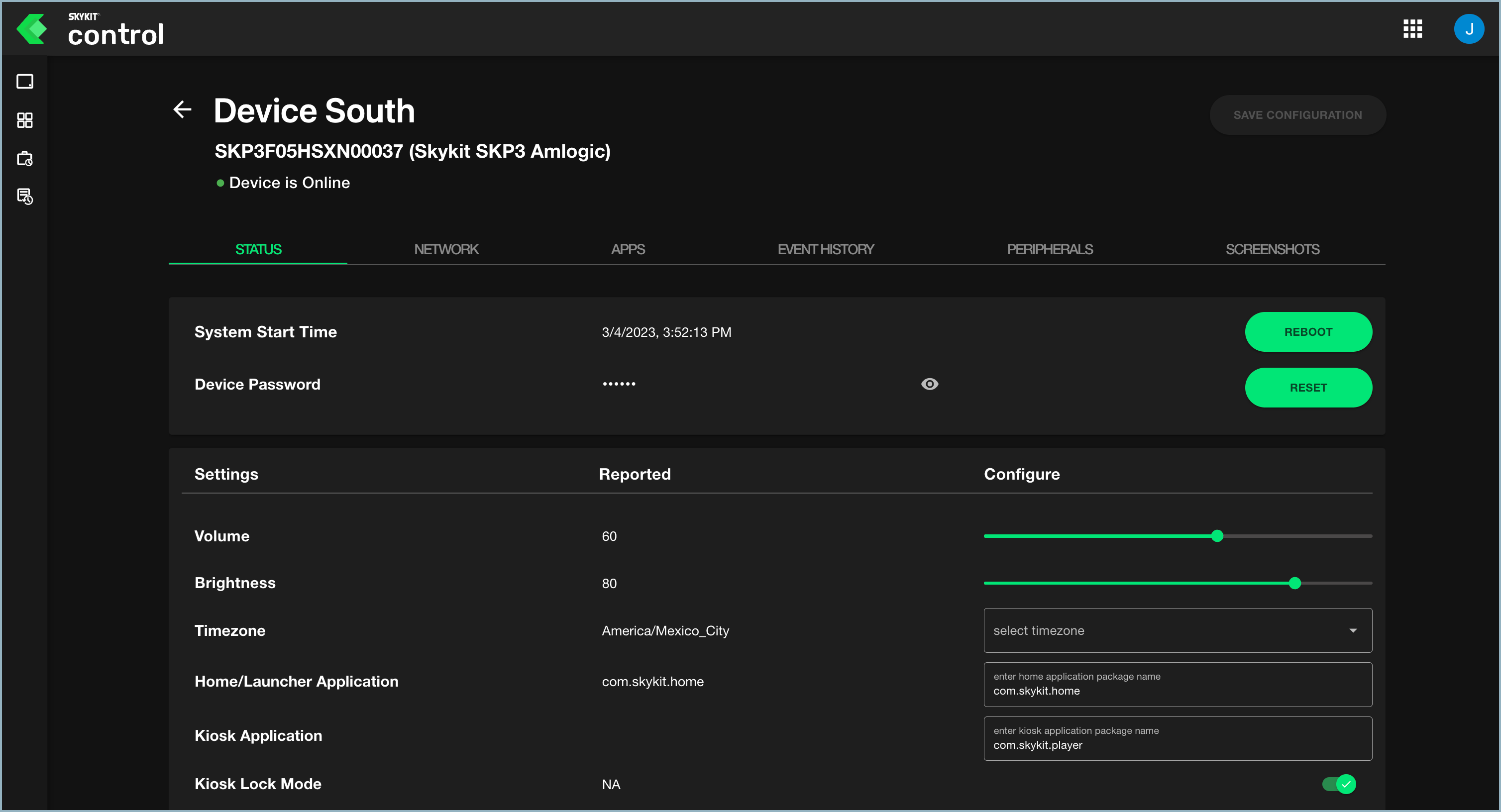
The Status tab provides information about the current state and basic operations of the device and allows you to configure settings such as volume, screen brightness, and rotation. You can also reboot the device, factory reset, or reset the device password from this tab.
Rebooting the Display, Factory Reset, and Resetting Password
The first section of the Status tab shows you the date and time the device was last started and allows you to reboot, factory reset, or reset password.
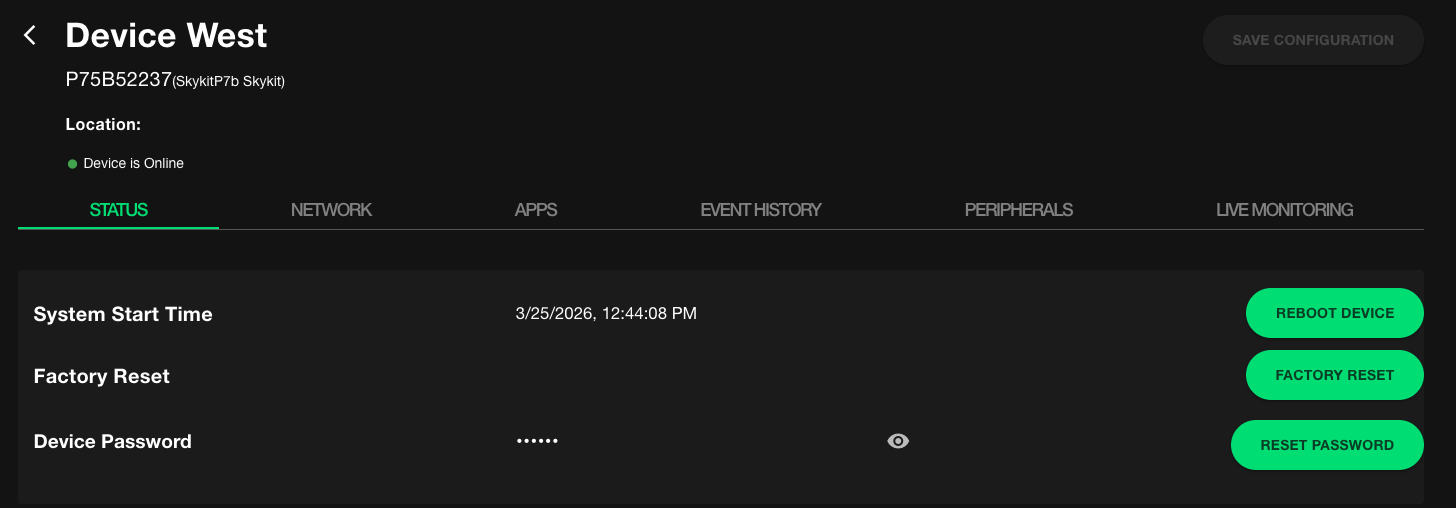
- Reboot Device
- This will reboot the system.
- Factory Reset
- This will permanently erase ALL data on the device and restore it to factory settings. This includes any saved WiFi information on the device, so it will not automatically come back online if it is not connected to Ethernet or a mobile network. This cannot be undone.
- Reset Password
- This change's your device's unique password that can be used to unlock the device from kiosk mode and access Android Settings.
- To simply view the password, click the eye icon to make the password visible.
In all cases, a progress notification in the lower left corner of the window lets you know when the command has been sent.
Configuring Settings
In the settings section of the Status tab, you can view the device's current settings and change them if needed. After you change a setting, select the Save Configuration button. The button is grayed out until you make a change.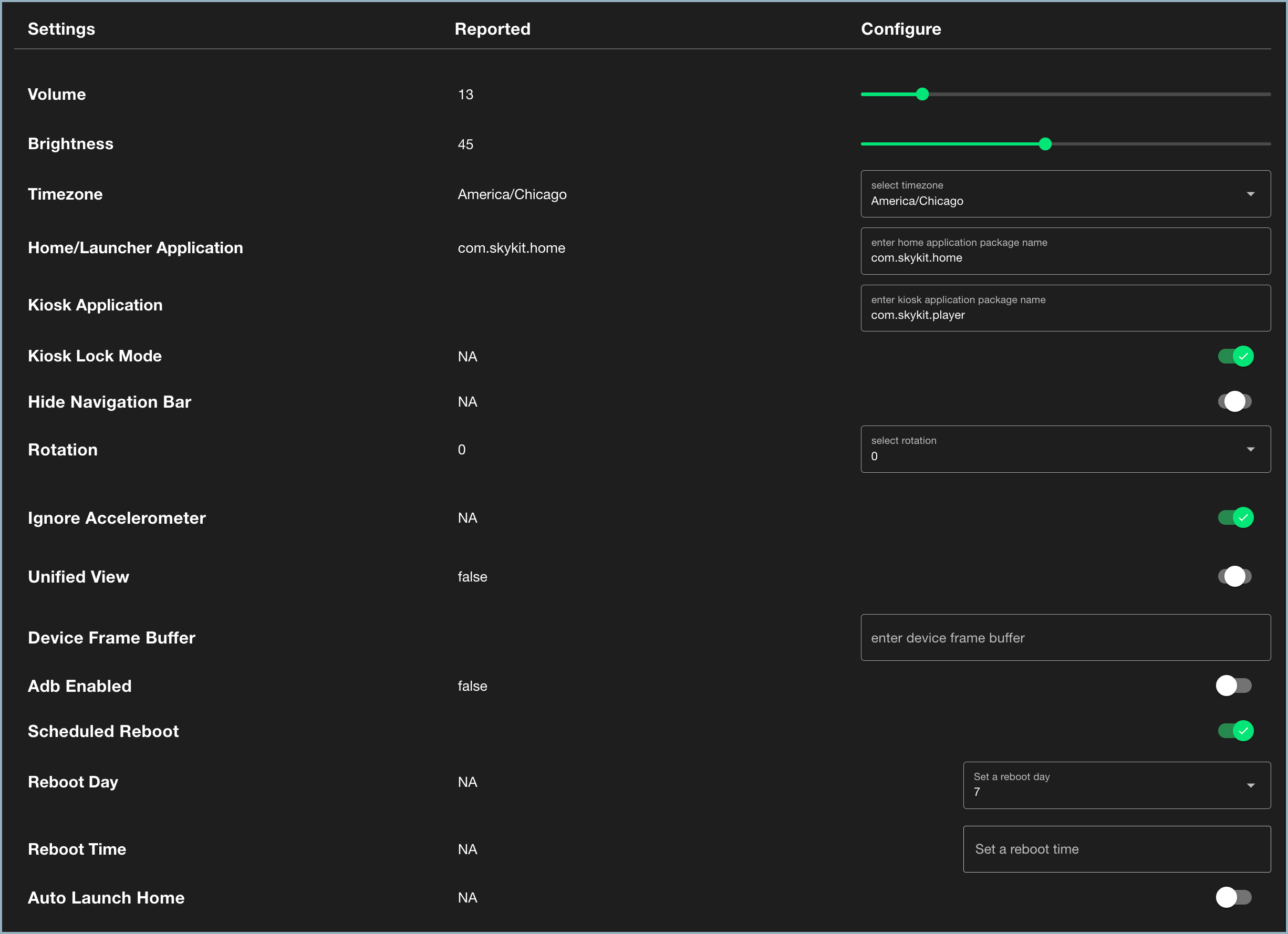
The Reported column tells you the current value of the setting. You can change the settings in the Configure column.
| Setting | Configure |
|---|---|
| Volume | Use the slider to adjust the display's volume. |
| Brightness | Use the slider to adjust the screen's brightness. |
| Timezone | Select a timezone from the drop-down list. |
| Network Time Server | Enter an alternate time server to the device's default. This should not be required by most devices and could cause issues if edited. |
| Home/Launcher Application | This is the home application package for the device. The Skykit home launcher is set by default. If you do not want to use the Skykit launcher, enter your own package name or URL in the field. Note: If you change the home application, you do not need to change the Kiosk Application. |
| App Receiver Key | This is used for third party apps that need access to Skykit apps to send commands to them. |
| Kiosk Application | This is the home application that will launch after the home screen is displayed. If you do not want to use the Skykit Player, enter the name of your own kiosk application package in the field. |
| Foreground Application | This is the application that was running in the foreground the last time the device reported in. |
| Kiosk Lock Mode | When Kiosk Lock Mode is turned on, users cannot use navigation controls such as the Back button. Turn the toggle on to lock the system after it launches. Turn the toggle off to keep the system unlocked. |
| Hide Navigation bar | If the device contains a navigation bar, this property indicates whether or not it is visible. Turn the toggle on or off to hide or reveal the Android navigation bar on the device. |
| Display Width | Set a device width in pixels. In most cases this does not need to be explicitly set. Learn more here. |
| Display Height | Set a device height in pixels. In most cases this does not need to be explicitly set. Learn more here. |
| Rotation | If the display screen can be rotated (similar to the way a smartphone or tablet screen rotates when you turn the device), this setting indicates the degree of rotation. To change the rotation, select a new value from the Rotation drop-down list (0, 90, 180, or 270). For portrait mode, select 90. |
| Ignore Accelerometer | When this setting is turned on, the screen adjusts automatically when the display is rotated, similar to a smartphone screen switching from portrait to landscape orientation when you turn the phone. This setting is turned off by default. |
| Unified Layout (E500) | Set the configuration of multiple screens using the same E500 device. |
| Unified View | Allows you to extend content across two separate displays. To enable unified view, turn the toggle key on. This setting only applies to certain displays. |
| Device Frame Buffer | Controls the screen resolution if multiple screens are connected to the device. Only pertains to customers using an SKP Pro. If you are using a device frame buffer, enter the code in the field. |
| Disallow USB Usage | This prevents most USB devices from being used on the device. HIDs (Human Interface Devices) like a USB mouse or keyboard should still work. |
| Device Density | Adjust the pixel density on your device. In most cases, the device default will work, but you may want to adjust if Web Views, Dashboards, or Code Bundles look too zoomed in or out. This will not affect the playback of uploaded content like images or videos. Learn more here. Note: Adjusting density may not take effect on some older device models. |
| ADB Enabled | ADB stands for Android Debug Bridge. This setting is for Skykit software developers only. |
| Scheduled Reboot | To set up a scheduled reboot time and day, turn this toggle on. Reboot Day and Reboot Time fields appear when the toggle is turned on. To remove a scheduled reboot, turn the toggle off and select Yes, Remove Scheduled Reboot at the prompt. |
| Reboot Day | This setting is only available when Scheduled Reboot is turned on. Select the day of the week on which you want the display to reboot. Choose Reboot Daily if you want the device to reboot every day. |
| Reboot Time | This setting is only available when Scheduled Reboot is turned on. Click in the text field and use the clock to set the time of day you want the device to reboot. Make sure you select AM or PM as appropriate. If no time is set, the device reboots daily at midnight. |
| Auto Launch Home | When this setting is turned on, Skykit Home launches when the system boots up. You may need to do this when normal app launchers, such as an Android TV device, are not supported. |
| Offline Status Threshold | Set how long should elapse between device heartbeat events before an offline email alert is sent. |
Device Properties
The device properties section is essentially a spec sheet, providing you with specific technical information about the device itself. The properties are not configurable.
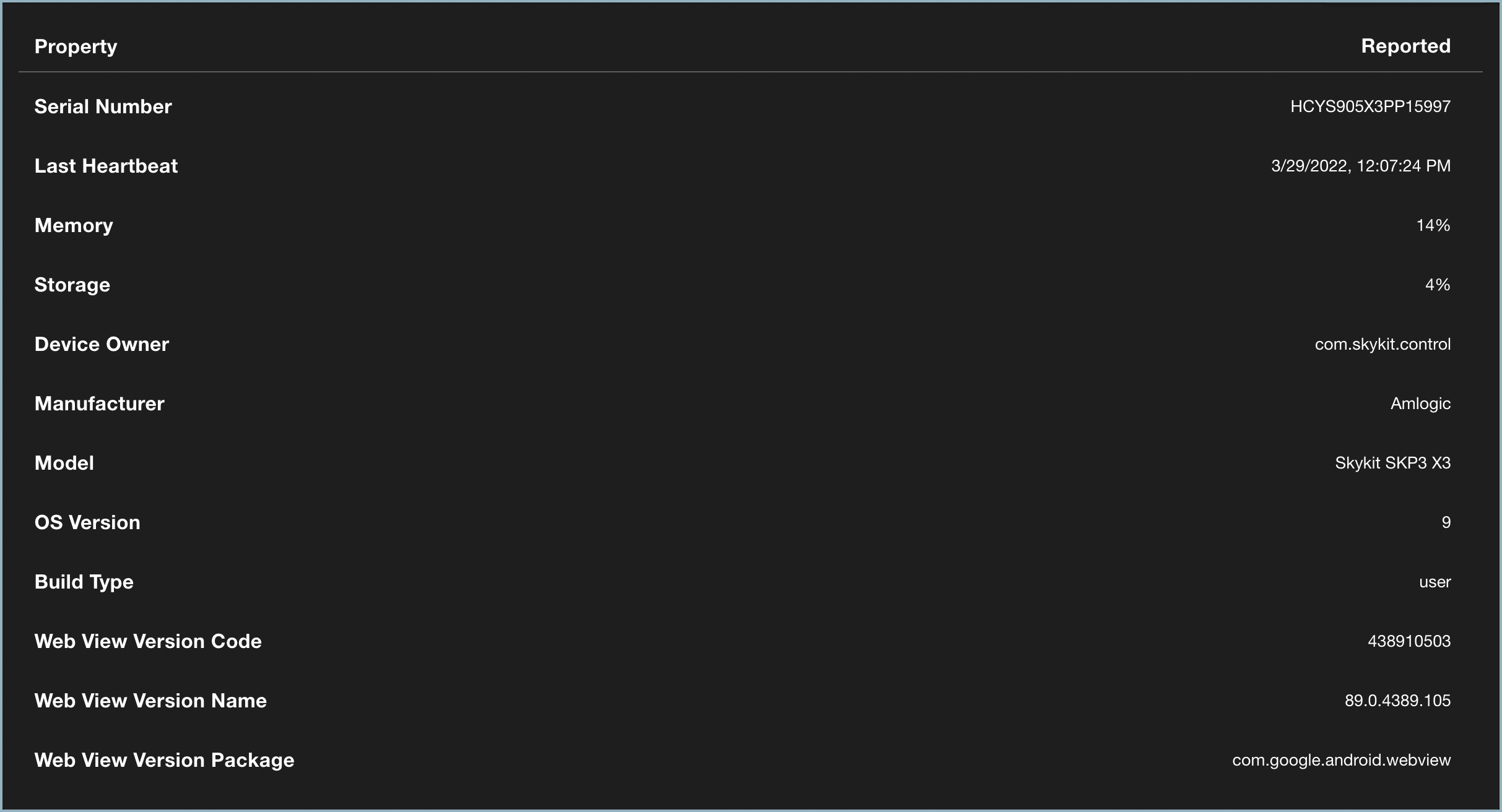
| Property | Reported |
|---|---|
| Serial Number | The device's serial number. |
| Last Heartbeat | The "heartbeat" is a periodic signal sent from a device to indicate normal operation. Last Heartbeat indicates the date and time the device last sent this signal (usually occurs once every hour). |
| Memory | The percentage of memory the device is currently using. This value is low under normal circumstances. |
| Storage | The percentage of available storage space on the device. This value is usually low. |
| Device Owner | The package name of the app considered the "owner" of the device. |
| Manufacturer | The manufacturer of the device. |
| Model | The model of the device. |
| OS Version | The current version of the device's operating system. |
| Build Type | The device's build type: "User" or "User Debug" (a developer build). |
| Web View Version Code | The web view version running on the device. Primarily relevant to Skykit software developers. |
| Web View Version Name | The name of the web view version running on the device. Primarily relevant to Skykit software developers. |
| Web View Version Package | The app that is providing the web view. Primarily relevant to Skykit software developers. |
| Has HDMI Connection | Whether an HDMI device is currently plugged into the media player. |
Attached Devices
This section shows any devices that are plugged into your media player via USB.