Editing and copying tasks within your task management system can streamline your workflow and help maintain organization. Follow these steps to effectively edit and copy your tasks in the application.
Editing a Task
To edit a task, follow these steps:
Select Tasks on the navigation bar to open the Tasks menu.
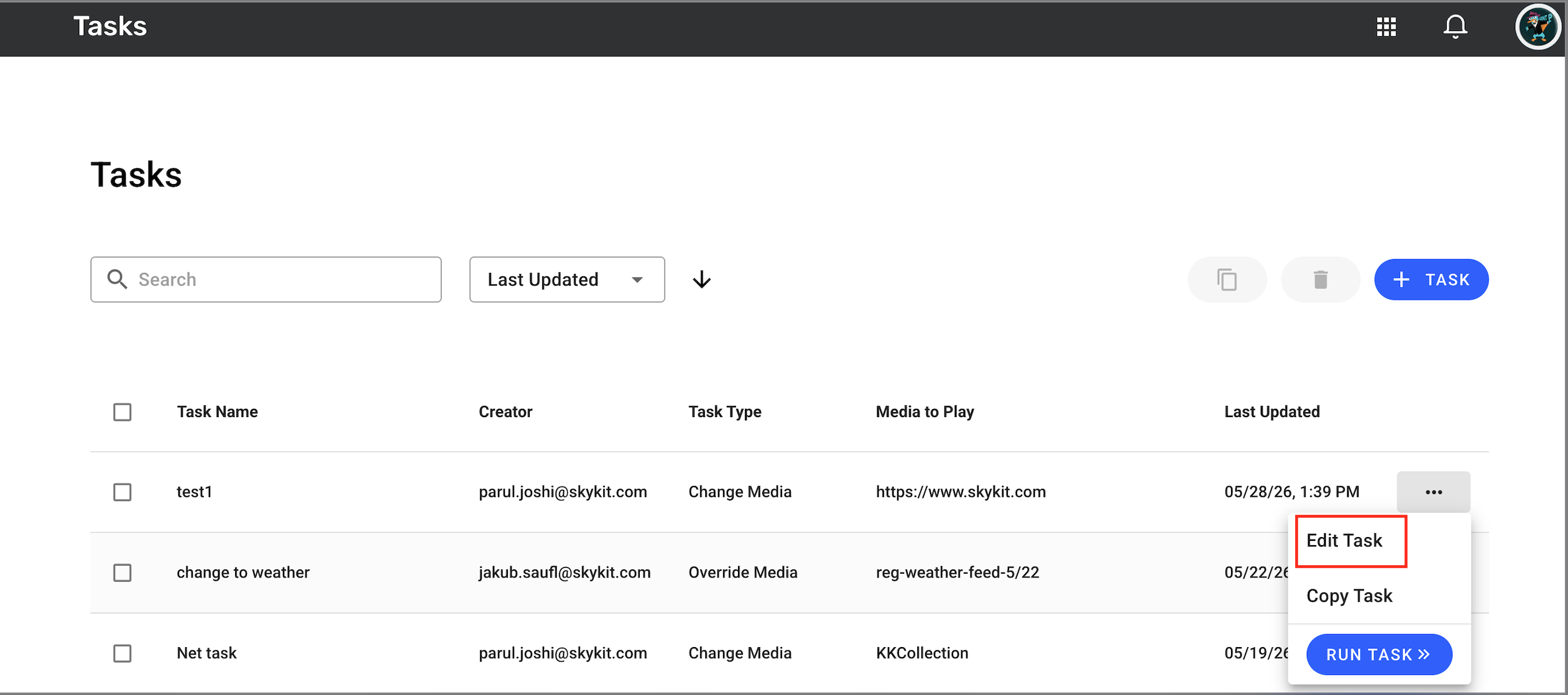
Locate the task you wish to edit from the list of tasks.
Click on the task to access its details.
Select the Edit button, which will allow you to modify settings such as the task name, type, media selected, and displays.
Changes made to the tasks gets saved as you edits them
It is important to remember that once you edit a task, it retains all previous data unless manually changed. The task can still run as planned unless you decide to change its configurations.
Copying a Task
If you want to duplicate an existing task, follow these steps:
Navigate to the Tasks menu as detailed above.
Identify the task you intend to copy from your list.
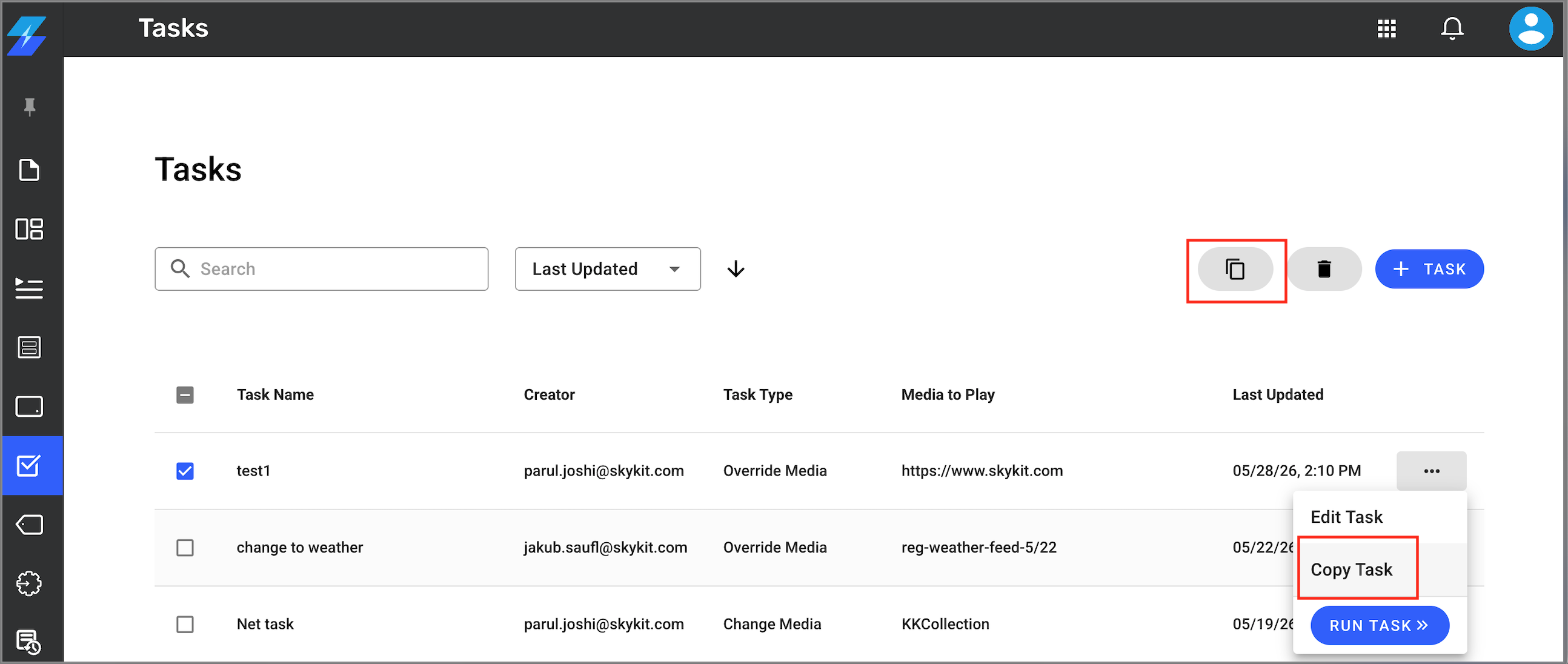
Click on the 3-dots action menu
Select the Copy button to duplicate the task.
You can also copy Task, just look next to the 'Create Task' button in the top right—you'll find a Copy feature there to quickly duplicate your task."
A new task will be created and you can modify it as needed. Be sure to adjust the task name to ensure it is unique and easily identifiable.
By copying tasks, you can maintain consistency across your tasks without having to start from scratch. This feature is particularly useful for recurring tasks or those that require slight modifications.