Creating an Override Media Task
Select Tasks on the navigation bar to open the Tasks menu.
Select the +Task button. The Add Task window opens.
Step 1
Name your Task: Enter a title for your Task in the Task Name field. This allows you to keep your tasks organized and easily accessible..png)
Step 2
Select a Task type: Select Override Media. This type of Task will override currently playing media but temporarily. Override Media lets you select frequency of task. To configure how long you want the override media item to play, select Play for a Duration or Play (x) number of times under Select Frequency..png)
After you select a media item to play, it will be displayed under Media to Play in list view and Media Change in the details drawer of the task created.
.png)
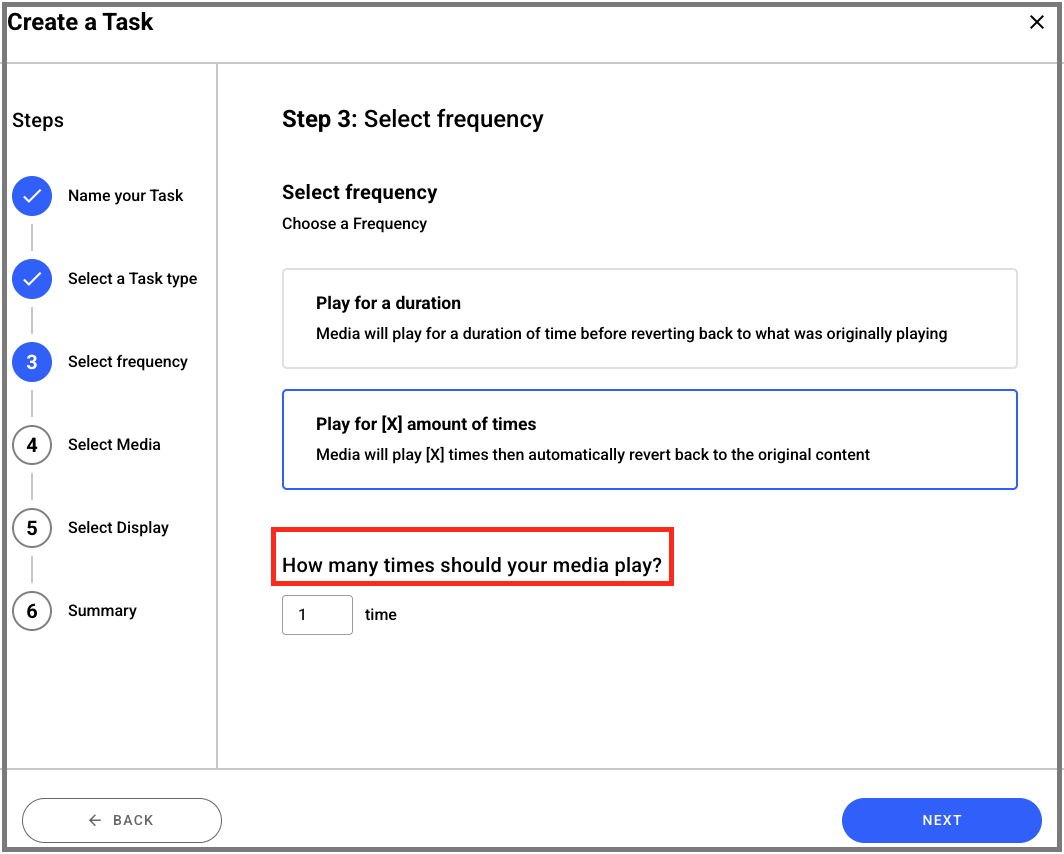
Step 3
Select Media: Select a media you want to play. Click on the select button and media picker will let you select content, programs, playlist or a collection to replace or override the current media..png)
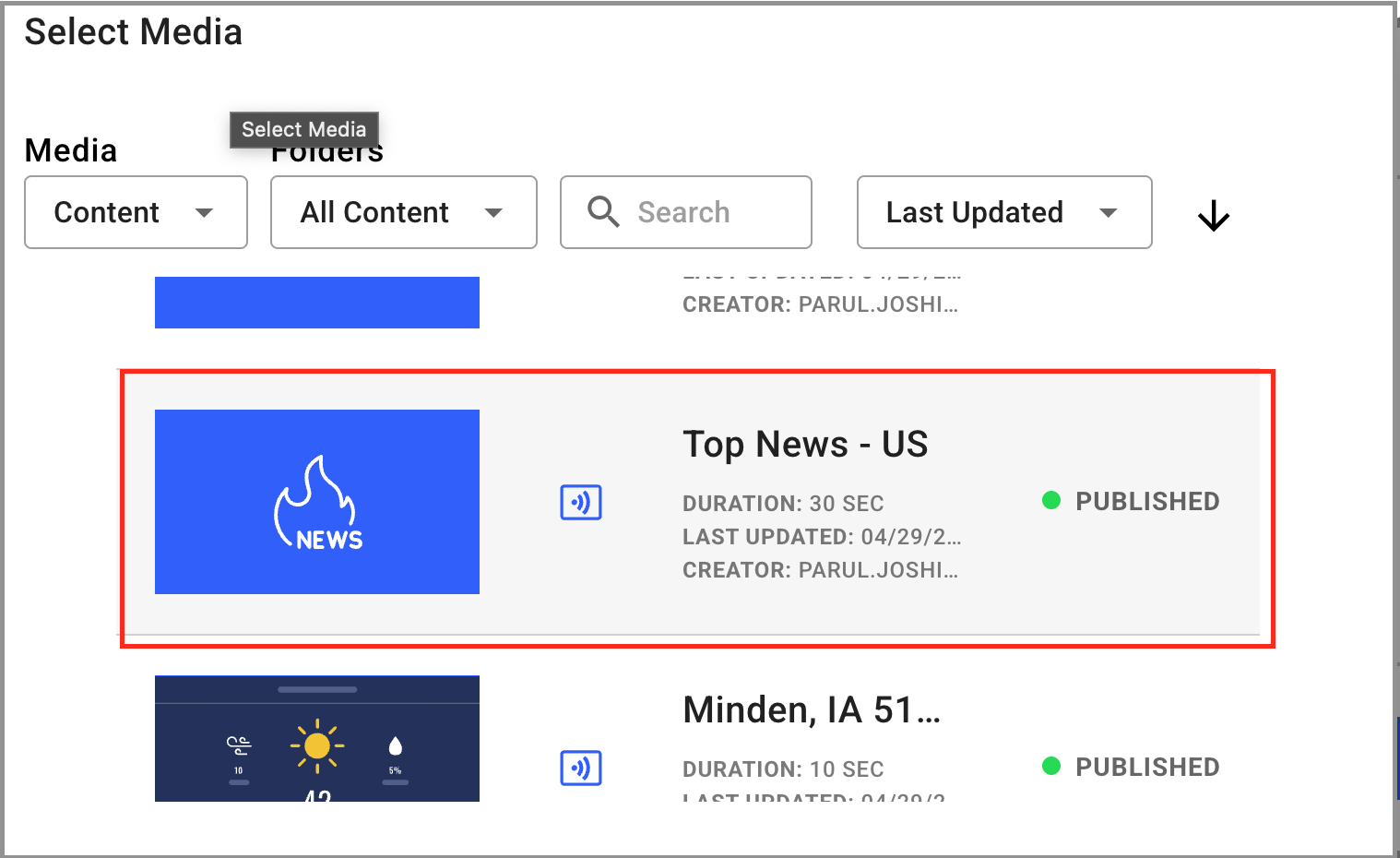
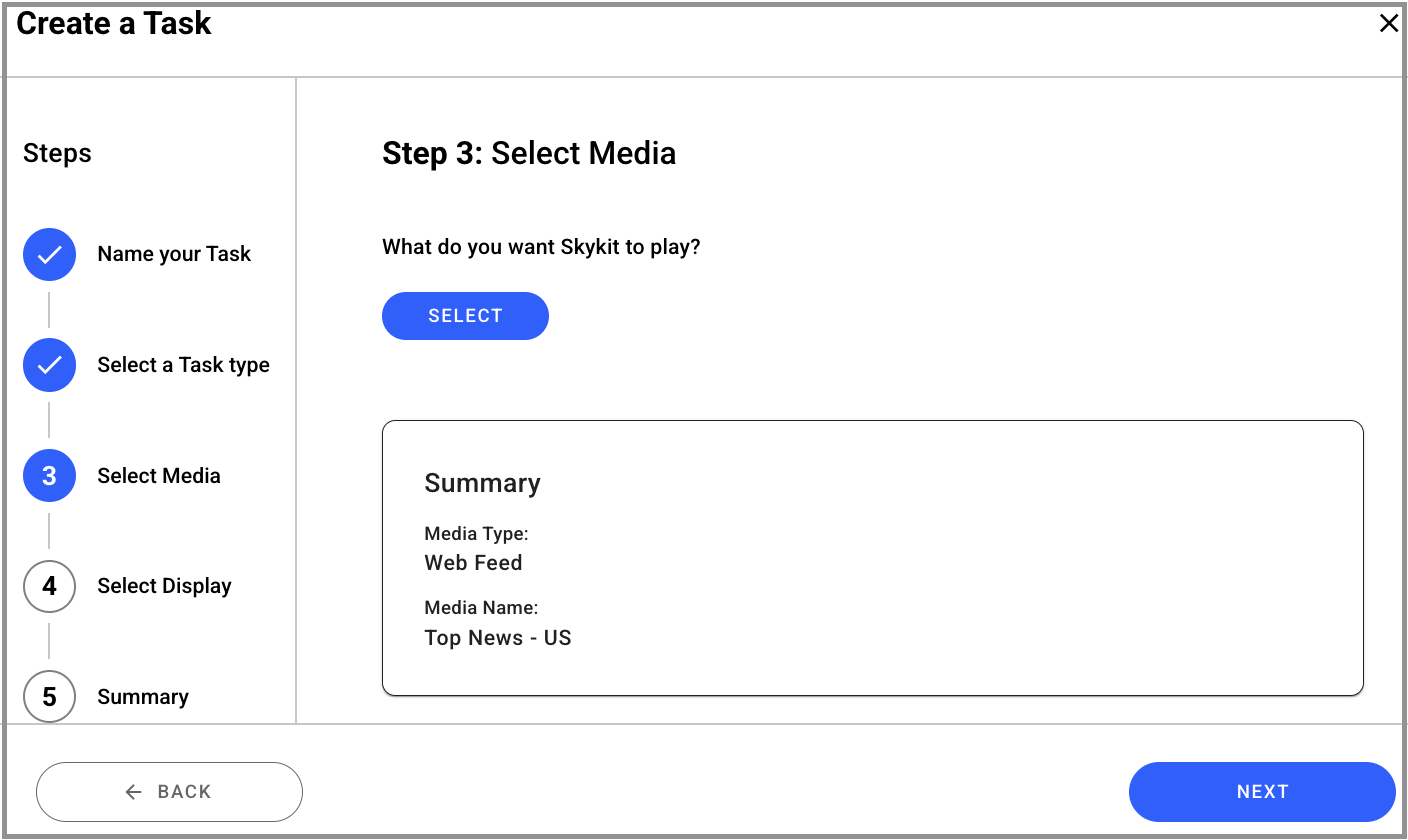
Step 4
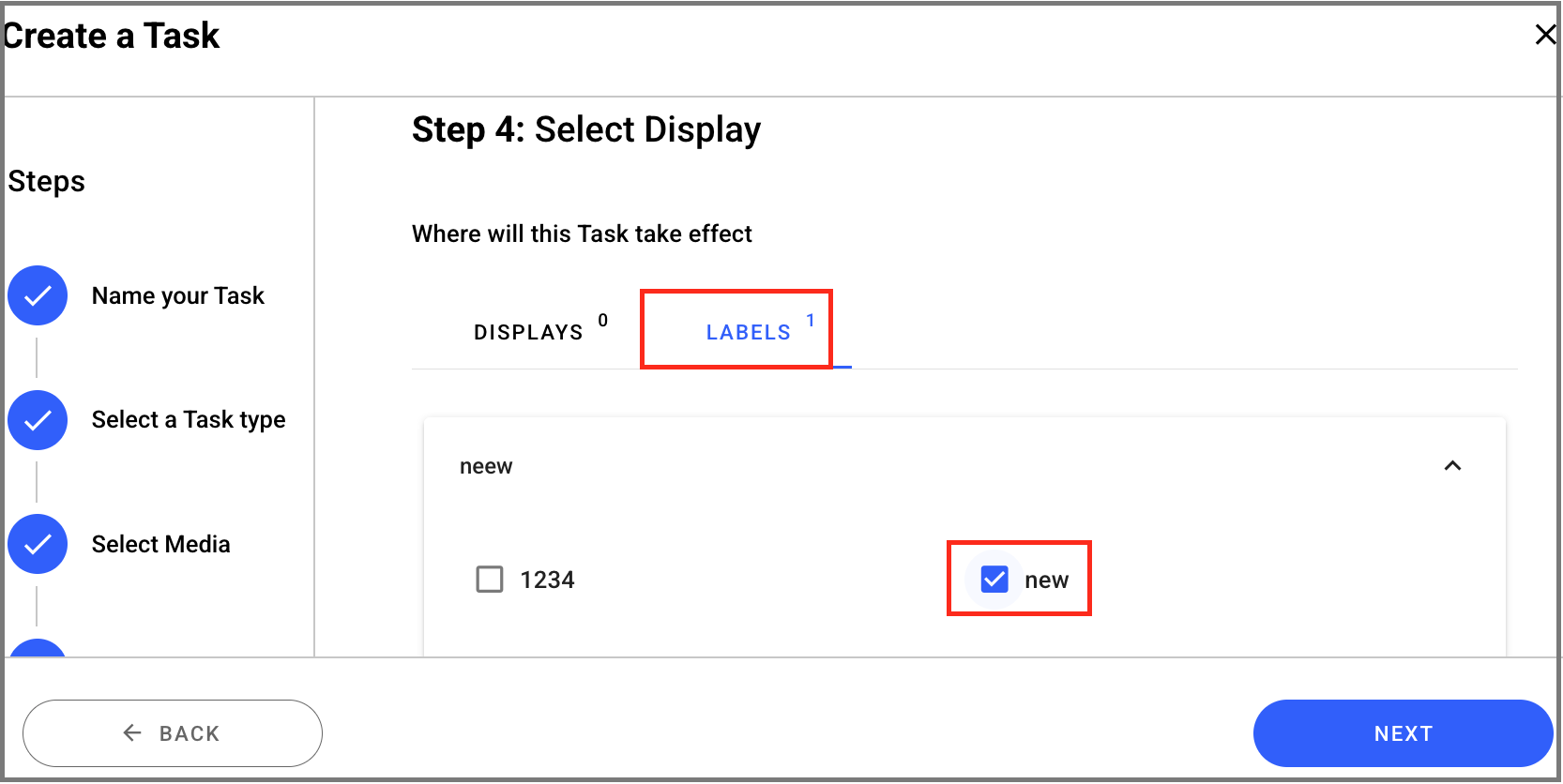
Select Displays: This will let you select the displays you want the content selected for the task you are creating.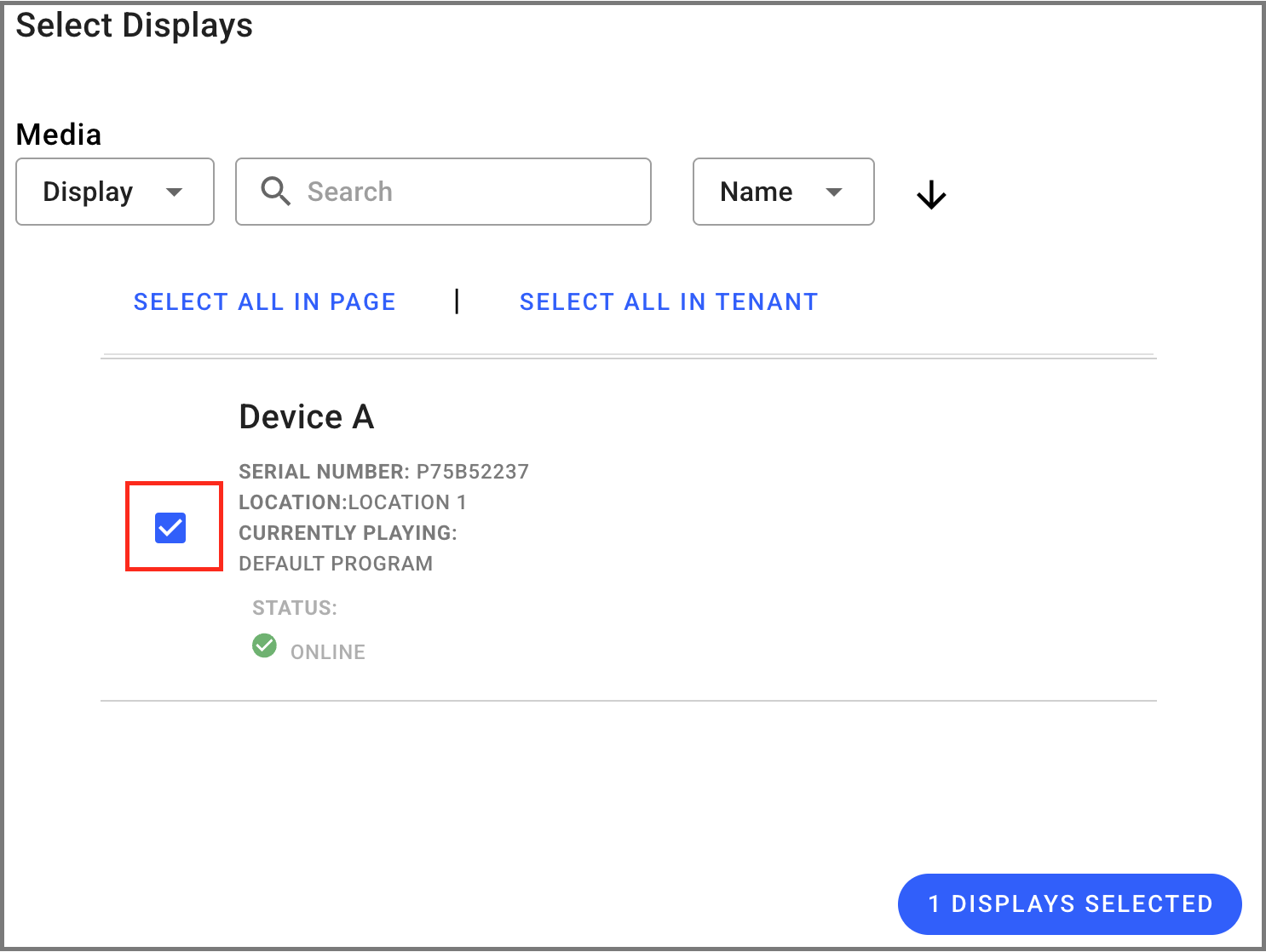
You can also select displays based on the labels attached to them.
.png)
When your task is configured the way you want it, select Create to simply create the task OR Create And Run to not just creation and the task assigned to the display(s) will Run on the designated display(s).
.png)
You have successfully created an Override Media Task

Keep in mind that when you execute your Override Media task, Skykit will start displaying the chosen override content right away.
Remember, after the repeat number or duration time expires, Beam will revert back to playing the original media item. you want Beam to repeat your selected media in the Repeat Input Field.
Before you hit Run or create you can still go back and make changes to the Tasks. Tasks can also be edited after you create it.
When you have finished configuring your task, select the Back button to close the Settings drawer and return to the Tasks menu.
Next Steps
Learn how to run your Override Media task immediately on your displays.
Learn how to edit your Tasks