| Task can be performed by the following Beam Roles: | ||
| ✓ Basic | ✓ Manager | ✓ Administrator |
Need some help with the Display Manager? Learn more: Displays Manager Overview.
Select Displays on the navigation bar to open the Displays menu.
Select the display you want to publish content to. The Displays detail window opens.
Under Now Playing (if the display is currently online) or Last Played (if the display is currently offline), select Change.
.jpg)
The Select Content window opens.
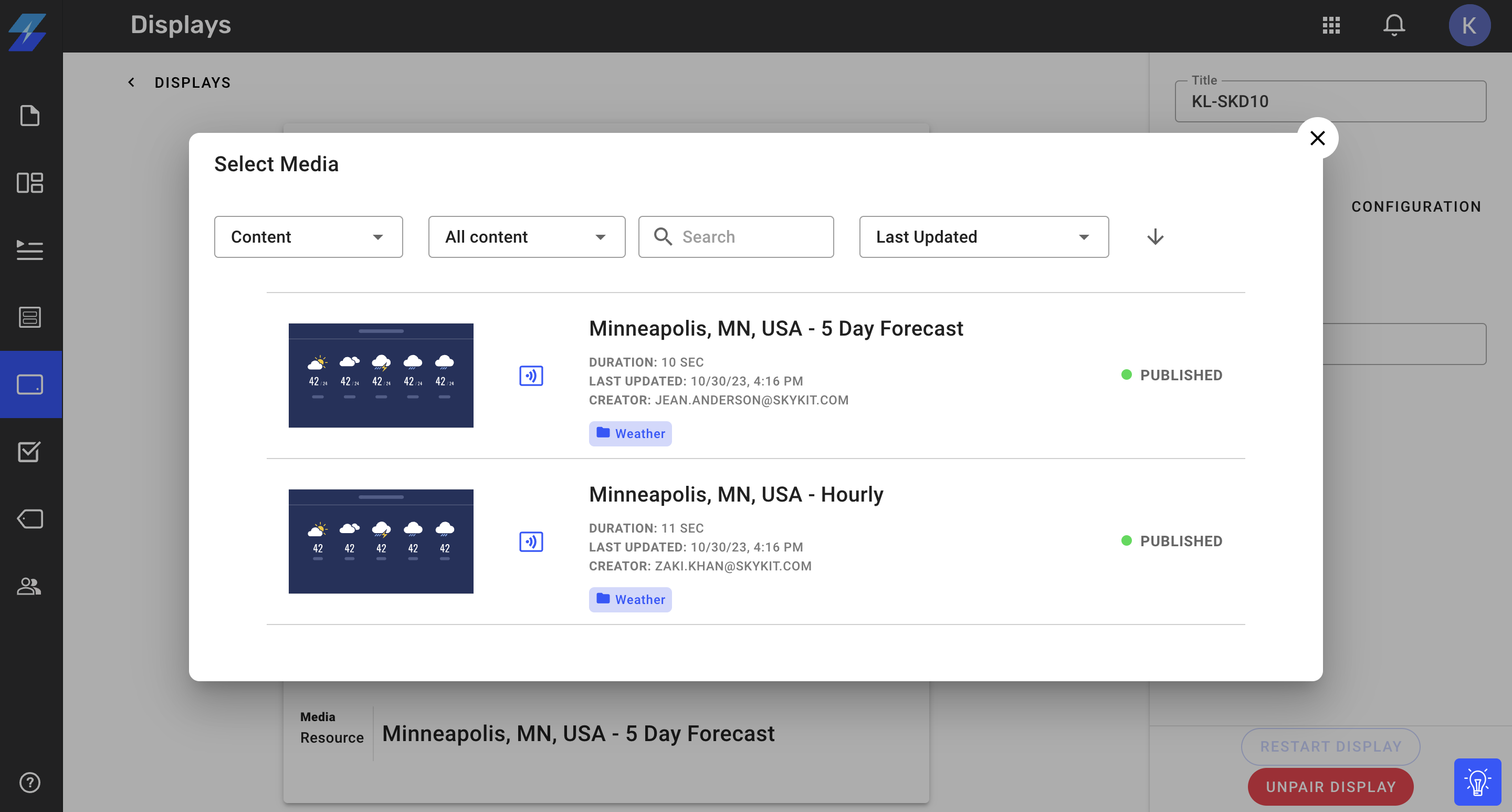
Select the Content, Playlists, Programs, or Collections from the media dropdown, depending on the type of content you want to display.
.png "image(3).png")
Select the content item you want to publish to your display.
.jpg)
The content item you selected will first appear as a Pending change and then eventually show as Now Playing/Last Played.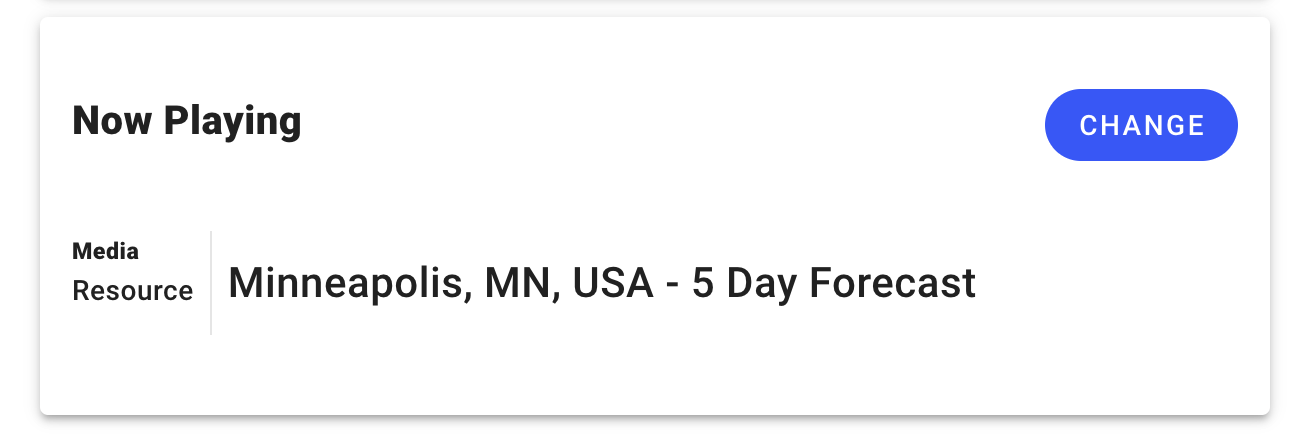
Content Change Stuck on Pending?
The most common reasons for a change to remain on pending are:
Offline Device: If the Display is not connected to the Internet, the content change will remained queued until it comes back online, at which point the content change will take affect.
Large Content: If the content is a large file that is not yet cached in the Display’s catalog, it may take a while to download and play, especially if the device is on a slower network.
If neither of the above applies and your content remains in a pending state, please contact support for assistance.