Managing Your Dashboard Connections
Once you've created a Dashboard connection, you can manage it by editing settings such as the type of transition between slides and the duration of each slide.
- From the Content menu, select the Dashboard you want to manage. The Dashboard content manager window opens.
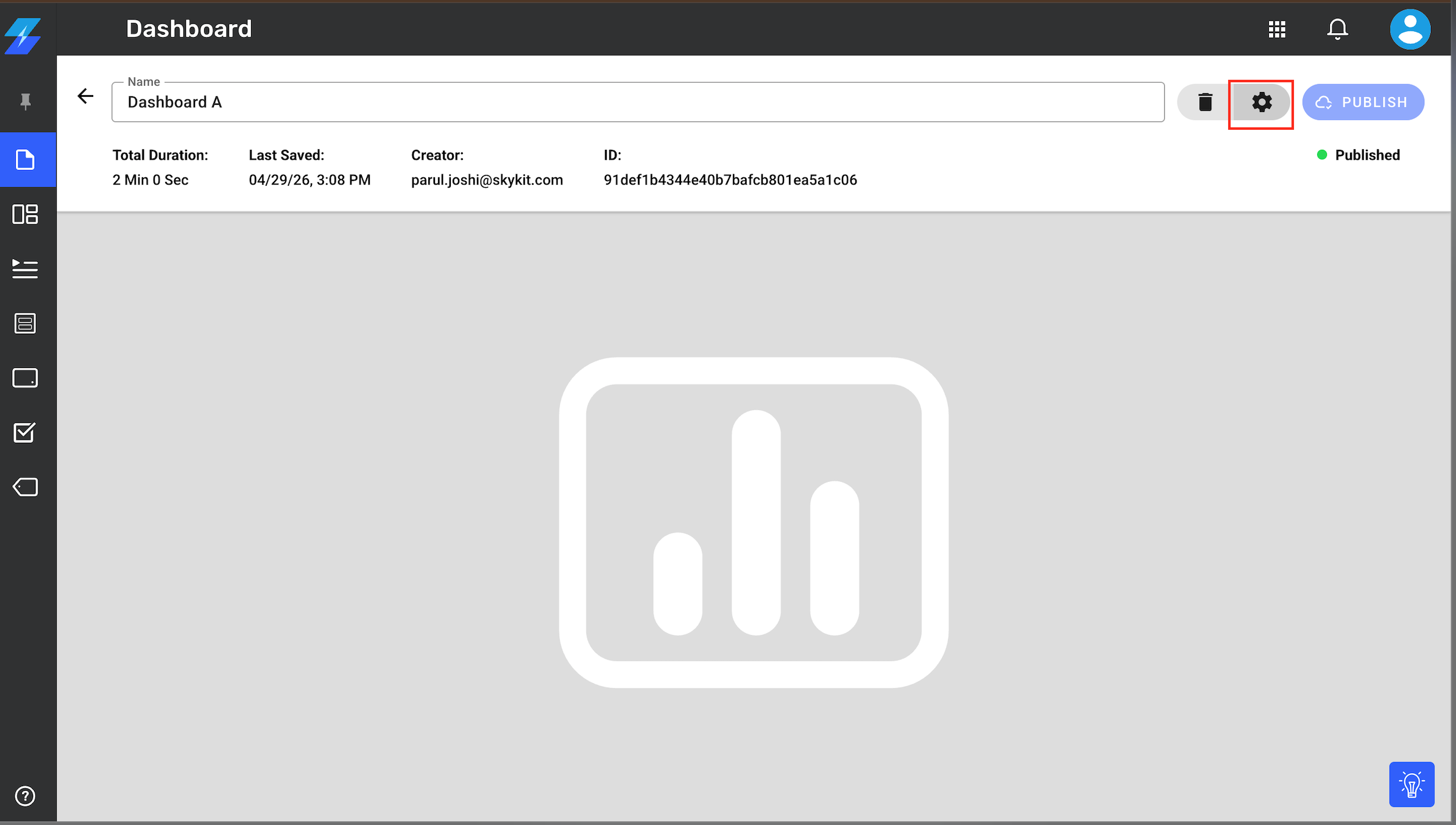
- Select the gear icon in the upper right corner of the window. The Dashboard's Settings drawer opens.
- Transition: Select the transition effect you would like when the Dashboard loads on the screen.
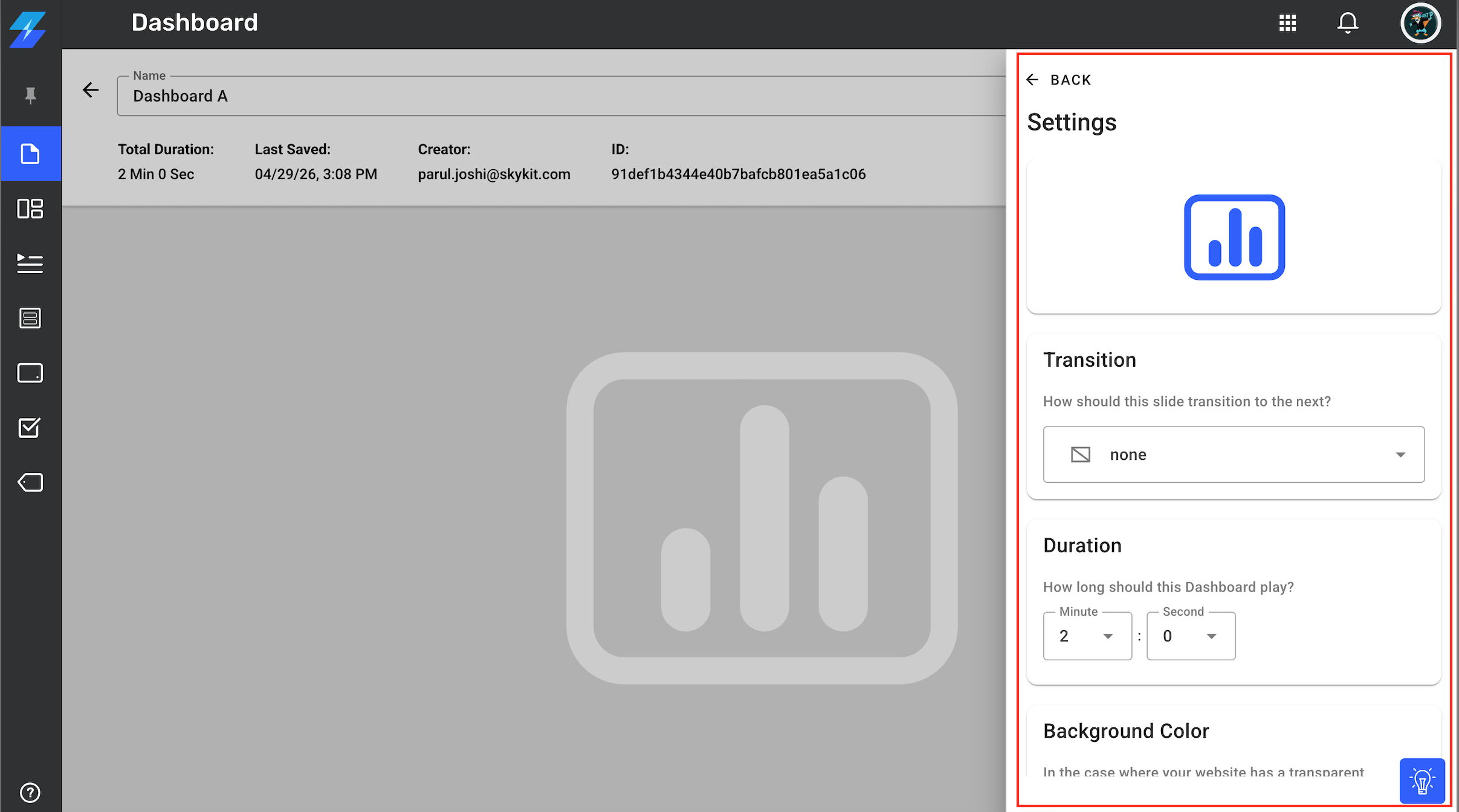
- Duration: Enter the length of time you would like the slide to play. Be sure to choose a duration that allows your viewers enough time to engage with the information; you don't want to move through the Dashboards too quickly. The duration defaults to 2 minutes; the minimum duration is 30 seconds. You also want to be sure to allow enough time for the Dashboard login to complete.
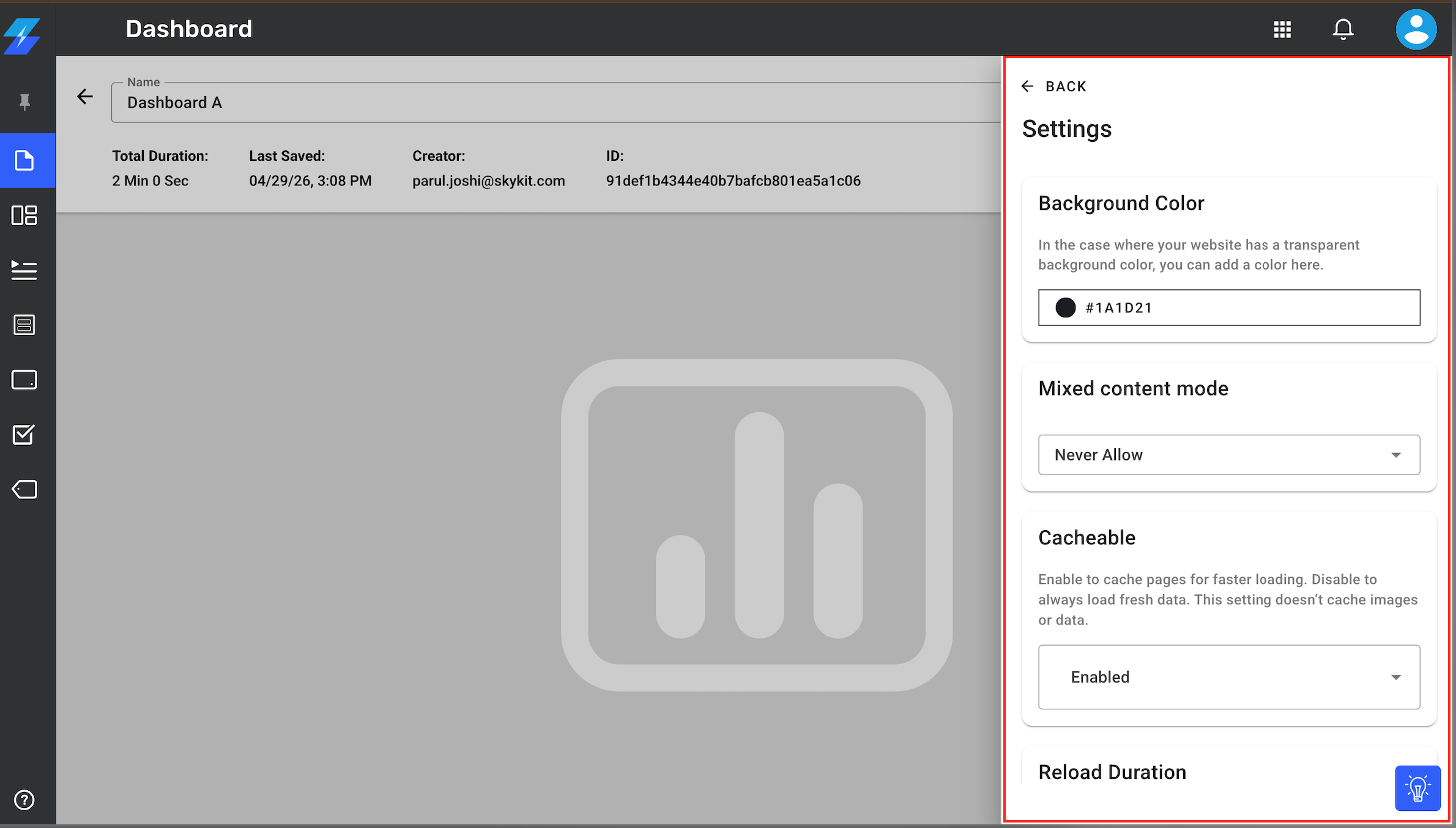
- Background Color: Select a background color to use if the website has a transparent background (uncommon).
- Mixed Content Mode: This controls whether your display will allow unsecure (http://) media and widgets to load inside a secure (https://) web page. Always Allow permits all unencrypted content, Never Allow blocks it entirely, and Compatibility Mode blocks unsafe scripts while letting basic images and videos load.
- Cacheable: Enable this to cache pages for faster loading.
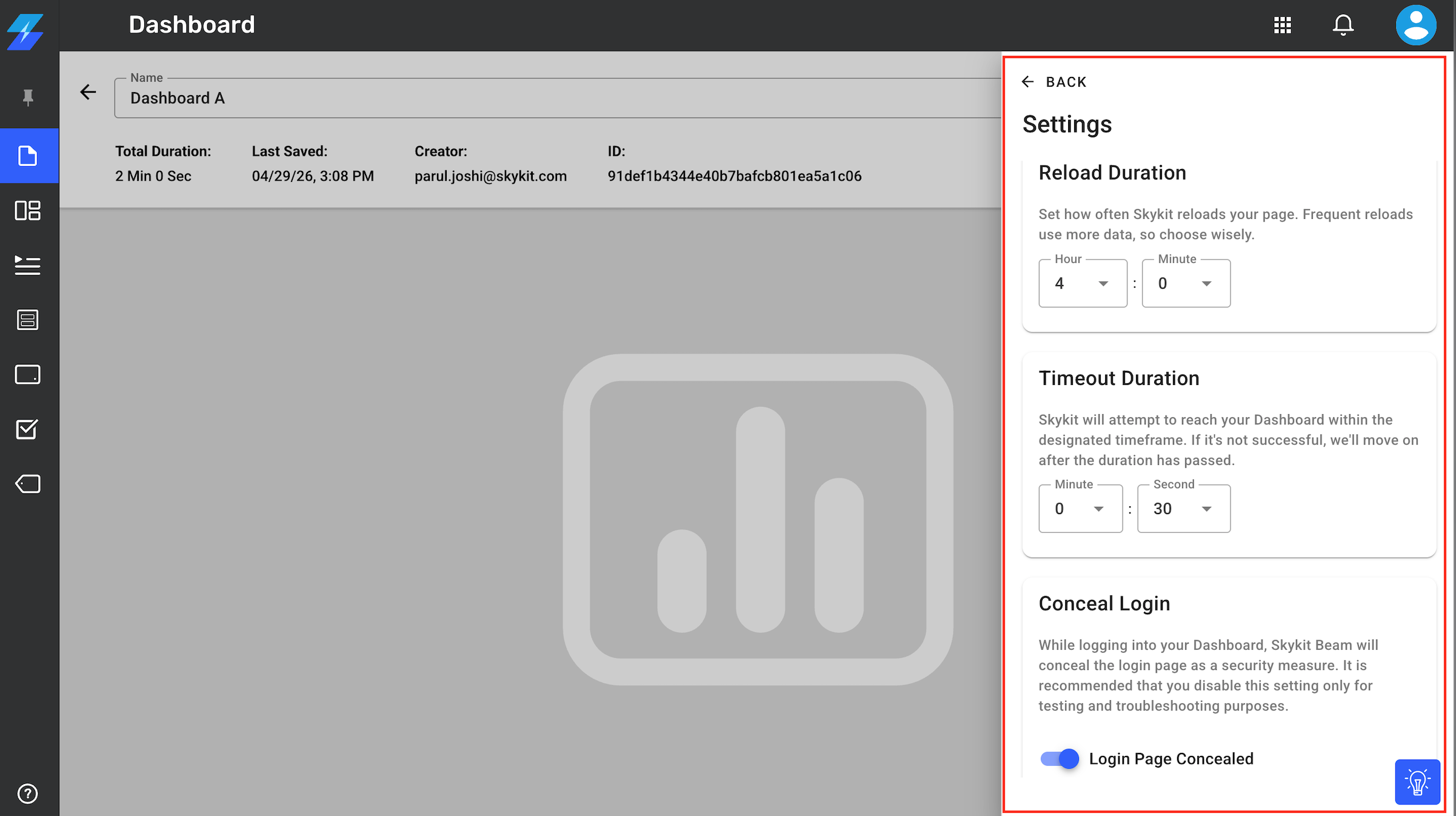
- Reload Duration: Sets how often Skykit reloads your page. Frequent reloads use more data, so choose wisely. This setting can also be configured at the time of Dashboard creation and if not changed, it defaults to 4 hours.Duration vs. Reload DurationRead more about the difference between Duration and Reload duration here.
- Timeout Duration: How long Skykit will attempt to reach your Dashboard URL. If it cannot be reached within that time, your device will skip the Dashboard or play fallback content. Why can't Skykit reach my Dashboard?Your display might be unable to load a Dashboard web page for a variety of reasons, including the Display not being connected to the Internet, the website itself being down, a URL being entered incorrectly, or the local network blocking the site.
- Conceal Login: While logging into your Dashboard, Skykit Beam will conceal the login page as a security measure. It is recommended that you disable this setting only for testing and troubleshooting purposes. To see the logging process and turn the concealment off, just toggle to reveal and this will still hide the password and only reveal username. Its useful to turn this feature OFF when Dashboards don't load on the displays and you continue to see the authentication screen. Setting it to reveal helps you identify if there are errors with credentials or URL it's trying to reach.
- Dashboard Settings: Update or replace the existing URL. Dashboard provider and login method cannot be updated.
- Proof of Play: Toggle to enable if you would like to track when this content plays. Please note that Proof of Play is not a default setting but it can be enabled for your account/tenant on request.
- Credentials: If you would like to change the username and password used to log in to the Dashboard, select a new credential nickname from the Username and Password list. You can also add a new username and password by selecting +Add a new username and password from the list and completing the fields.Not seeing +Add new username and password?Only Admins can create new credentials.
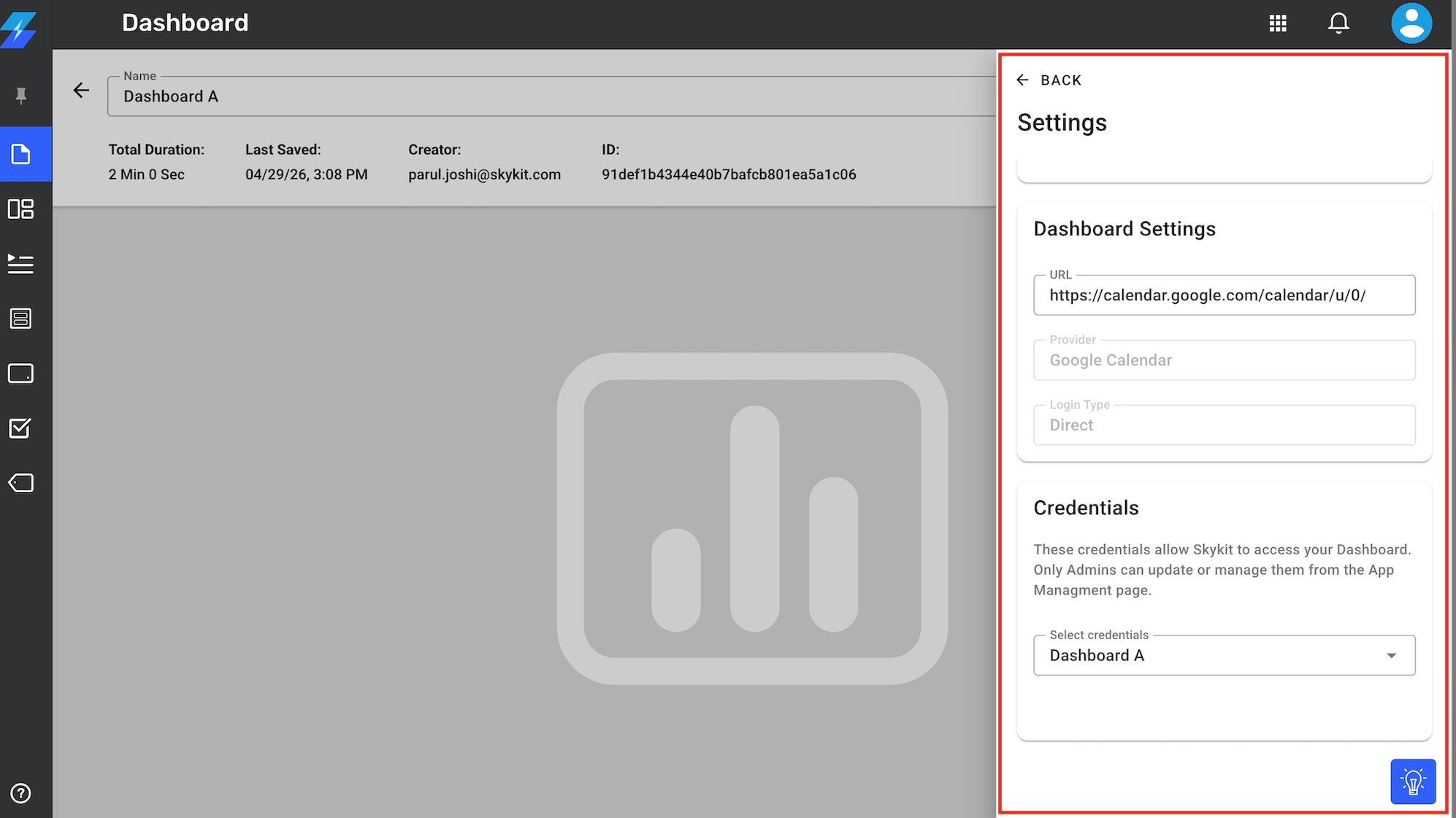
- When you've finished editing the dashboard settings, select the ←Back button to save your changes and return to the Dashboard content manager window.
- If you're satisfied with your changes, select Publish to make your updated dashboard available to publish directly to a display or to insert into a program or playlist.
Next Steps
Now that you've successfully connected and managed your Dashboards, it's time to publish them directly to your Displays or insert them into a Playlist or Collection.
Publish directly to a Display: Publishing Content to a Display
Insert into a Playlist: Playlists Overview
Insert into a Collection: Collections Overview