The Network tab displays the device's current Wi-Fi settings and allows you to add networks, set up over-the-air (OTA) firmware updates, and reset the modem remotely.
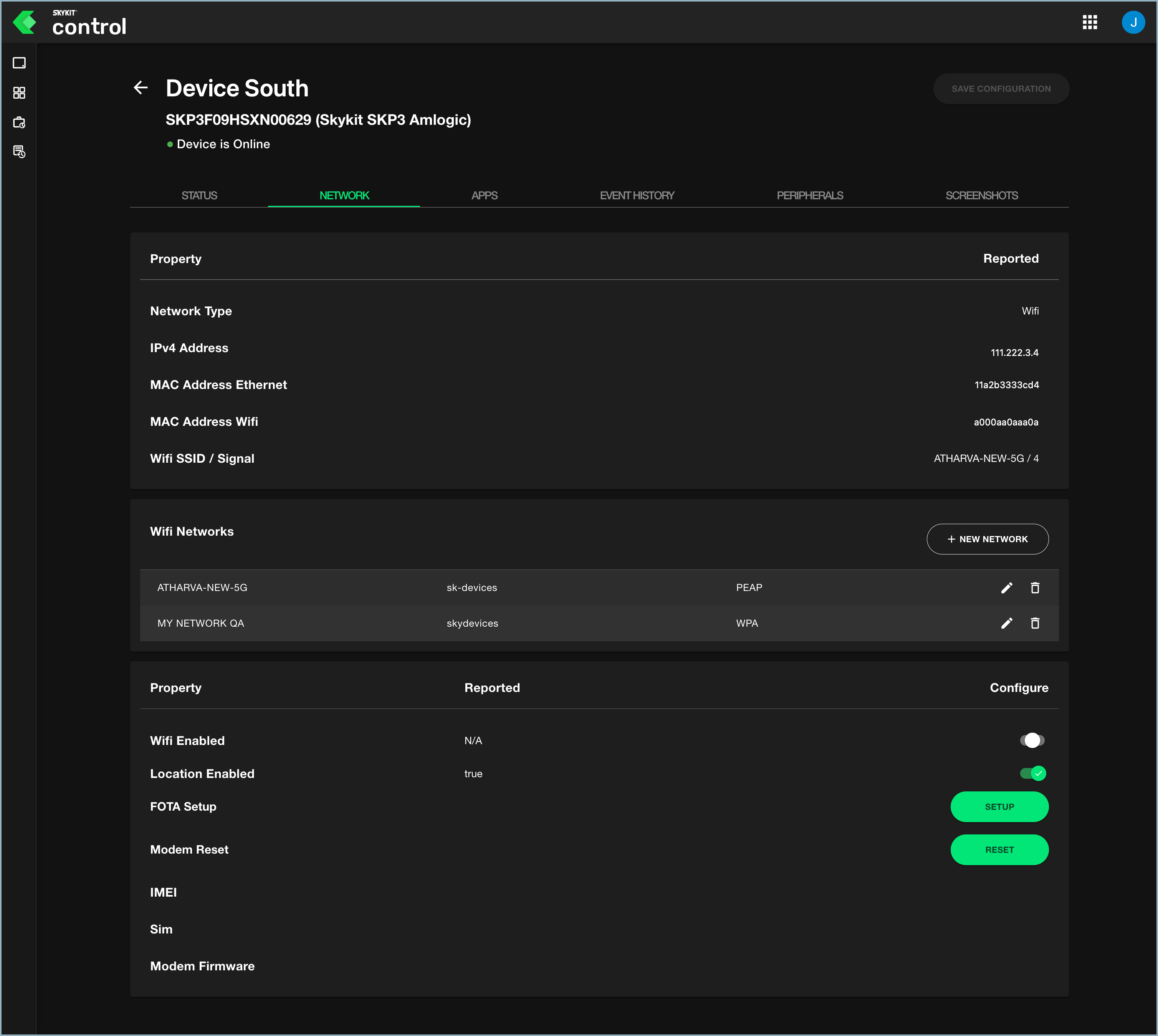
Online / Offline Status
A red or green indicator shows if your device is online or offline.
Device is Online (http only)
In some cases, devices show a status of "Device is Online (http only)." Normally, devices stay connected to our backend via an MQTT connection. If the device is connected to the Internet but cannot connect to MQTT, it will go into http fallback mode. The device will still function, but it may not send and receive information as quickly and reliably as it would when connected to MQTT.
Typically, this is caused by the network the device is connected to not following our Network Connectivity Recommendations.
Wi-Fi Networks
The Wi-Fi Networks section shows all the Wi-Fi networks configured on the device. The status column shows the following:
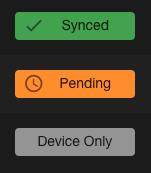
Synced (green check mark): The network was added in Control, and the device has received the configuration. The device will attempt to connect to the network when powered on.
Pending: The network was added in Control, but the device has not received the configuration. The device will not attempt to connect to this network since it has not received information about it.
Device Only: The network was added locally on the device rather than in Control.
Synced and Pending Wi-Fi networks can be edited in Skykit Control, while Device Only networks can be deleted but not edited.
Not seeing your network or the network status?
The ability to display Wi-Fi networks added locally on the physical device was introduced in version 282 of our Android apps. If your device is on an earlier version, locally added networks will not show, nor will the Synced, Pending, or Device Only status. To see these features, update apps on the Apps Tab.
Adding a Wi-Fi Network
The Wi-Fi Networks section lets you add Wi-Fi networks to the device. This isn't a common task, but it does allow you to pre-configure networks. For example, you can use this feature if you have a display that needs to be shipped to another location and you want to set up that location's Wi-Fi network on the display before you ship it out.
Important Note
In order for a device to automatically connect to a new Wi-Fi network added via Control, it must be online for at least several minutes after the configuration is set in order to save the new Wi-Fi details in its local device configuration.

Select +New Network in the Wi-Fi Networks section. The Add Wi-Fi Network window opens.
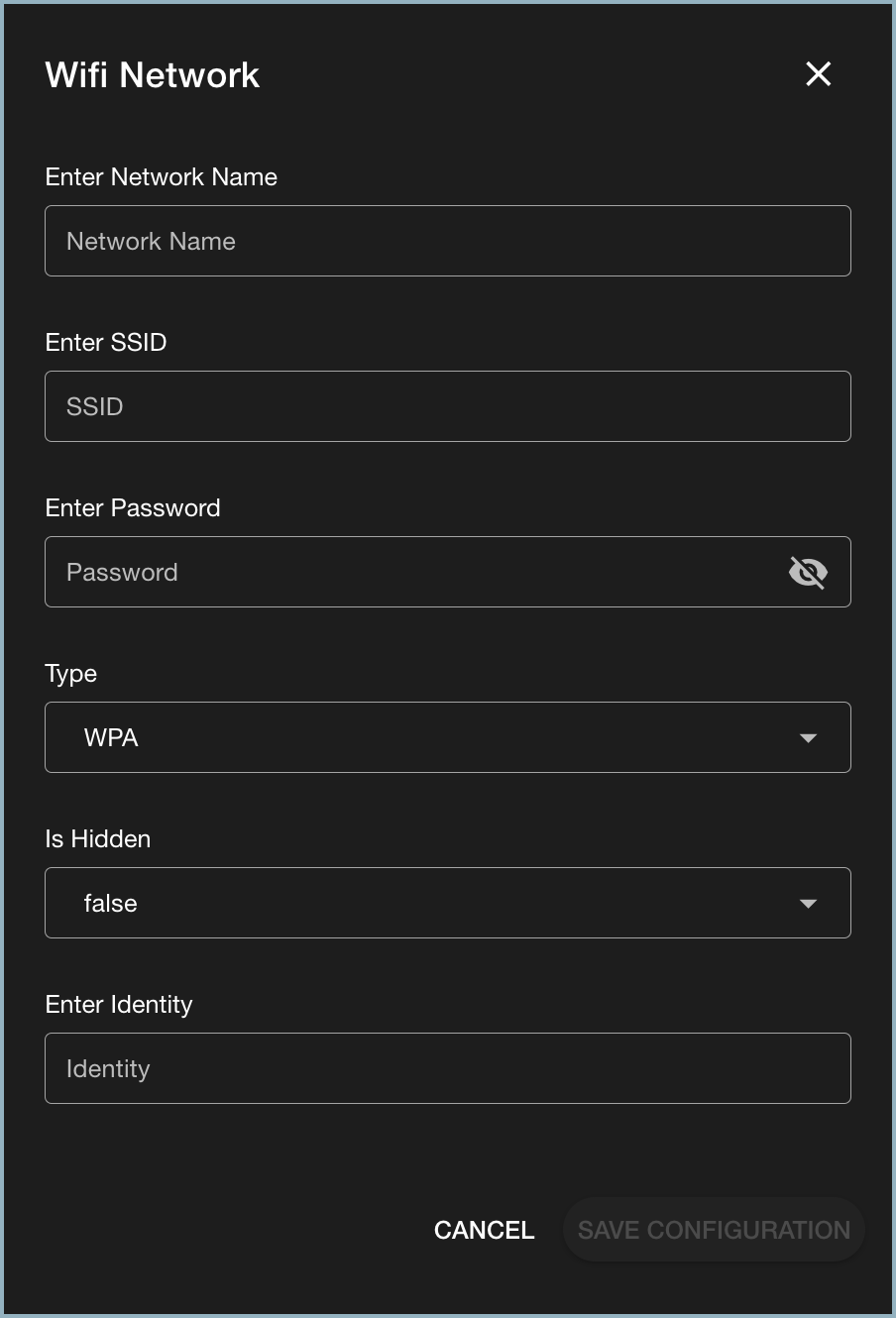
Enter the name of the network in the Enter Network Name field.
Enter the network ID in the SSID field.
Enter the network password in the Password field.
From the Type dropdown list, select the type of network: WPA (Wi-Fi Protected Access) or PEAP (Protected Extensible Authentication Protocol).
If you want to hide the network, select True from the Is Hidden list. If you want it to be accessible, select False.
Enter the network identity in the Identity field. This is usually the employee's user name.
Select Save Configuration to save your changes and return to the Network tab. The new network is now listed under Wi-Fi Networks.
To delete a network, select the trash icon next to the network name.
Network Properties
The first section in the Network tab displays the network properties of the device as reported from the display.
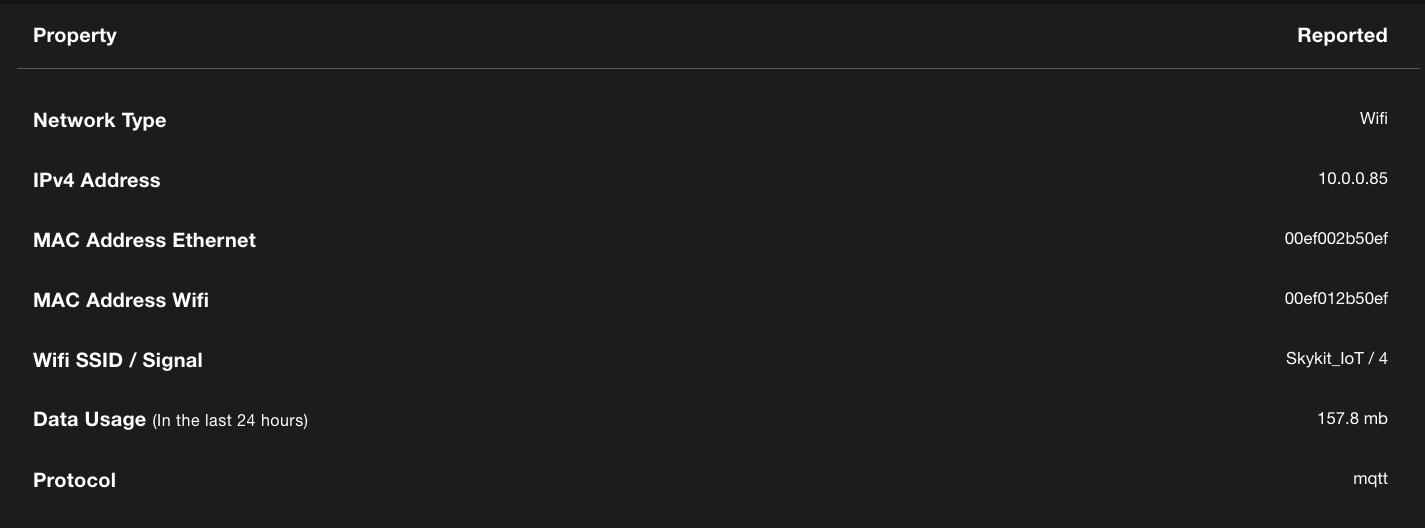
Property | Reported Value |
|---|---|
Network Type | Wi-Fi or ethernet |
IPv4 Address | The device's IP address |
MAC Address Ethernet | The MAC (Media Access Control) ethernet address is the device's hardware address. It is unique to the device. It identifies the hardware manufacturer and is used for network communication between devices in a network segment. |
MAC Address Wi-Fi | Your device uses a different MAC address for each Wi-Fi network it connects with. This value is the unique identifier the device uses to connect with the Wi-Fi network. |
Wi-Fi SSID/Signal | The network ID and signal strength on a scale of 1 to 5. This only represents the strength of a Wi-Fi network. Devices connected to ethernet or mobile will display a strength of 0. |
Data Usage | The amount of data the device has used in the last 24 hours. |
Protocol | The network protocol the device is using. |
Cellular Device Properties
This section of the Network tab displays properties related to cellular devices such as the SKP Pro. You can also set up over-the-air (OTA) firmware updates and reset the modem remotely in this section.
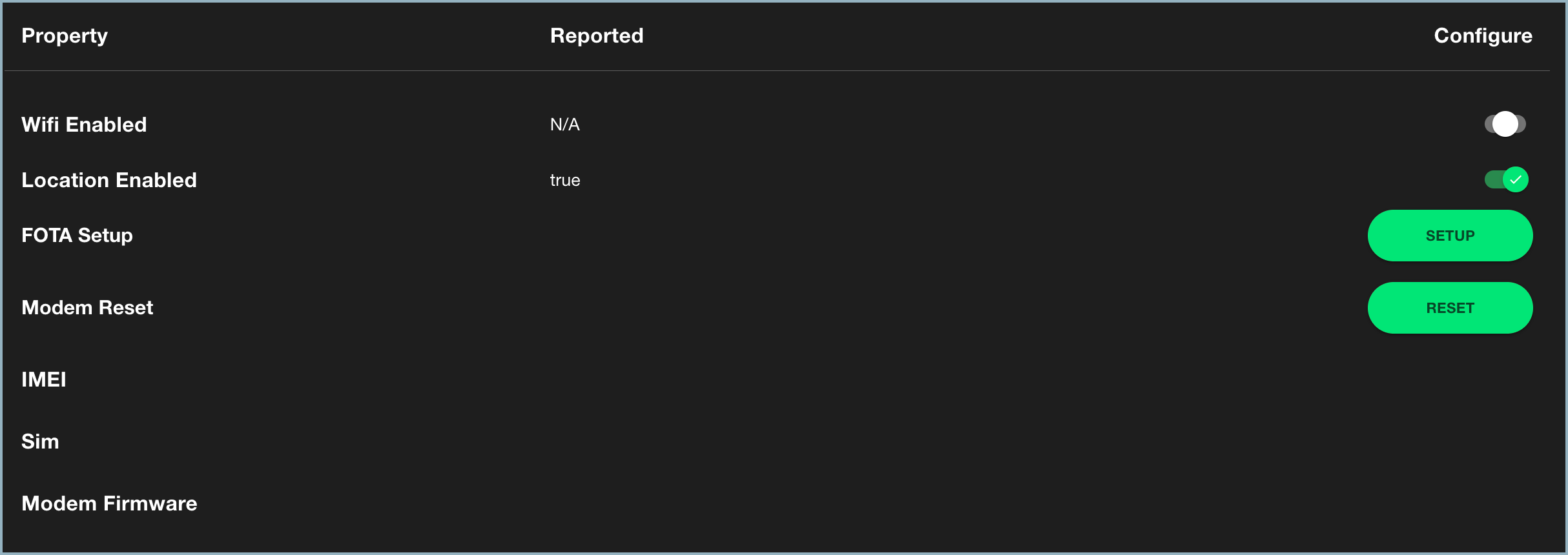
Property | Reported Value |
|---|---|
Wi-Fi Enabled | Turn the toggle on to enable Wi-Fi. |
Location Enabled | A reported value of True means that the device can use your location. Turn the toggle on or off to enable or disable location services. |
FOTA Setup | Select Setup to set up over-the-air (FOTA) updates of modem firmware. |
Modem Reset | Select Reset to reset the modem remotely. |
IMEI | The serial number of the cellular device. |
SIM | The serial number of the SIM card used by the cellular device. |
Modem Firmware | The software Programmed into your modem that makes it run. |
Endpoint Tests
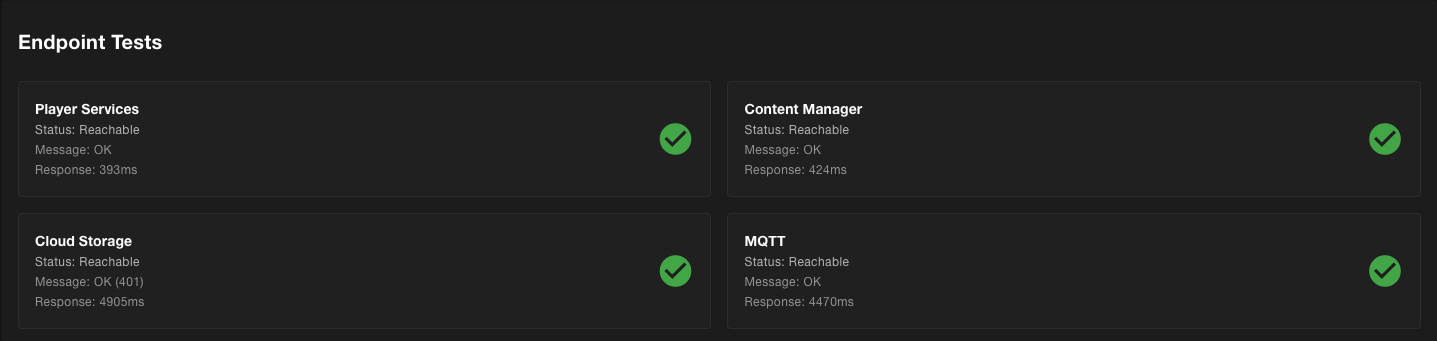
The last section in the Network tab displays whether the device was able to reach Endpoints required for your Skykit device to function correctly. If any of these do not show a green check mark, the network the device is on likely needs to be updated to adhere to our Network Connectivity Recommendations.