Creating Content Folders
Content Folders are created from the Folders menu on the left side of the Content view.
To create folders:
Navigate to the Content screen.
From the Folders menu, click + CREATE A FOLDER.
.png)
In the Create a Folder popup form, enter your folder name and click CREATE FOLDER.
Note: Folder Names must be Unique
Giving each Folder a unique name allows for a better organization and accessibility experience.
After you create your Folder, it will appear in the Folders menu on the left side of the Content screen in alphabetical order.
Managing Content Folders
Hover over the folder you wish to edit from the Folders menu.
When hovering over the folder, find and click the 3-dot icon at the right of the folder name to bring up the folder management menu.
.png)
Click the Edit option from the folder management menu.
.png)
In the Edit Folder popup form, update your folder name and click UPDATE.
The folder name should now be updated in the Folders menu.
Deleting Folders
NOTE
Folders must be empty before you can delete them. Attempting to delete a folder with content in it will result in a message stating that your folder contains content and cannot be deleted. Move the content to a different folder before proceeding to delete the empty folder.
Hover over the folder you wish to delete from the Folders menu
When hovering over the folder, find and click the 3-dot icon at the right of the folder name to bring up the folder management menu.
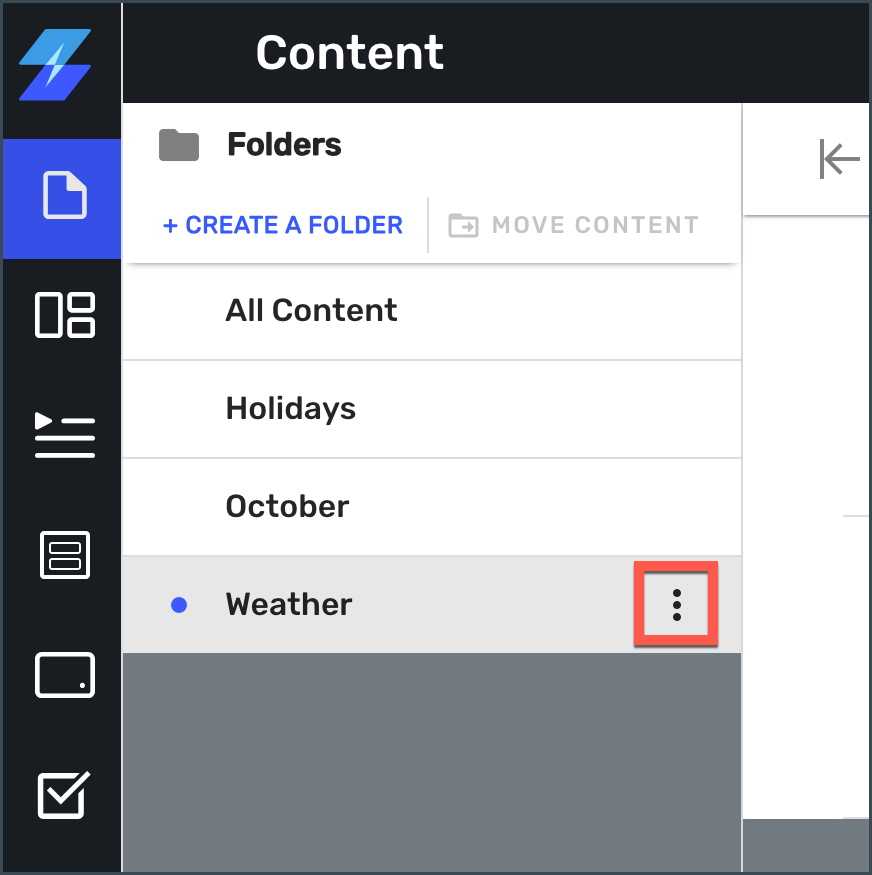
Click the Delete option from the folder management menu.
.png)
In the Folder Delete confirmation popup, confirm the delete by clicking YES, DELETE THIS FOLDER.
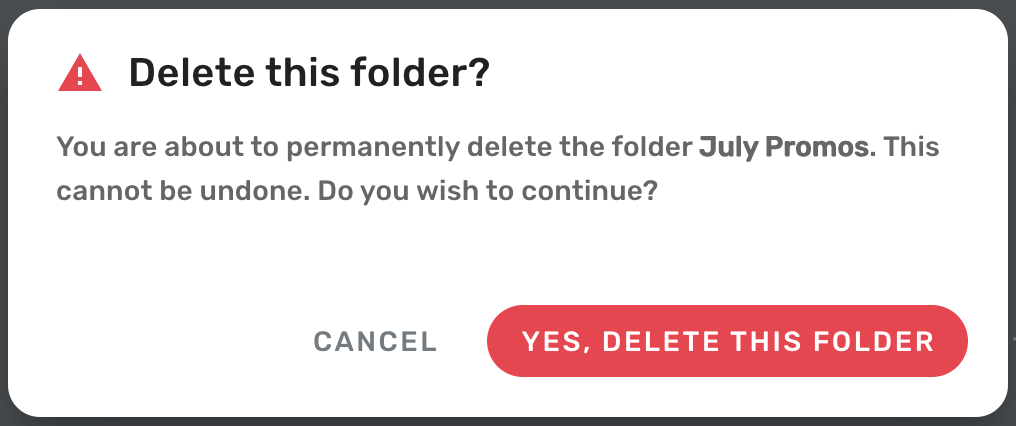
The folder should now be deleted from the Folders menu.
Next Steps
Now that you've created your Folders, learn how manage content inside them.