This can be done by the following Beam user roles:
Administrator
Display Manager
Need some help with the Display Manager? Learn more: Displays Manager Overview.
Select Displays from the navigation bar to open the Displays menu.
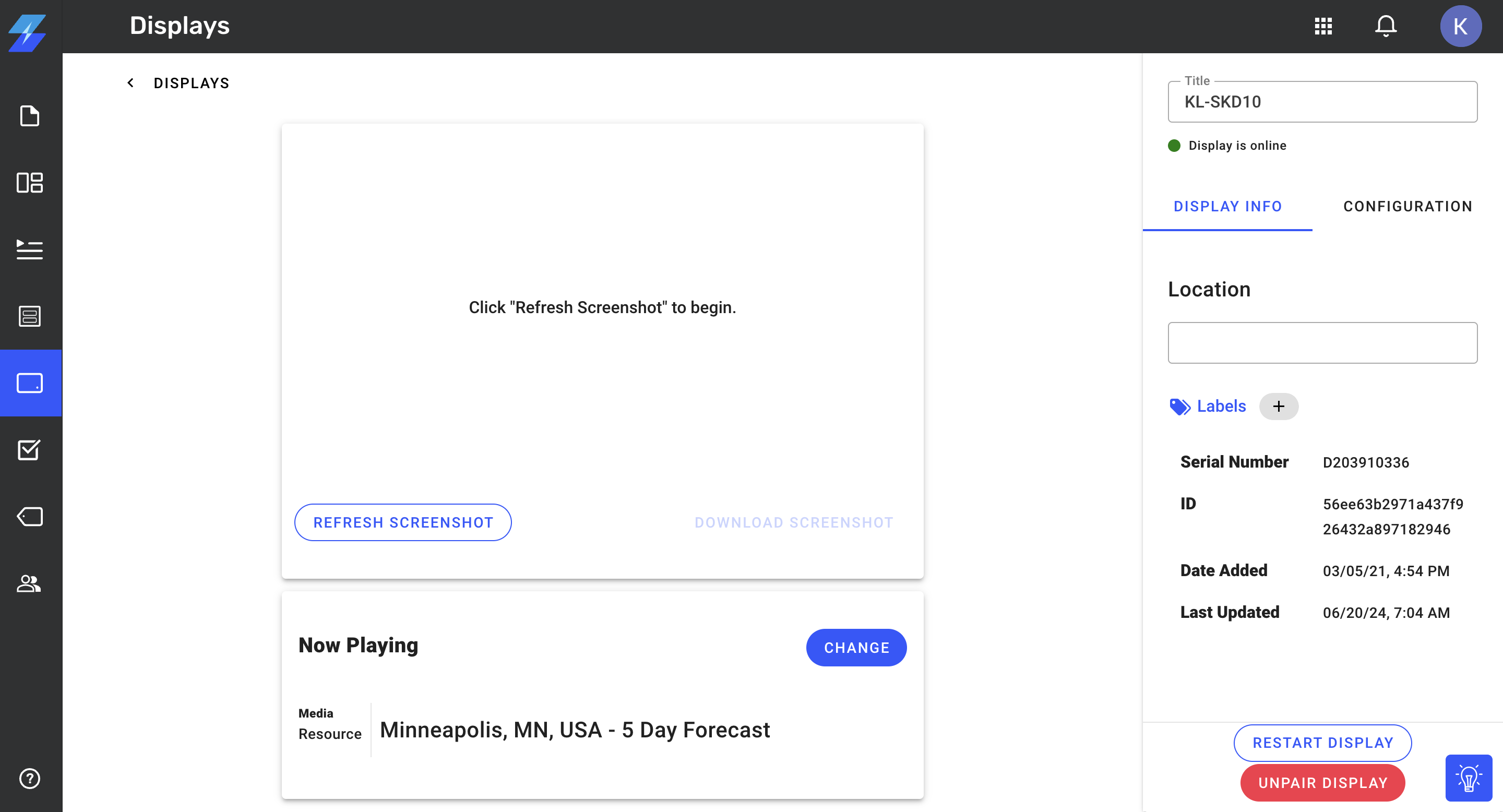
Select the display you want to set fallback actions for. The Displays detail window opens.
Select the Configuration menu.
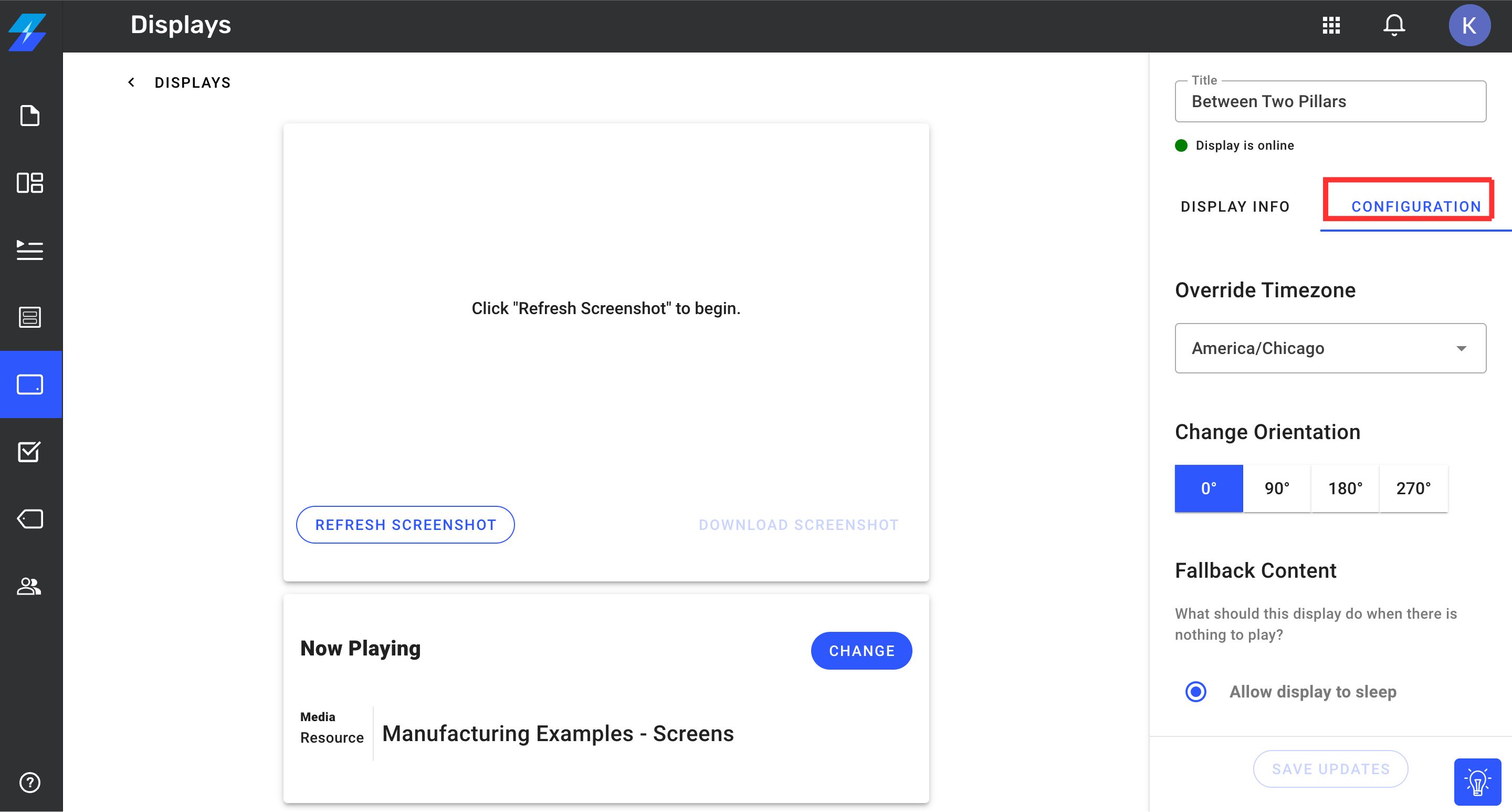
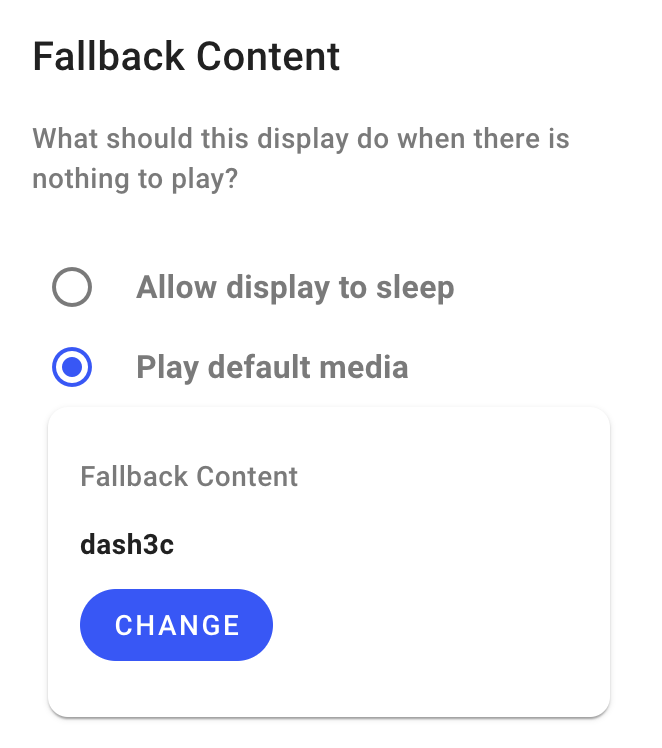
Under Fallback Content, select one of the following options:
Allow display to sleep: If no content is playing, the display will go into sleep mode.
Play default media: If no content is playing, the display will begin playing your default media.
In this example, we'll use Play default media.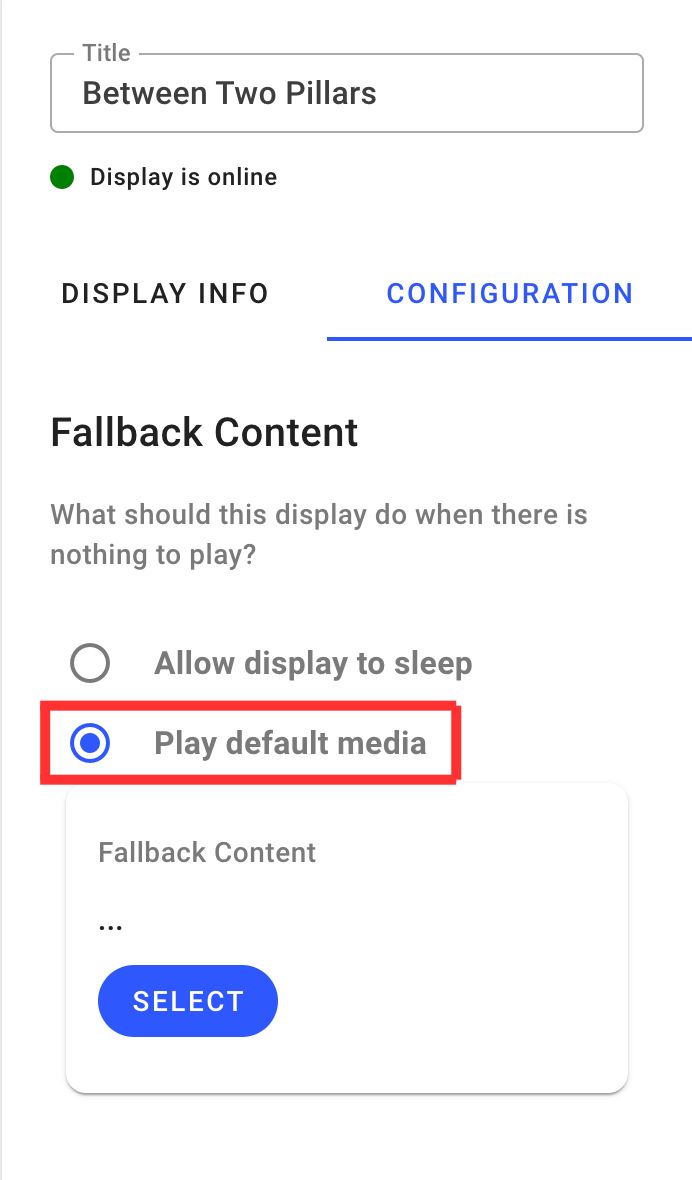
Select Play default media and then click on the Select button. The Select Media window opens.
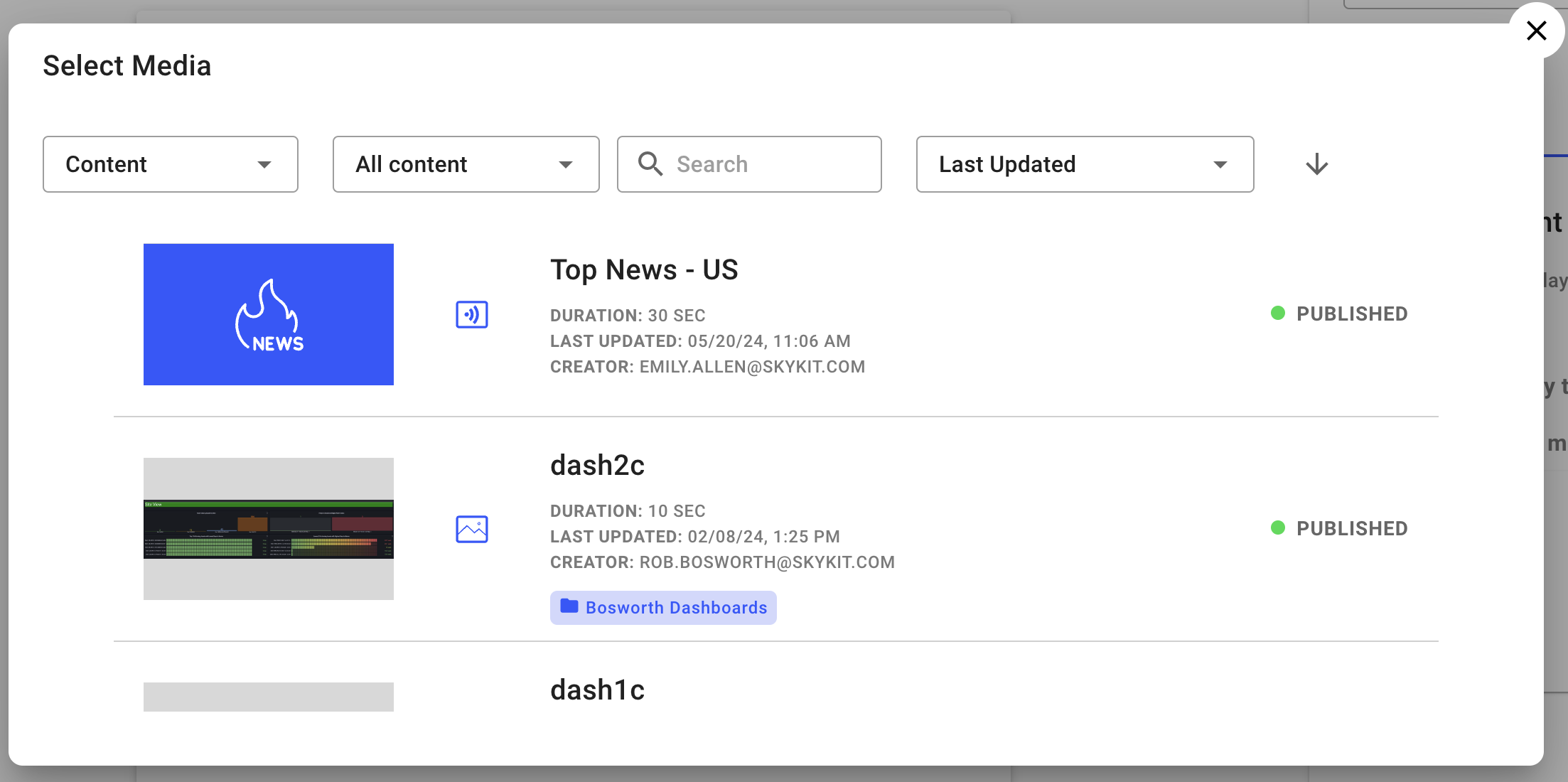
Select the Content, Playlists, Programs, or Collections from the media dropdown, depending on the type of content you want to use as your fallback media.
Select the content you want to use as your fallback media. When you make your selection, the content name is displayed under Fallback Action in the Configuration Menu.
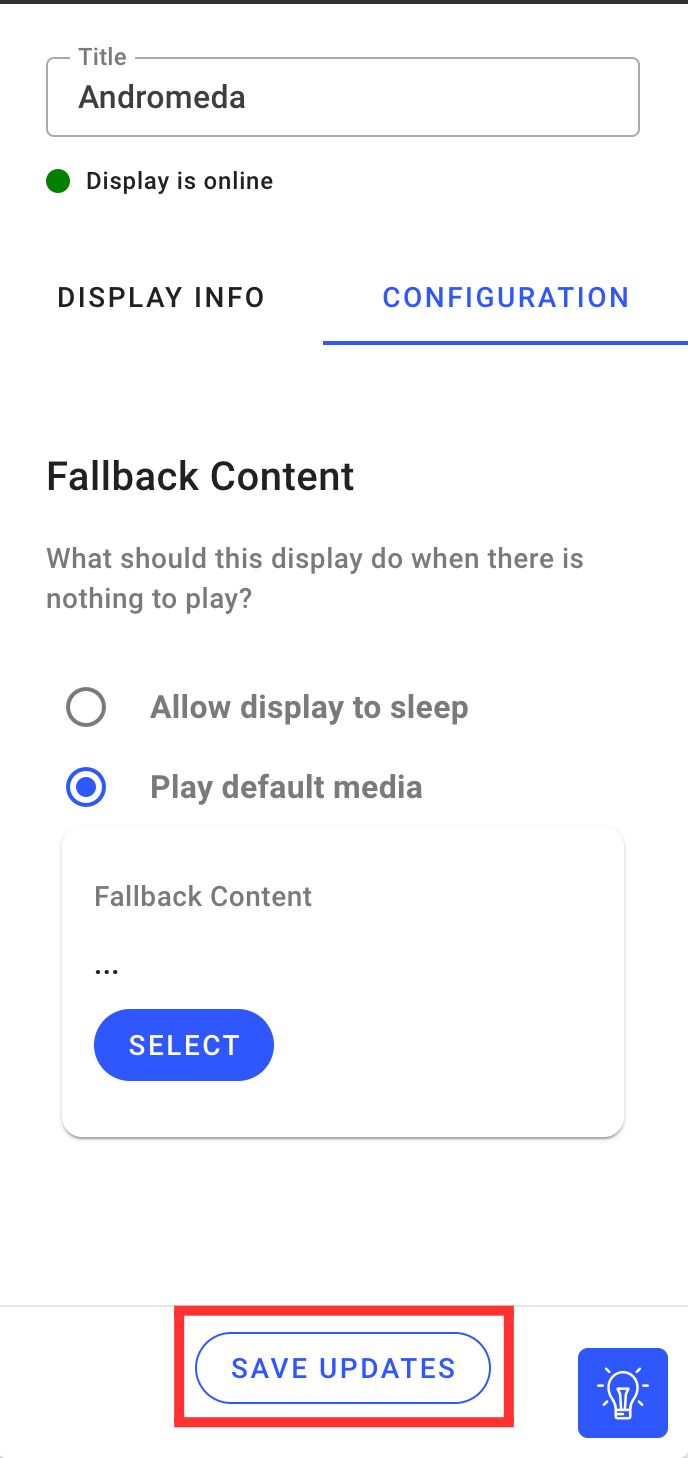
Click on Save Updates button to save all changes made.