Please see the instructions below for steps on how to update the Wi-Fi settings on an Android device. There are three methods you can use to update the Wi-Fi settings.
The following methods are for either Skykit hardware or Skykit-approved Android devices. These methods do not apply to Chrome Devices.
Additional Hardware Required
Wireless USB mouse/keyboard
Micro USB Male to USB A Female adapter or cable
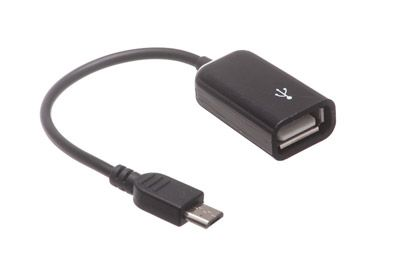
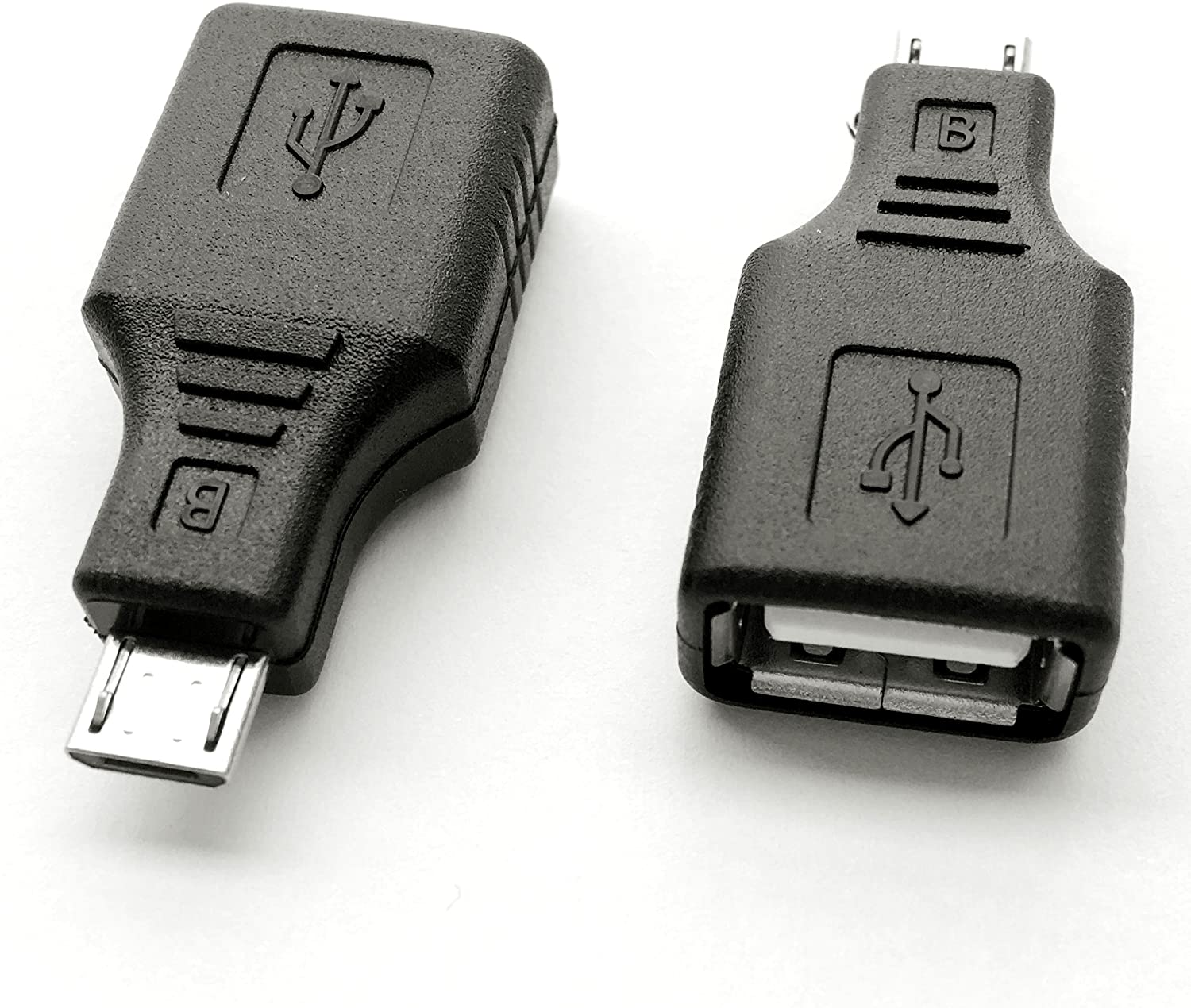
Plug your Micro USB Male to USB A Female adapter or cable into the device.
Connect the USB mouse/keyboard to the cable/adapter.
Proceed to the next steps based on which method you choose.
Once you have the additional hardware connected, you can follow the same steps for updating WiFi settings as any other device.