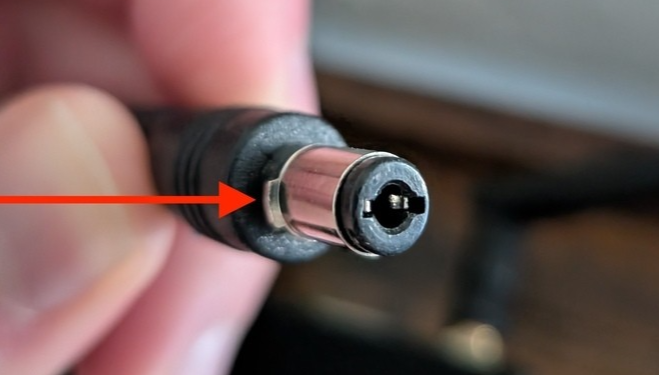
TOP TIP: Push the power plug all the way in. The most common reason an E300 won't turn on is a power plug that isn't fully seated. The plug and the power port both have small notches inside. If they aren't lined up, the plug can feel secure when it isn't. See Step 4 below.
Introduction
About this User Manual
Please read this user manual carefully and keep it for future reference. Pictures in this manual may differ slightly from your player because of continuous updates.
Product Overview
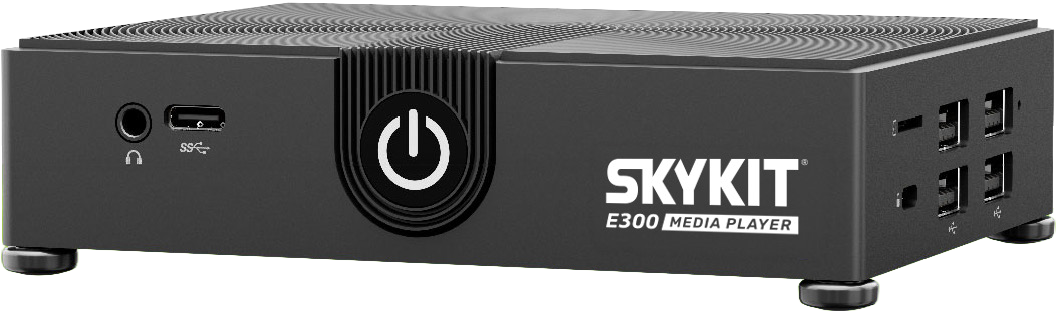
The Skykit E300 is a compact, fanless media player built for 24/7 digital signage. It's small enough to mount behind a display or inside a kiosk, plays content at up to 4K, and connects to your network over Ethernet or Wi-Fi. The E300 is TAA compliant, so it meets sourcing requirements for government and other procurement-driven deployments.
Intended Use
The E300 Media Player is intended for commercial use to power digital signage content on a single display, with reliable 24/7 operation.
Key Features
Up to 4K (4096 × 2160) output at up to 120 frames per second
Ultra-thin, fanless design for silent 24/7 operation
Gigabit Ethernet, dual-band Wi-Fi 5 and Bluetooth 5.1
Hardware video decoding for AV1, H.265 (HEVC), H.264, VP9 and AVS2
6 TOPS NPU
TAA compliant, CE and FCC certified
Quick Start Guide
Step 1: Unbox your Skykit E300 Media Player
Check that the box contains everything listed in Unboxing and Package Contents below. You'll also need an HDMI cable, an Ethernet cable if you're using a wired connection, and a USB keyboard and mouse if you need to set up Wi-Fi manually.
Step 2: Position the player
Place or mount the E300 behind the display, inside a kiosk or on a flat surface. Because the E300 is fanless, it cools through its case. Leave space around it for airflow and avoid enclosed spaces that trap heat.
Step 3: Connect HDMI and network
Connect an HDMI cable from the HDMI port on the back of the E300 to your display. Turn the display on and set it to the matching HDMI input.
For a wired connection (recommended), connect an Ethernet cable from the E300's Ethernet port to your router or network switch. If you're using Wi-Fi, you'll set it up in Step 5.
If you need to set up Wi-Fi manually, plug a USB keyboard and mouse into the USB ports on the side of the player.
Check your firewall
If your network restricts outbound traffic, make sure the player can reach Skykit's services. See Network Firewall Configuration for Skykit.
Step 4: Connect power
Plug the power adapter into a wall outlet.
Look at the end of the power plug. You'll see small notches inside the tip.
Line the plug up with the DC-IN port on the back of the E300 and push it in firmly.
Check that the metal part of the plug is fully inside the port. If you can still see the metal barrel (shown by the arrow below), the plug isn't fully seated. Rotate the plug slightly until the notches line up, then push again.
The E300 turns on automatically when it receives power. If it doesn't, press the power button on the front.
Use the included power adapter
Other adapters, including ones with the same plug size, may not supply the right power.
Step 5: Configure Wi-Fi (if needed)
If you're using Wi-Fi and the player wasn't preconfigured, follow Wi-Fi Setup below.
Step 6: Start displaying content
Once the player is online, sign in to your Skykit account, pair the player and publish content with Skykit Beam. Your sign-in details are in your welcome email. If you don't have them, contact support@skykit.com.
Setup Instructions
Unboxing and Package Contents
Item | Quantity |
|---|---|
E300 media player | 1 |
Power adapter | 1 |
Ports and Connections
Front
Port / control | What it does |
|---|---|
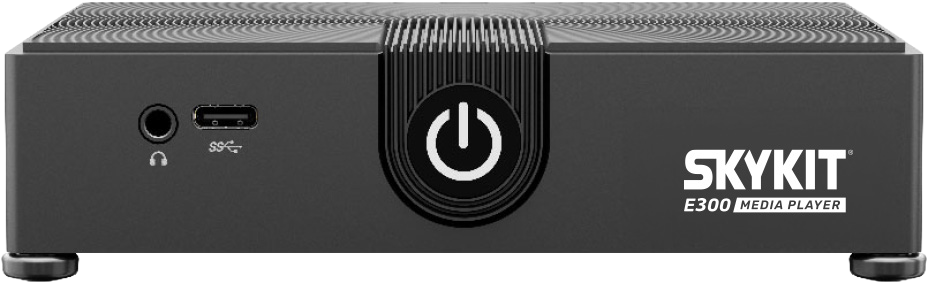
3.5 mm audio jack | Connects speakers or headphones (left/right audio and mic combo) |
USB-C (USB 2.0) | Connects USB peripherals |
Power button | Turns the player on or off |
Side
Port | What it does |
|---|---|
USB ports (USB 3.0 and USB 2.0) | Connect a keyboard, mouse or other USB peripherals |
Back
Port | What it does |
|---|---|
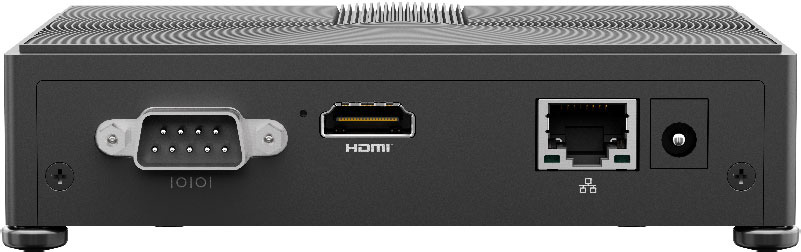
RS-232 serial | Connects RS-232 serial devices |
HDMI | Connects to your display |
Ethernet (1 Gbps) | Wired network connection |
DC-IN | Connects the power adapter |
Wi-Fi Setup
Wait for the Skykit loading screen to appear.
Using the mouse, select the gear icon.
Select Edit WiFi.
Choose your network and enter the password.
For more detail, see Connect a Media Player to a Wireless Network.
Technical Specifications
Specification | E300 |
|---|---|
Processor | Rockchip RK3576, 3.4 GHz |
NPU | 6 TOPS @ INT8 |
Graphics | ARM Mali G52 MC3 (OpenGL ES 3.2, Vulkan 1.2, OpenCL 2.1) |
Operating system | Skykit OS (Android 14) |
Memory | 8 GB LPDDR4X |
Storage | 64 GB eMMC |
Video output | 1 × HDMI 2.0, up to 4096 × 2160 at 120 FPS |
Video decoding | AV1, H.265 (HEVC), H.264, VP9, AVS2 |
USB | 1 × USB 3.0, 4 × USB 2.0, 1 × USB-C (USB 2.0) |
Serial | 1 × RS-232 |
Audio | 1 × 3.5 mm jack (L/R/mic combo) |
Networking | Gigabit Ethernet (RJ45); Intel Wi-Fi 5, dual band; Bluetooth 5.1 |
Auto power on | Yes |
Certifications | TAA compliant, CE, FCC |
Warranty | 3-year depot; 3-year hot swap optional |
Dimensions
127 × 99 × 28.96 mm (5 × 3.9 × 1.14 in), W × D × H. Weight: 0.66 lb. Black ABS plastic case.
Power Requirements
12V / 2A, using the included power adapter. Typical power draw: 6 W.
Operating Temperature Range
-10°C to 50°C (14°F to 122°F), 10% to 90% relative humidity (non-condensing).
Operation Instructions
Power On/Off Procedures
Turn on: Connect power, or press the power button on the front.
Turn off: Press the power button. [CONFIRM: short press vs. long press]
Restart remotely: Use Skykit Control. See Rebooting a Device and Resetting the Password.
Maintenance and Troubleshooting
The player won't turn on
Unplug the power plug from the back of the player.
Line up the notches and push the plug in again until no metal barrel is visible.
Check that the adapter is plugged into a working outlet.
Press the power button on the front.
See Why won't my E300 device power on? If it still won't turn on, contact support@skykit.com.
The display shows "No signal"
Check that the display is set to the correct HDMI input.
Reseat the HDMI cable at both ends.
Try a different HDMI cable.
The player isn't showing up as online
For Ethernet, check the cable at both ends and confirm the port on your switch or router is active.
For Wi-Fi, repeat the Wi-Fi setup steps and check the password.
Confirm your network allows the player to reach Skykit's services. See Troubleshooting Connectivity Incidents.
Precautions Before Use
Use only the power adapter supplied with the player.
Keep the player within its operating temperature range and away from enclosed spaces that trap heat.
Don't block the case. The E300 is fanless and cools through its surface.
Need help? Contact support@skykit.com.