Follow the steps below to play Vimeo videos full-screen on your displays using web view.
- Go to Vimeo and find the video that you want to play on your displays.
- Open the video in Vimeo.
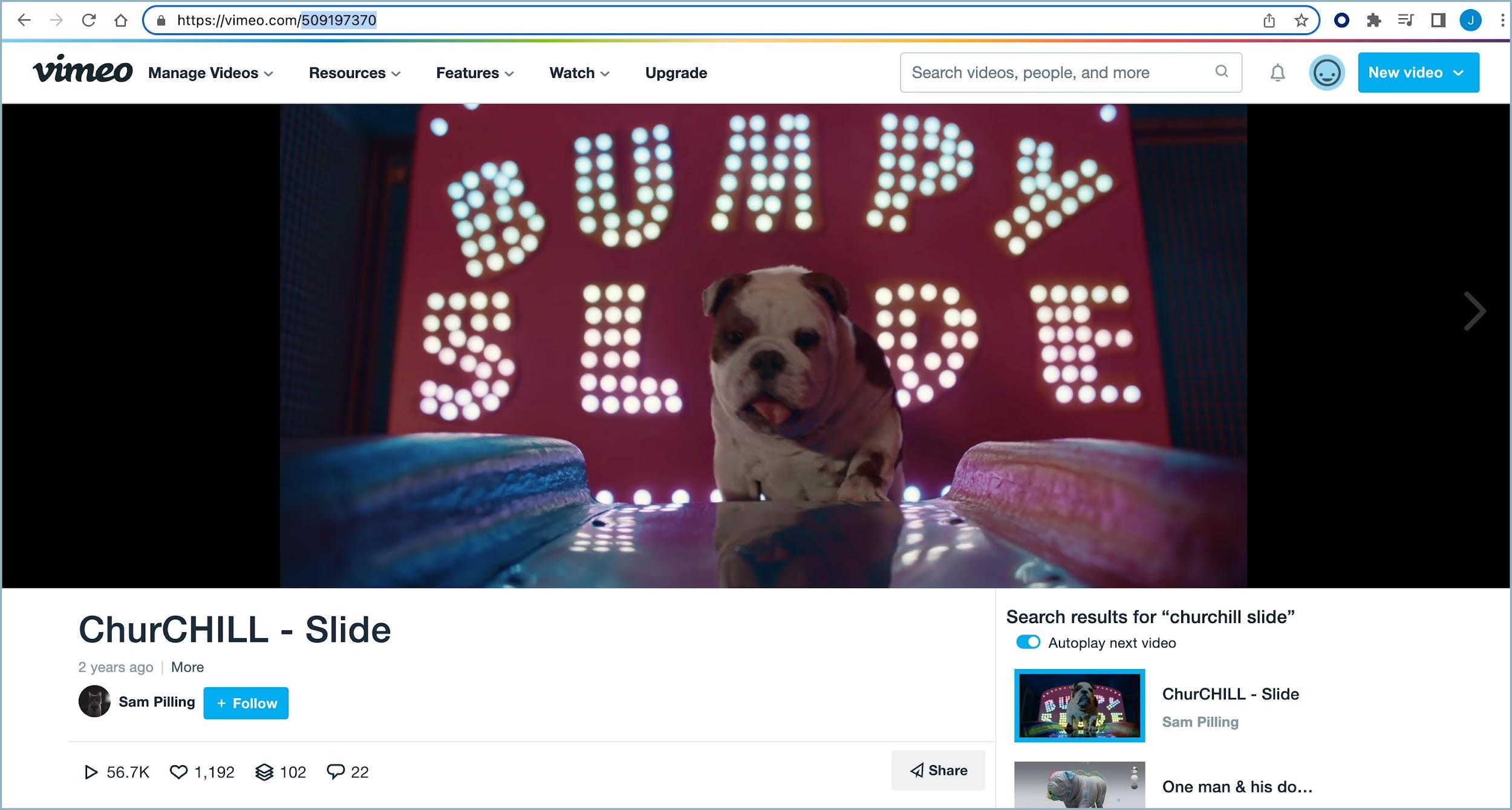
- Copy the video ID of the video you opened. The video ID is located at the end of the video's URL. It includes all characters after vimeo.com/. You will need the ID for the next step.

- Create a web view in Beam. In the URL field of the Web View settings window, enter the following URL and insert the Vimeo video ID from step 3 where it says [insert Vimeo Video ID]. Do not include the brackets.
https://player.vimeo.com/video/[insert Vimeo Video ID]?h=4ed0dcedf3&autoplay=1&loop=1&title=0&byline=0&portrait=0
It will look something like this:https://player.vimeo.com/video/509197370?h=4ed0dcedf3&autoplay=1&loop=1&title=0&byline=0&portrait=0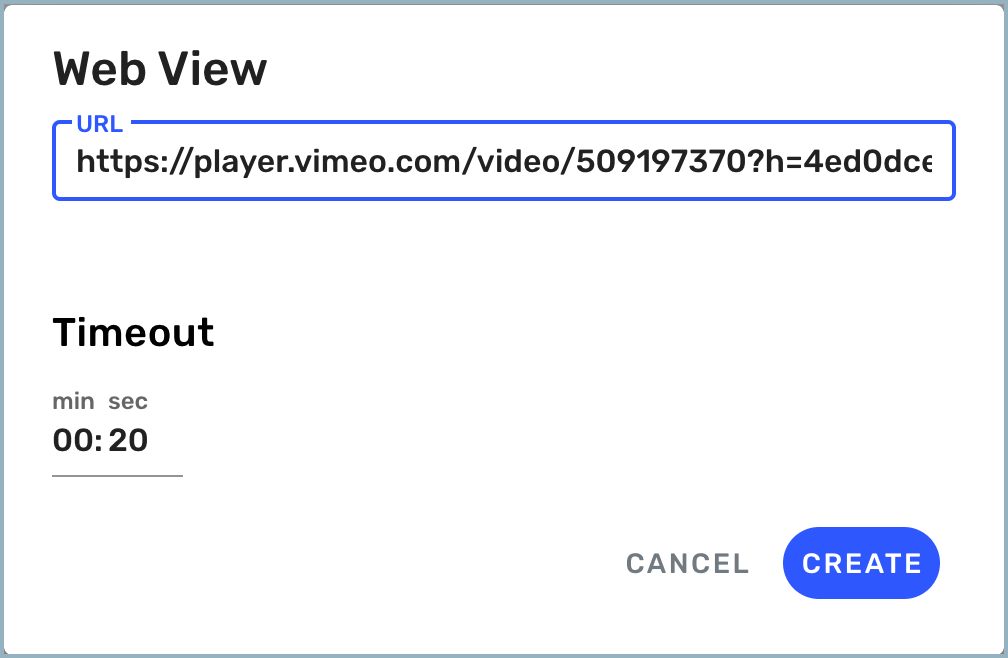
- Manage your web view's settings.
- When you are done, select Publish.
- Publish the web view containing the Vimeo video to your displays. The video will begin playing on the selected displays.