The Firmware tab includes information about the device’s firmware and allows you to download and install firmware updates. It is available to all Skykit Control users except for Restricted Installers.
Firmware Properties
This section shows details the device reports about its current firmware.

Property | Description |
|---|---|
Build Date | The date and time (UTC) the firmware currently on the device was built. |
Build ID | The firmware’s release version. |
Build Type | The type of build (user or userdebug). |
Build Flavor | The variant of the firmware build the device is running, typically “skykit” unless Skykit has built custom firmware for you. |
Fingerprint | A comprehensive, globally unique string generated during the build process that identifies precisely which firmware is running, on what hardware, and for what region or carrier. |
OS Build Number | The build number of the firmware's operating system (OS). |
OTA Downloaded | Whether a new firmware version has been downloaded but not yet installed (True or False). |
Updating Firmware
⚠️ Before You Update ⚠️
Unlike the Android Apps on the device, which are updated regularly with new features and fixes, most devices will not need firmware updates to operate normally. Only update if Skykit support recommends it. If you think a device needs an update, contact Skykit support with its serial number and the issue you’re seeing.
Keep in mind:
Installing firmware interrupts playback for up to 10 minutes.
Firmware downloads are large (about 1 GB). On cellular devices, consider connecting to Ethernet or Wi-Fi first to avoid mobile data charges.
How to Update Firmware
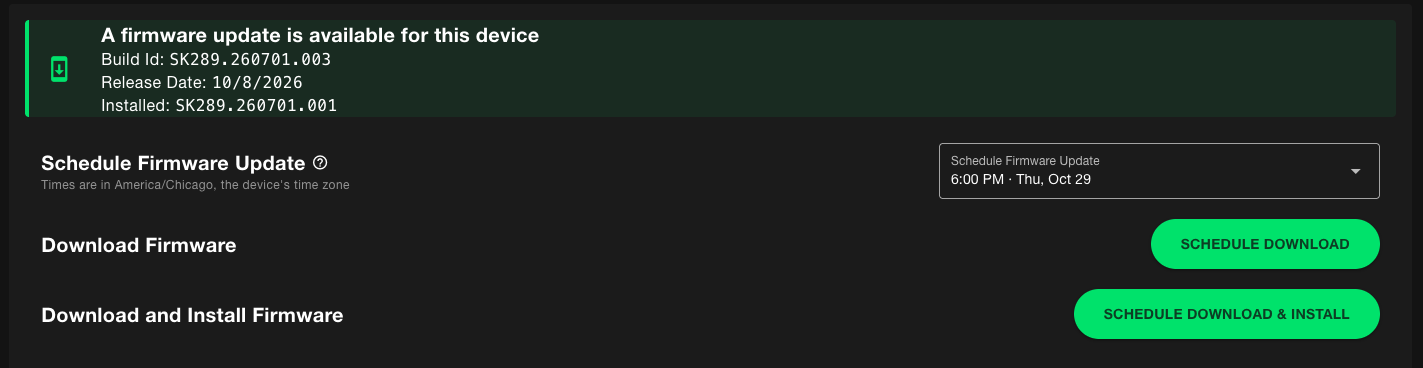
Navigate to the Firmware tab. If an update is available, you’ll see the new version details.
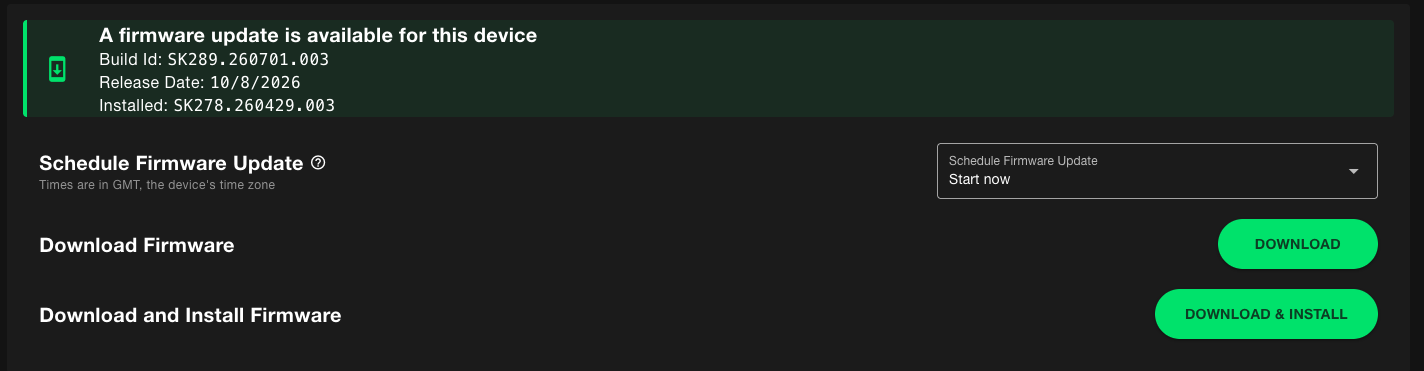
Choose an option:
Download: Downloads the update in the background without affecting playback
Download & Install: Downloads the update and installs it right away
If the firmware was previously downloaded, select Install to install it or Delete to delete the file from the device
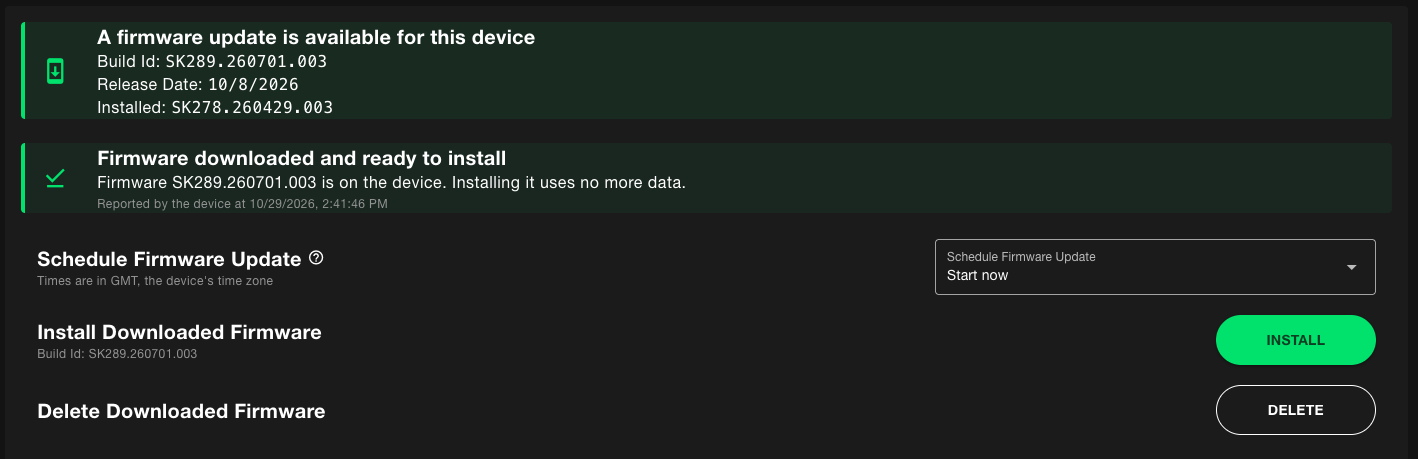
Watch the progress bar. The tab shows any errors during download or installation.


When the update finishes, the tab shows that no update is available.
Scheduling a Firmware Update
Schedule an update to run when it will cause the least disruption, such as after business hours.
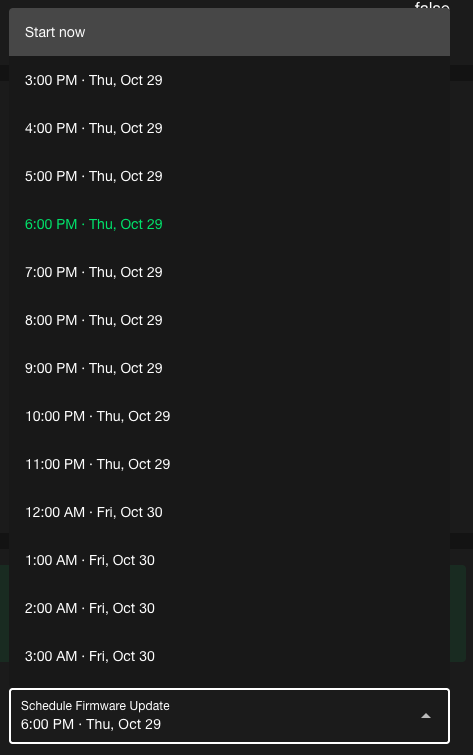
If you would like to download and/or install a firmware update immediately, leave “Start Now” selected in the dropdown. To schedule a Download, Download & Install, or Install command for the future, choose a future time from the dropdown, then click the relevant button below.
Important Notes
Times are in the device’s time zone.
The update starts within the hour you select, not at the exact time
The device must be online at the scheduled time or the update will not occur
Devices without Skykit Firmware
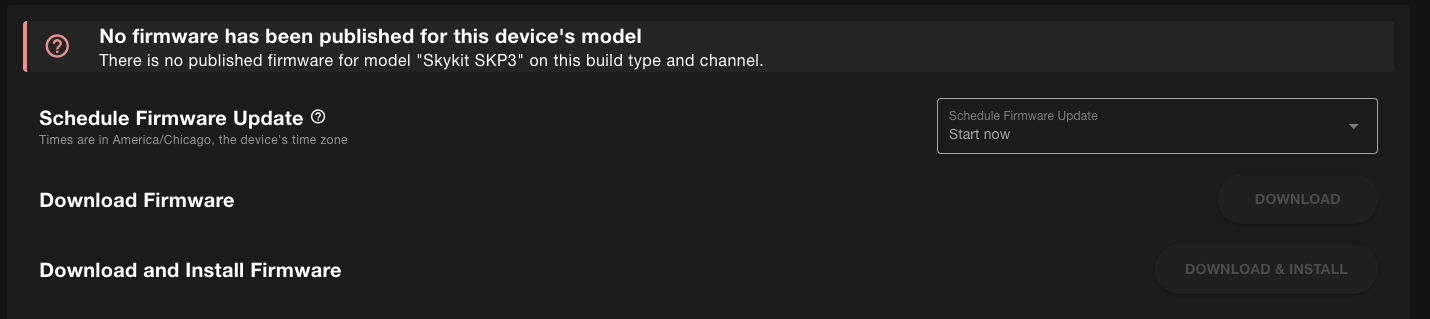
Some devices, including older SKP3, SKD10, or partner devices (Philips, Sony, Hisense), do not have Skykit firmware on them. In this case, updates cannot be done using Control, and you see the message “No firmware has been published for this device’s model.”